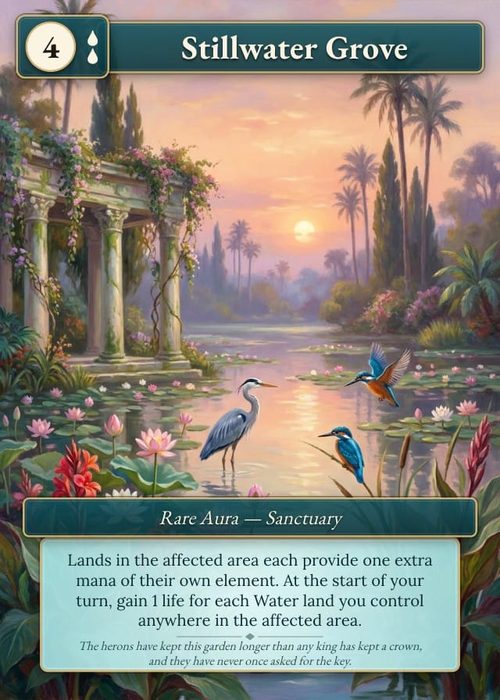
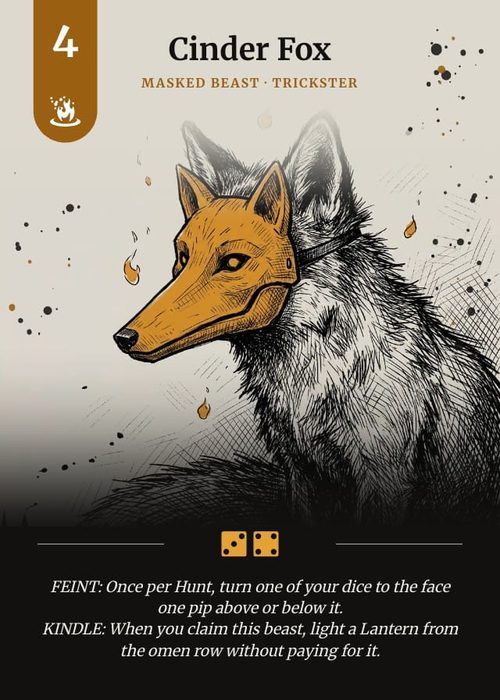
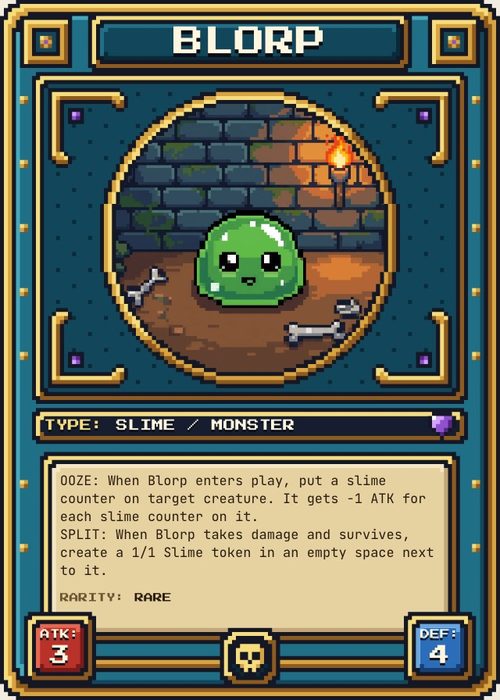
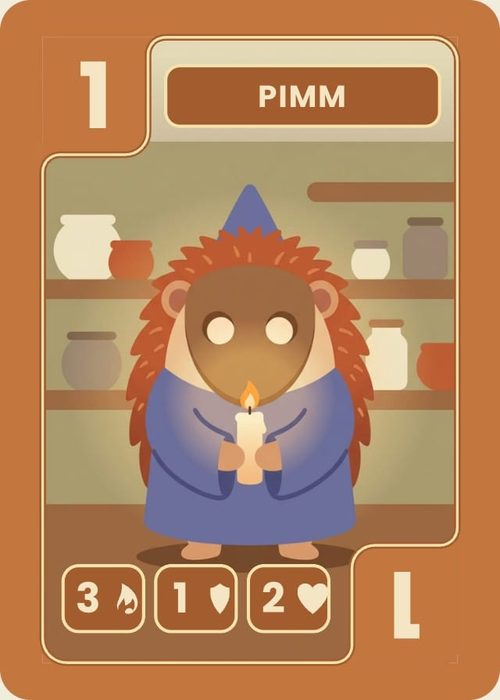
ShuffleKit comes with 26 fonts, and on a paid plan you can add your own. Upload the typeface your game's logo or rulebook is set in and it joins the font list in the design editor, draws on every card preview and thumbnail, and goes into your exports and printed decks. Fonts belong to your account, so one upload works in every project you own.
The built-in fonts
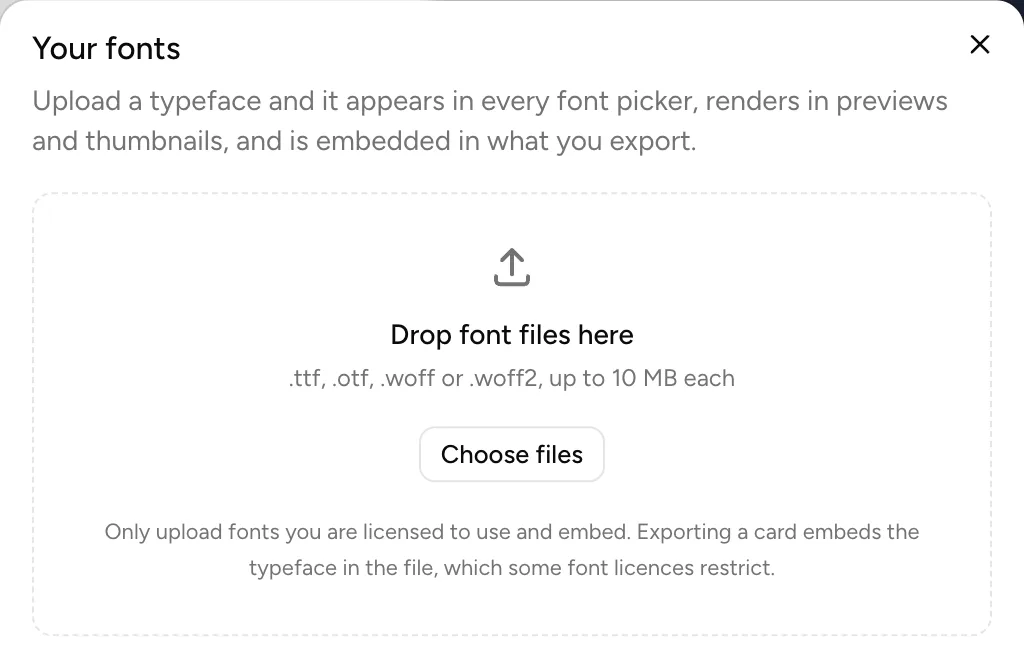
Select a text element in the design editor and click the font name at the left of the text toolbar. The list opens with Default at the top, then your uploaded fonts under Your fonts (once you have some), then the built-in fonts in five groups:
- Sans-serif: Inter, Lato, Montserrat, Poppins, Roboto, Noto Sans JP, Noto Sans Thai
- Serif: Playfair Display, Lora, Merriweather, EB Garamond, Cinzel
- Display: Bebas Neue, Anton, Oswald, Russo One, Pirata One, MedievalSharp, Bangers, Press Start 2P, Permanent Marker, Special Elite
- Handwriting: Dancing Script, Pacifico, Caveat
- Monospace: JetBrains Mono
All 26 are Google Fonts, served from ShuffleKit's own site rather than fetched from Google, and they work on every plan, Free included. Hover a font, or move to it with ↑ / ↓, to see it on the selected text before you apply it. ⌘⇧F (Ctrl Shift F on Windows) opens the list from the keyboard. Elements & Styling covers the rest of the text toolbar.
If one of these is close enough to your design, you don't need to upload anything.
Upload a font
- In the design editor, select any text element and open the font list.
- Click Upload a font… at the foot of the list. The Your fonts dialog opens.
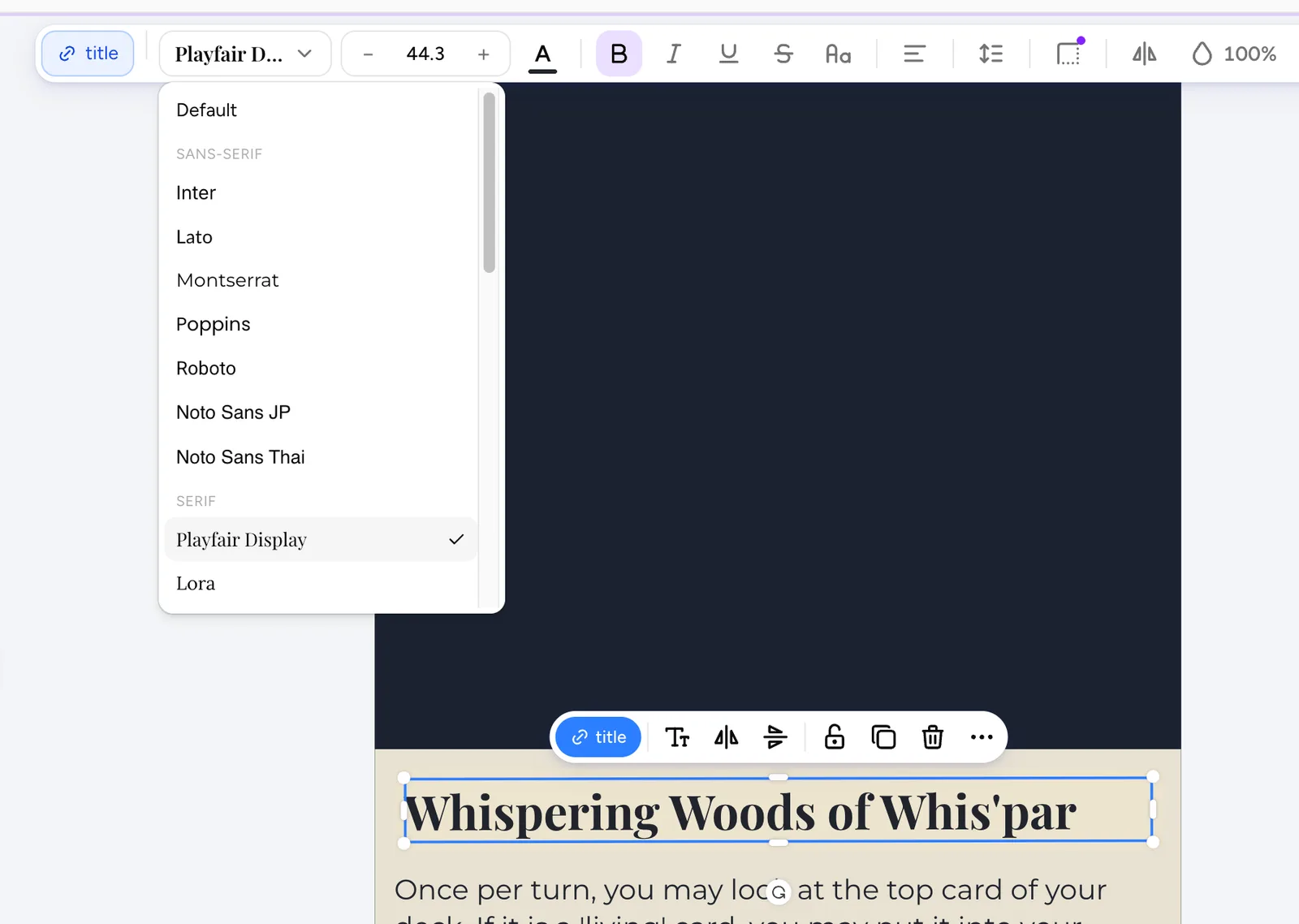
- Drag font files onto Drop font files here, or click Choose files and pick them. You can drop several files at once.
- Each file that uploads is added straight away, and a message says Font added (or 3 fonts added). The new family is listed under Your fonts in the font list.
- Close the dialog, then pick the family from the font list to apply it to the selected text.
Uploading does not change any text by itself. A family you upload in one project is in the font list of every project you own.
The dialog accepts .ttf, .otf, .woff or .woff2, up to 10 MB each. Other files, such as a .ttc font collection or a .zip of fonts, are turned away with Fonts only: .ttf, .otf, .woff or .woff2; unzip a download first and upload the files inside it. A file over 10 MB is skipped with Fontname.otf is over 10 MB, and the others in the same drop still upload.
One file per weight and style
A font family usually arrives as several files: Regular, Bold, Italic, Bold Italic, and sometimes Light, SemiBold or Black. Each file is one weight or style, and each counts as one file against your plan.
ShuffleKit reads the family name, weight and slant from inside a .ttf, .otf or .woff file, so AcmeSans-Regular.otf and AcmeSans-Bold.otf become one family, Acme Sans, with two weights. The family appears once in the font list, and its row in Your fonts lists what you uploaded, such as Regular · Bold.
The B and I buttons in the text toolbar then choose the file:
- Bold uses the family's bold file (weight 700). If there isn't one, the browser uses the next heavier file, then the next lighter one.
- Italic uses the family's italic file.
- When the family has no bold or italic file to use, the browser thickens or slants the regular one itself. That rarely matches the real Bold or Italic, so upload those files if your text uses them.
The editor has two weights, regular and bold, so a Light, Medium or Black file is used only when it is the nearest match to one of them. A family you upload only in Black draws all of its text in Black.
Uploading a file with the same family, weight and style as one you already have replaces the old file and doesn't use another slot, so you can swap in a corrected version even when your plan is full.
.woff2 files are named after the file
ShuffleKit can't read the name or weight inside a .woff2 file. A .woff2 upload is named after its filename, with the extension dropped and - and _ turned into spaces, and it is treated as a regular weight. AcmeSans-Bold.woff2 becomes its own family called AcmeSans Bold, and the B button won't reach it from AcmeSans Regular. Its row in Your fonts shows 400 in place of a style name.
For a family with several weights, upload .ttf, .otf or .woff files. When you only have a .woff2, rename it to the family name you want to see, such as Acme Sans.woff2, before uploading it.
Family names with commas, quotes or brackets in them keep spaces where those characters were, and names are cut at 64 characters.
Plans and limits
| Plan | Your own fonts |
|---|---|
| Free | Not available |
| Hobby | Up to 12 font files |
| Indie | Unlimited |
| Professional | Unlimited |
The limit counts files, not families, so a family with Regular, Bold, Italic and Bold Italic uses 4 of Hobby's 12. On Hobby the foot of the dialog shows how many you've used, for example 5 of 12 font files used. A family usually needs one file per weight. When all 12 are used, the drop area reads You've used all 12 font files on your plan and Choose files is greyed out. Remove a family to make room, or upgrade.
On Free, Upload a font… is still in the font list, and the dialog says Uploading fonts is on the paid plans with a See plans button. The 26 built-in fonts work on every plan. See Manage Your Profile, Plan & Security for plans and upgrading.
Where your fonts show up
Uploaded fonts load once when you open ShuffleKit, and then every place that draws your cards uses them:
- Design editor: the canvas, Preview mode and the designs list.
- Cards page: the card preview panel and card thumbnails.
- Exports: PNG, JPEG and PDF print sheets carry the font in the drawn cards, whether the server or your browser draws them. Each SVG file has the font embedded in it; browsers show it, but Illustrator ignores fonts embedded in an SVG, so install the font on the computer that opens the file there. See Import & Export.
- Export as PSD… (in a design's ⋯ menu in the Designs panel): Photoshop files name their fonts without containing them, so the dialog lists the ones your design uses, as Install Acme Sans to see the text as designed. Install your font file on the computer that opens the PSD.
- Print & Ship: the card images sent to the printer are drawn with your fonts. See Print & Ship.
- Playtable: your cards draw in your fonts for everyone at the table, guests who joined by link included. See Start a Card Playtest.
Text with Japanese kana in it gets Noto Sans JP for its Japanese characters automatically, behind whatever font the text uses, so Latin letters keep your font and the Japanese still shows in previews and exports. Thai text gets Noto Sans Thai the same way.
Shared projects
A project's cards use the project owner's fonts. When a teammate opens a project you shared with them, your uploaded families load for them too, so the cards look the same on their screen and in their exports. Your fonts don't appear in their Your fonts dialog and don't count against their plan.
A font a teammate uploads to their own account only draws for them. If they set your cards in it, you and your players see the fallback font. Upload fonts the game uses from the owner's account. See Collaborate on a Project.
Japanese and Chinese fonts
A full Japanese or Chinese font is large, often 4 to 9 MB for one weight as .ttf or .otf, and every card that uses it carries those bytes into its export. If a file is over the 10 MB limit, the message says: For a Japanese or Chinese font, upload one weight (Regular or Bold) as .woff2, which is usually 2 to 5 MB.
- Upload the one weight you need, usually Regular, or Bold for titles.
- A
.woff2is named after its file, so rename it first (for exampleZen Maru Gothic.woff2). - If your text has kana, ShuffleKit already draws it in Noto Sans JP. Upload a Japanese font when you want a different look, such as a Mincho or a rounded face.
- ShuffleKit has no built-in Chinese font, and Han characters without kana don't get Noto Sans JP automatically. For Chinese card text, upload a Chinese font and pick it, so your exports don't depend on what fonts the drawing computer has.
Font licences
The dialog says: Only upload fonts you are licensed to use and embed. Exporting a card embeds the typeface in the file, which some font licences restrict.
Every export carries your font, as drawn letters in a PNG or PDF and as the font file itself in an SVG, and a printed deck is a product you may sell. Before you upload a font you bought or downloaded, check that its licence allows:
- Embedding, for PDF and SVG files and print files sent to a printer.
- Commercial use, if you will sell the game. Fonts marked free for personal use usually don't allow it.
Fonts under the SIL Open Font License, which covers most of Google Fonts, allow all of these. The built-in fonts are all from Google Fonts.
Remove a font
Open Your fonts (from Upload a font…) and click the bin button on the family's row. Removing deletes the whole family, every weight and style of it, straight away and with no confirmation step.
Text that used the family keeps asking for it by name: the font list still shows the family's name on that text, and the text draws in a plain sans-serif fallback in the editor, previews and exports until you choose another font. Upload the same family again and that text draws in it again, because ShuffleKit stores the family's name on the text. There is no rename: a different name would be a new family, and text set in the old one would keep the fallback.
Removing fonts frees their files on Hobby's count straight away.
On a phone
Select a text element in the design editor and tap Font in the tool row at the bottom. The panel lists Default, then Your fonts, then the built-in groups, each name drawn in its font, and opens scrolled to the font the text uses. Tap a font to apply it. Upload a font at the bottom of the panel opens Your fonts as a sheet; tap Choose files to pick font files from your phone's Files app or storage. Removing a family works the same as on a computer. See ShuffleKit on Your Phone.
Common problems
The upload is refused. Only .ttf, .otf, .woff and .woff2 files up to 10 MB are accepted. Any other file, a .ttc collection included, gets Fonts only: .ttf, .otf, .woff or .woff2. A file with a font's extension that isn't really a font of one of those four kinds is refused with Unsupported font file. Upload a .ttf, .otf, .woff or .woff2.
Regular and Bold came in as two families. They were .woff2 files, or the two files carry different family names inside them. Upload .ttf or .otf versions, then remove the extra family.
Bold looks smeared or too heavy. The family has no bold file, so the browser is thickening the regular one, or it picked a heavier file such as Black. Upload the family's Bold file.
A teammate's cards show a different font. The cards were set in a font the teammate uploaded to their own account. Upload it from the project owner's account and pick it again.
Text from a Photoshop file shows a fallback font. Import from PSD… warns about Missing fonts: the PSD names its fonts and ShuffleKit doesn't have them. Upload those fonts, then select each text layer and pick the family under Your fonts; the imported text keeps the font name Photoshop used (such as AcmeSans-Bold), which usually isn't the name of your uploaded family, so it won't switch over by itself. See Use Your Own Card Design.
The font list shows a family name but the text looks plain. That family was removed. Upload it again, or pick another font.
Related tutorials
- Elements & Styling: the text toolbar, sizes, colours and the short "Your own fonts" section
- Import & Export: every export format and how fonts travel with it
- Use Your Own Card Design: bringing in a Photoshop file and its fonts
- Print & Ship: ordering printed decks
- Manage Your Profile, Plan & Security: plans and upgrading