Every game played on your project's Playtable can be watched again. The recording keeps each move, each chat line and the cards in every hand, so after a test you can go back to the turn where something felt wrong and see exactly what the players were holding. Use recordings when a tester's comment needs context, when a game stalled and you want to know where, or when you want Shufflo to read the whole game and suggest card changes.
What gets recorded
A recording starts by itself. You never press a record button.
- Online tables. Every table you open with Play online is recorded, whoever joins.
- Playtest links. Every game played from one of your published links is recorded, even when you are not there. Before they play, testers are told that the session is recorded so you can watch it back, including the cards in their hand.
- Solo games. Since 14 November 2026 a solo game is recorded too, when you play it signed in, in a project you own. A guest's solo game is not recorded.
A recording holds the table as it was dealt, every action anyone took (draws, plays, moves, flips, shuffles, dice rolls, turns, arrows), and the table chat. Voice chat is never recorded. Card notes taken during the game are saved separately and linked to the session, so they show up on its timeline.
Only the project's owner can open its recordings. Collaborators on the project, and the testers who played, cannot watch them.
How long recordings are kept
| Plan | Recordings kept for |
|---|---|
| Free | 30 days |
| Hobby | 6 months (180 days) |
| Indie | 1 year (365 days) |
| Professional | 1 year (365 days) |
The time counts from when the session started, and only games that are over are cleared. For a game played from your playtest link, your plan decides, not the tester's. When a recording passes its time, its moves are deleted and it can no longer be replayed; Playtest Results says how many older recordings were deleted this way. Upgrading lengthens how long the recordings you still have are kept, but it does not bring back one that was already deleted. See Settings & Plan for the plans.
A single recording stops at 20,000 recorded actions. That is far more than a normal game, but a very long session can reach it, and the end of that game is then missing.
Find your recordings
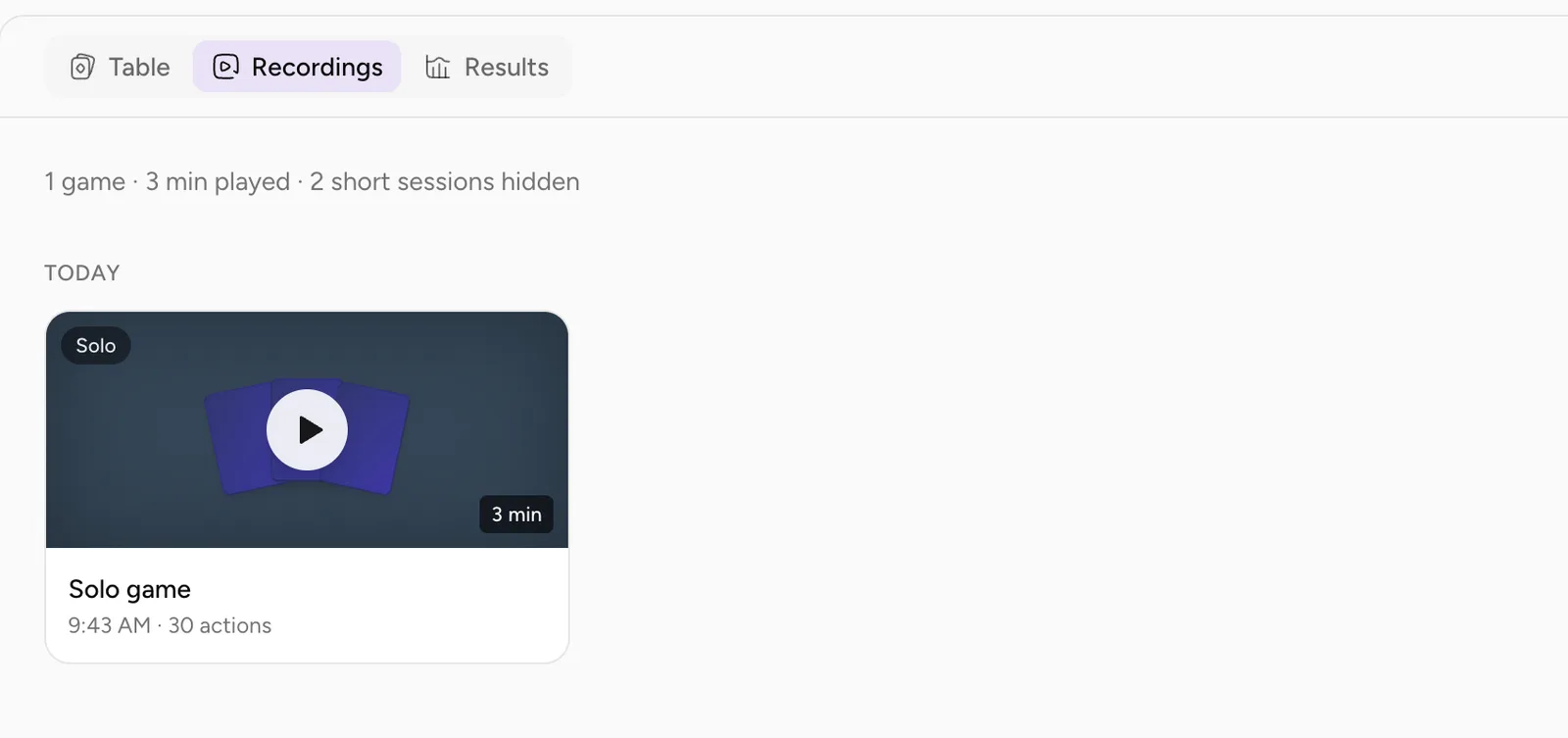
Open Playtable in a project. At the top of the page, the section menu switches between Table, Recordings and Results. On a wide screen these are three tabs at the top left; on a phone they are one menu in the top bar, named after the section you are on. Each section shows the project you are in, so to see another game's recordings, switch projects with the picker at the top of the sidebar.
Recordings lists the project's sessions, newest first, grouped by the day they were played: Today, Yesterday, then the date. Days and times are in your own time zone.
A line at the top counts what is shown and how long it was played, for example 5 games · 2h 10m played.
If nothing has been recorded yet, the page reads No recordings yet with an Open the table button that takes you to the setup screen.
Short sessions and the "Games only" menu
Tables that were opened and left are hidden by default so the real games lead. A session counts as short when it has fewer than 10 recorded actions or lasted under a minute. A session still being played is never hidden.
When some sessions are short and some are not, two things appear:
- the summary line ends with a link such as 3 short sessions hidden, which shows them;
- a menu at the top right switches between Games only and All sessions.
When every session on the project is short, all of them are shown and the menu does not appear.
The page lists up to 200 recordings. A project with more shows Showing your 200 most recent recordings of 240. Older games are still kept for as long as your plan's playtest history. The older ones are still there; they are only left off the page.
Reading a tile
Each tile is one session, with a play button on a small table.
- Title: who played. Solo game for one you played alone, Just you for an online table nobody else joined, otherwise the names (You and Sam, or the testers' names for a link game you were not at). Past three names it shows two and a count, such as Sam, Ana and 2 others.
- Details line: the published link the game came from (when it came from one), the start time, and the number of actions.
- Length: bottom right of the table picture, from the first recorded action to the last.
- Card notes: a note icon with the number of cards flagged during the game.
- Rating: a star with the testers' average rating out of 5, when someone left feedback.
Badges on the picture tell you more:
| Badge | Meaning |
|---|---|
| Playtest link | Played from one of your published links. |
| Solo | You played this one alone. |
| In progress | The table is still open. |
| Abandoned | Everyone left without ending the game, so it was closed automatically. |
| Cut off | The recording hit its limit; the end of the game is missing. |
Click a tile to open the replay.
Watch a replay
The replay shows the real table, the same one you play on, with the recorded game running on it. You can pan and zoom, hold Alt or Z to magnify a card, click a pile to look through it, and read the game log, but nothing on the table moves when you click it. Playtable Controls lists the keys that work while you watch.
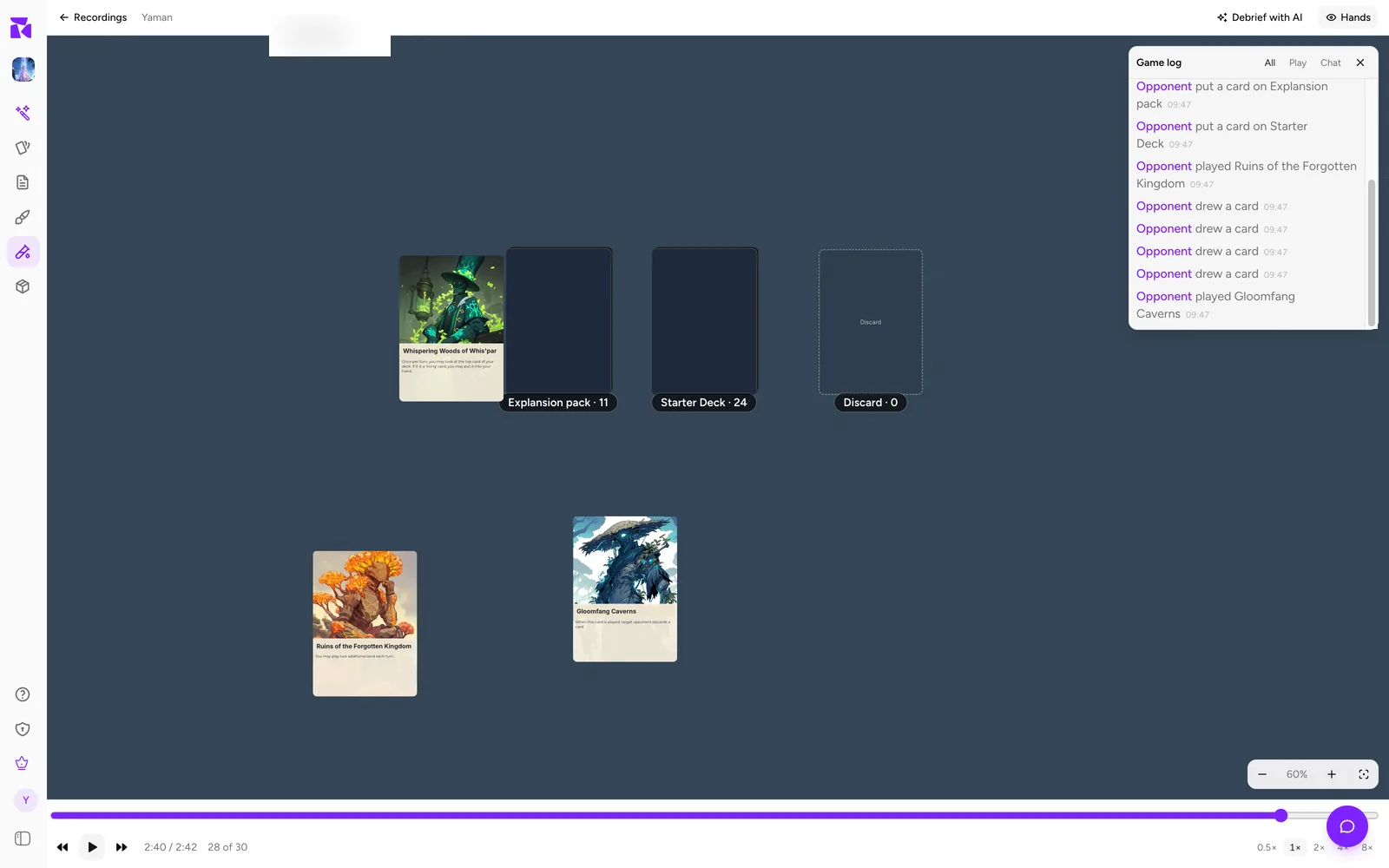
The top bar
- Recordings (with a back arrow) returns to the list.
- Next to it, who played: one name, Sam vs Ana for two players, or 3 players: Sam, Ana, Lee for more.
- Recording hit its length cap, the end of this game was never saved appears when the session was cut off.
- Debrief with AI opens the AI debrief (see below).
- Hands shows or hides every player's hand.
The timeline
The bar along the bottom is the game from start to finish.
- Drag the slider to jump to any moment. The table is rebuilt to that exact point.
- Previous event and Next event step one action at a time.
- Play runs the game forward; Pause stops it.
- The time reads as elapsed / total, for example 12:40 / 31:05, and the event counter beside it reads 87 of 412.
- Speeds: 0.5×, 1×, 2×, 4× and 8×, on the right. 1× follows the real gaps between moves, but a pause longer than 2.5 seconds is shortened to 2.5 seconds, so a game where people stopped to talk does not sit still for minutes.
When cards were flagged during the game, each flag is an amber marker on the slider at the moment it was written. Hover a flag to read the note (or Card flagged here when the tester wrote nothing). A line under the timeline counts them, for example 3 card notes taken during this session: the flags mark when.
You can also start from a flag on the Cards page. In the right panel's Notes tab, a note taken during a game shows during play · open in replay; it opens the recording at the moment that card was flagged.
Hands
Hands is on when the replay opens. It adds a strip under the table with one row per player: their name, how many cards they hold, and the cards themselves, face up. Every hand is shown, including the ones that were private during the game, because the recording is yours. On a narrow screen a long hand scrolls sideways. Press Hands again to hide the strip and see more of the table.
The game log, piles and arrows
The game log is open on the side and fills in as the replay moves. Scrubbing backwards rebuilds it, so it always matches the moment on the table.
Click a draw pile or a discard pile to look through it. In a replay the cards show face up, even in a face-down deck, so you can see what was coming next.
Arrows players drew (holding A and dragging from card to card) appear and disappear at the moments they did during the game.
A recording that starts partway through
If the first part of a recording is missing, the table cannot be rebuilt for those moments. The replay then reads This recording starts partway through the game. There is no snapshot to rebuild the table from at this point. Move the slider further along to where the table can be drawn.
Debrief a session with AI
The debrief hands the whole game to Shufflo, ShuffleKit's AI assistant, and asks it what happened, what stalled, and what to change. You can open it from two places:
- Debrief with AI in the replay's top bar;
- More → Debrief with AI at the table, during a game.
Both open Debrief this session, a Shufflo chat beside the table (a sheet from the bottom of the screen on a phone). While it reads the recording it says Reading the recording of this session…. Then the message is waiting in the composer, unsent, so you can read it first.
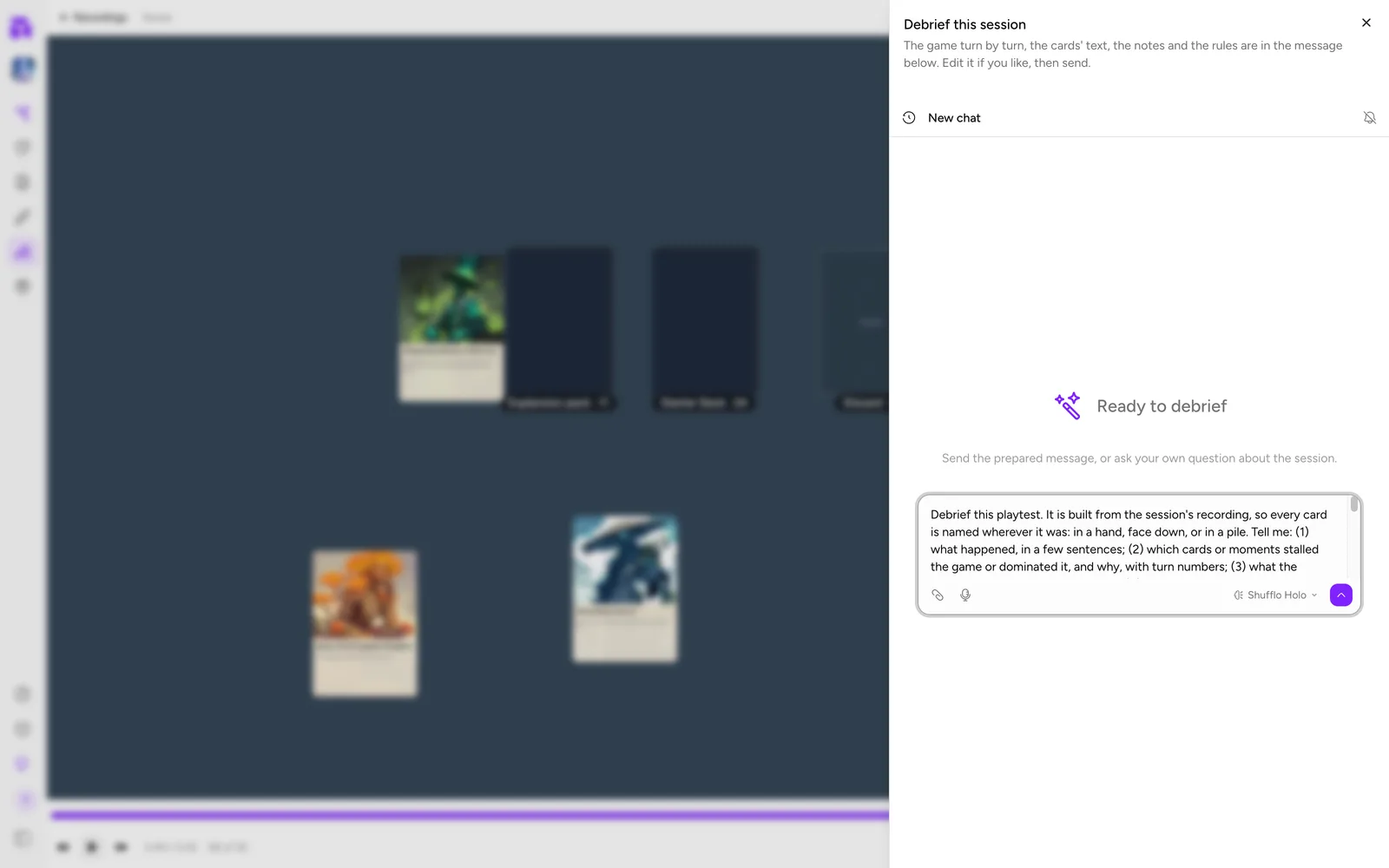
What goes into the message
The message is built from the recording, so it names every card wherever it was: in a hand, face down, or in a pile. In order, it contains:
- The request. Shufflo is asked for what happened in a few sentences; which cards or moments stalled or dominated the game, with turn numbers; what players said and flagged; concrete changes to specific cards, as card edits you can accept; and anything the game did that the rules contradict or leave unclear.
- Session. Who played (or that you played alone), how long, how many actions, and how many turns and rounds when turns were tracked.
- Notes taken during play. Each flagged card, when it was flagged, and what the tester wrote.
- Cards that appeared. The text of every card that came up, field by field. Pictures and links are left out, and a very long field is cut at 700 characters.
- Rules. The rules document the table was set up with, when it has one (chosen on the setup screen's Rules tab).
- The table at the end. Every hand, the piles, the cards on the table, counters, dice, notes and arrows as the game finished.
- Play, turn by turn. Each turn, with the board as it stood at its start and every move after it. A game that never tracked turns is split into stretches of about 40 moves instead.
- What people said. The table chat.
Edit anything you like, add your own question at the end (Why did the second round drag?), then send.
Long games are trimmed to fit
The whole message is kept under about 150,000 characters. When a game is longer than that, the least useful parts go first, and the message says what was left out:
- the board states at the start of the oldest turns (each turn's moves stay);
- the separate chat section (the chat lines are already in the turns);
- the rules past their first 12,000 characters;
- long card fields, cut to 400 characters;
- finally whole turns, oldest first.
The request, the notes and the end of the game are always kept.
After you send
The message is long, so the chat shows its opening and folds the rest behind … show the whole message. It is still sent and saved whole. Shufflo's reply arrives in the same sheet, and you can keep asking follow-up questions there (Ask about this session…). Card changes it proposes arrive as ordinary proposals that you accept or reject; see Shufflo AI. The conversation is saved in Shufflo's chat history with the game it is about.
Debriefing during a game
At the table, the project's owner gets the same recording-based message. Anyone else who opens it at the table gets a shorter message built from the table's game log, which only says what anyone at the table could see.
When the button is missing
Debrief with AI is not shown when AI features are off. Turn them on in Settings → Preferences → AI → AI features.
Rebuild a table from its recording
Recordings also rescue a game that everyone dropped out of. If you come back to an online table and nobody else is there to hand you the board, you see Nobody's at the table (or Nobody here has the board when others are waiting too) with these buttons:
- Try again looks for someone with the board once more.
- Rebuild from the recording puts the table back exactly as it stood when the last player left, by replaying the recording from its last saved state. Anyone else waiting is handed the rebuilt board.
- Deal a new game (host only, when nobody has the board) starts fresh from the same setup.
- Leave takes you off the table without ending it for anyone.
Any seated player can rebuild, not only the owner. If the session has nothing saved to rebuild from, the screen says No recording to rebuild from; the host can then deal a new game.
Common problems
- A solo game isn't in Recordings. It was played signed out, as a guest, in a project you don't own, or before 14 November 2026.
- A game you remember is missing. Switch the menu to All sessions: it may have been short. Check you are in the right project, and that it is within your plan's history.
- A collaborator can't see the recordings. Only the project's owner can open them.
- The replay stops before the game ended. The tile shows Cut off: the recording reached 20,000 actions.
- Shufflo didn't mention the early turns. The game was long and the oldest turns were trimmed to fit; the message says how many. Ask about those turns directly, or edit the message to keep what matters.