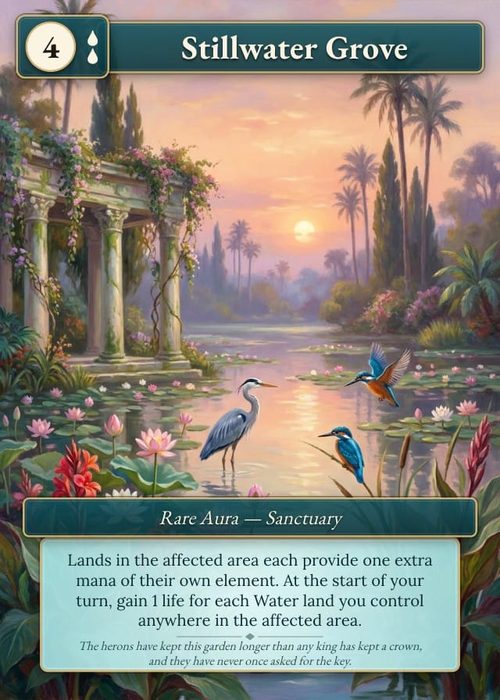
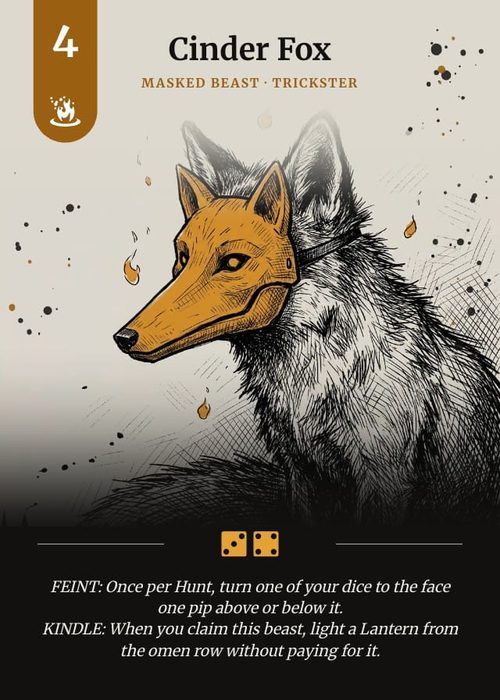
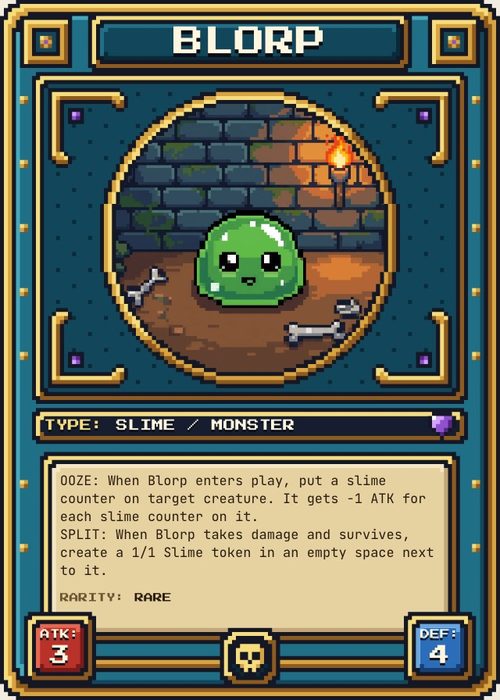
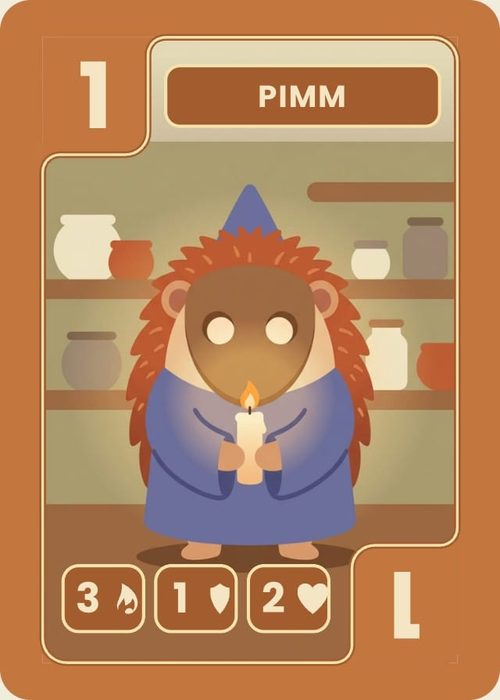
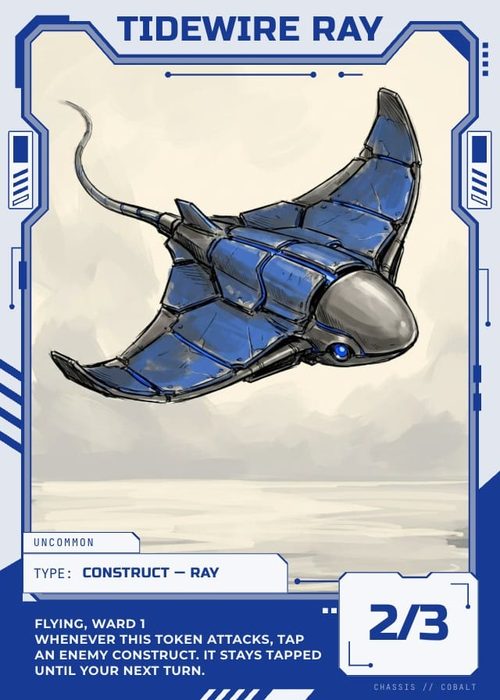
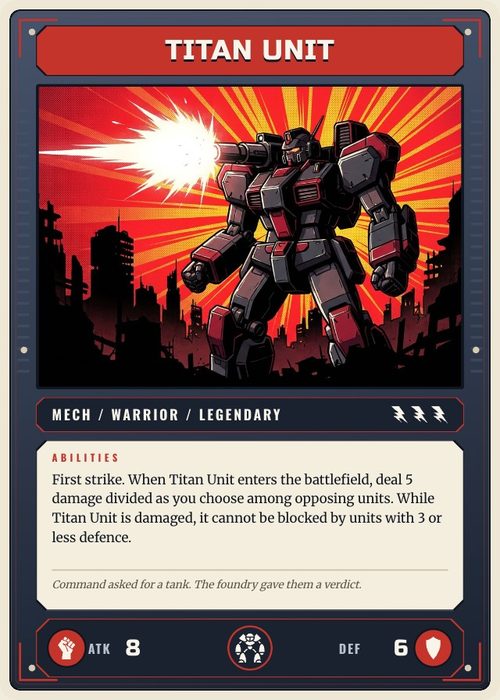
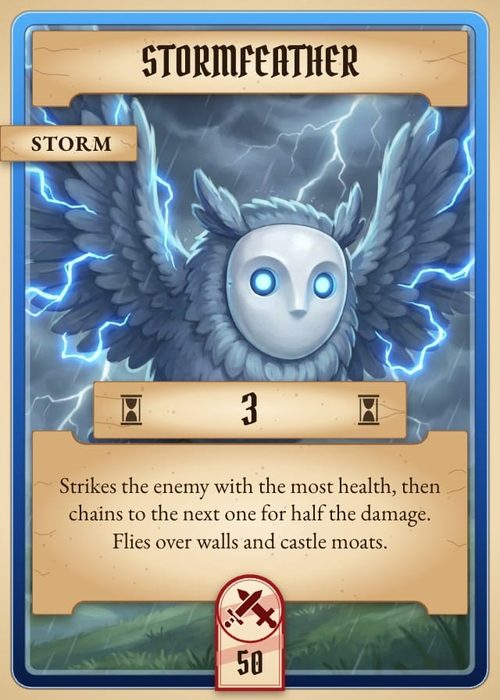
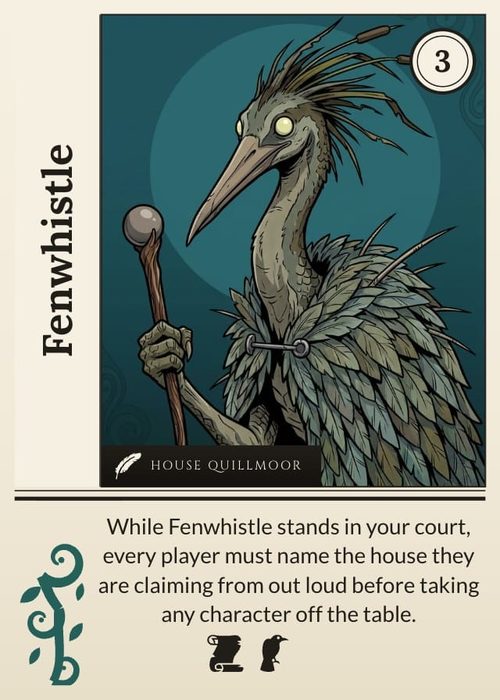
A lotería or picture bingo game has two parts: a deck of cards the caller draws from, and a stack of boards, each a grid of pictures from that deck in a different mix. In ShuffleKit the deck is a card collection and the boards are a board collection. Deal boards fills every board's squares with a random mix of your cards in one click, so you don't paste 16 pictures into 20 boards by hand. Use it for a lotería, a baby shower or classroom picture bingo, or a word bingo with names instead of pictures.
How a board holds its squares
Each board is one row in the board collection's sheet, and each square on it is a pair of columns in that row:
- Picture 1 to Picture 16: Image columns, the picture in each square.
- Card 1 to Card 16: Text columns, the name under each picture.
The board's design reads only its own row, so every board carries its own pictures and names. That is what lets 20 boards each show a different grid, and what Deal boards fills in.
Deal boards recognises a run of columns by its name: the same word followed by a number, counting up from 1 with none missing, at least 9 of them. Picture 1 to Picture 16 is a run, and so is Square 1 to Square 25 or Dibujo 1 to Dibujo 16. A picture run and a name run of the same length are paired, so each square gets a card's picture and that same card's name. A run of pictures alone or names alone works too.
Start from the lotería template
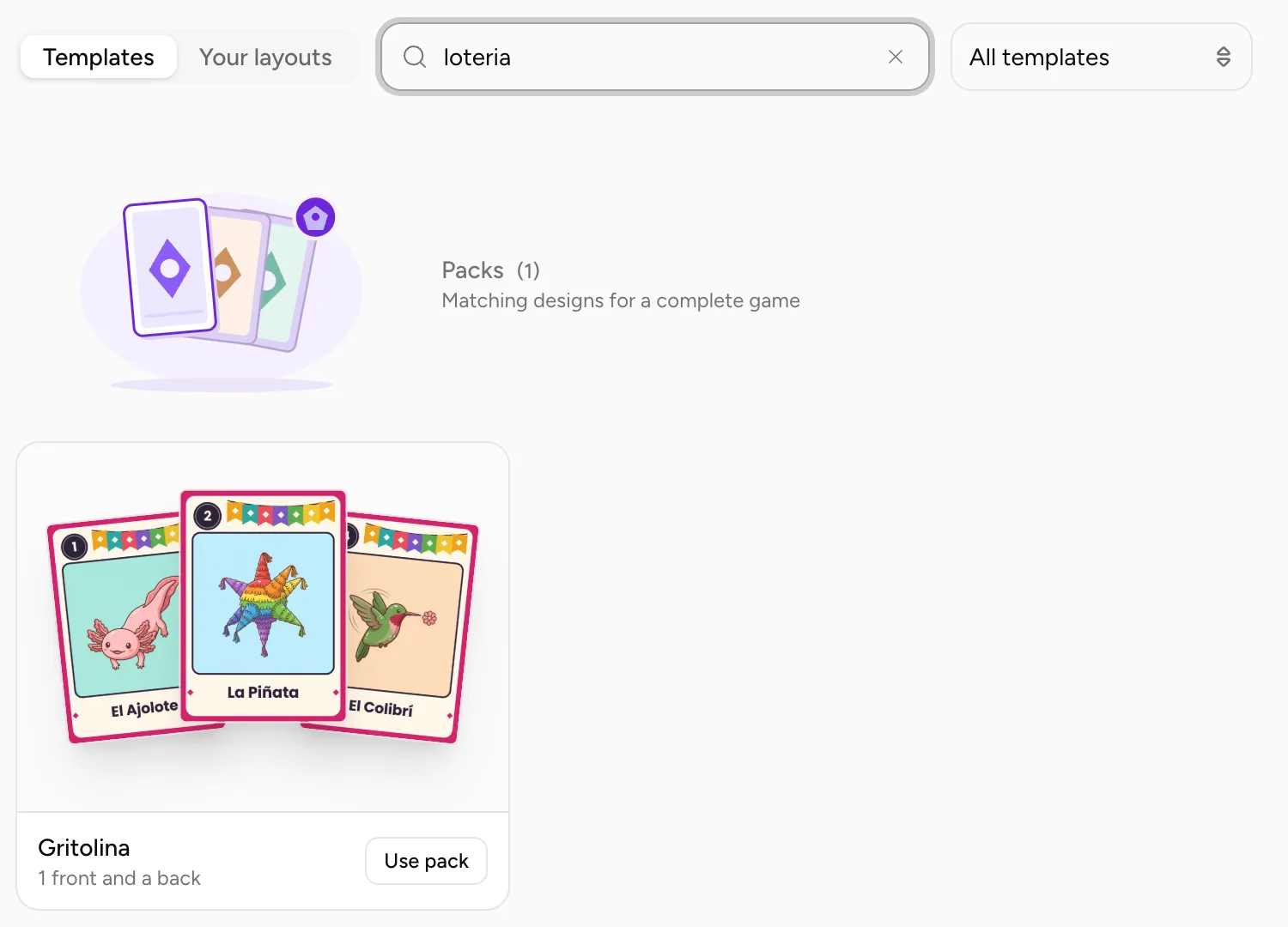
The quickest setup is the Gritolina Lotería Card Template (/templates/p/loteria-card-template). It brings:
- a deck of 54 poker-size picture cards, each with its name, number and picture, plus a card back,
- a board collection of 20 boards at Square Board (8 × 8 in), each a 4 × 4 grid already connected to Picture 1–16 and Card 1–16,
- 20 boards already dealt, no two alike.
Add it to a new project from its page with Use this template (see Start from a Template). Then replace the cards with your own pictures and names, and deal the boards again (below). The card names stay in Spanish, as a lotería's do; every one is text you can change.
Set up your own board collection
To build the game yourself:
- The deck. Put the cards to call in a card collection, with an Image column for the picture (such as Artwork) and a Text column for the name. All cards works as the deck too.
- The boards. Click + at the end of the collection tabs (New collection). If the short form opens, click Different type or size. In What are you making? choose Boards and pick a size, then Create. Square Board (8 × 8 in) prints at true size on Letter and A4. See Components & Collections.
- The square columns. In the board collection's sheet, click + at the far right of the column headers (Add property). Name the first column
Picture 1, pick Image as the Type and click Add Property. Repeat up toPicture 16, then addCard 1toCard 16as Text columns. For a 5 × 5 board use 25 of each. - One row per board. Add a row for each player (Add card at the bottom of the sheet adds a board here). To add more later, right-click a board and choose Duplicate 1 board. The boards' names are yours to choose, such as
Tabla 1toTabla 20.
Once the collection has 9 or more numbered columns, Deal boards appears in its toolbar.
Design the board
The board's design places each square once. In Design, with the board collection open:
- Add an image frame from Elements → Image and size it as one square.
- With it selected, click Connect data on the toolbar over the canvas and connect Image source to Picture 1.
- Add a Text element under it and connect Text content to Card 1.
- Group the two, duplicate the group with
Mod D, move the copy into the next square, and connect its picture to Picture 2 and its text to Card 2. Repeat for every square.
Pictures that are the same on every board, such as a title, a border or a FREE square in the middle of a 5 × 5 bingo board, go on the design as ordinary elements with no column. For a 5 × 5 board with a free middle, number the other 24 squares 1 to 24.
Connecting is covered in Connecting Properties to a Component Layout, and grouping and duplicating in Layers & Groups.
Deal the boards
- Open the board collection and click Deal boards in the toolbar (on a narrow window it's the shuffle icon; its tooltip reads Fill the boards' squares with a random mix of cards). On a phone, open the sheet menu and find Deal boards... under File.
- Under Deal from, pick where the cards come from: All cards, or any collection other than the one you're in.
- Check the columns it copies. Picture for Picture 1–16 lists the source's Image columns and starts on the first one; Name for Card 1–16 lists its Text columns and starts on the name column. Choose Leave as it is to skip one, for example to deal pictures and keep the names you typed.
- If the boards have more than one run of squares, a Squares menu lets you pick which to fill, such as Picture 1–16 and Card 1–16.
- Read the line above the buttons, This replaces the squares on 20 boards. Undo takes it back., and click Deal 20 boards (the number is your boards).
Every board gets a random mix of the cards:
- no card twice on the same board,
- every card on about as many boards as every other, within one,
- no two boards alike, and the closest pair sharing as few cards as the deal can manage, so two players rarely complete a line on the same call.
A toast confirms Dealt 20 boards. The squares are ordinary cell values, so the editor, the preview, every export and the Playtable show a dealt board the same as one filled in by hand.
Deal only some boards
Tick the boards you want first, then click Deal boards. The line reads This replaces the squares on 3 boards (the ones selected) and only those are dealt. With a search or filter on and nothing selected, only the boards it shows are dealt. The other boards keep their squares, but a part-deal doesn't balance against them, so two boards from different deals can share more cards.
Undo and deal again
The whole deal is one step: Undo in the toast, or Mod Z in the sheet, puts back every square it changed.
To get a new mix, deal again. Do this after you add, remove or change cards: a board holds a copy of each card's picture and name from when it was dealt, so editing a card later doesn't update the boards that show it. To change one square by hand, edit its two cells like any other.
Print the boards and the call deck
Print the two collections separately; the PDF export prints one collection per run.
- Open the board collection, then Print & export → PDF print sheet. For 8 × 8 in boards choose One board per page on Letter or A4. A board bigger than the page is shrunk to fit; the dialog says so beside Page size.
- Open the card collection and export it as well, for the caller to shuffle and draw from. Add the card back if you want the deck shuffled face down.
PDF export needs a paid plan (Hobby, Indie or Professional); on Free the button reads Upgrade to Export. The details are in Print and Play at Home. To have the boards and cards printed and shipped instead, see Print & Ship.
Limits
- At least 9 squares. Fewer numbered columns than 9 don't count as a board, so
Stat 1toStat 4on a card never shows the button. - Enough cards. A board of 16 squares needs at least 16 cards in the source. With fewer, the dialog reads, for example, Animals has 12 cards. A board of 16 squares needs at least 16., and Deal stays off.
- A source to deal from. The cards must be in All cards or in another collection. If there is none, the dialog reads Add the cards to deal in another collection first.
- Number bingo isn't dealt this way. In a 75-ball bingo card each column draws from its own range (B is 1 to 15, I is 16 to 30), and Deal boards only deals from cards. Columns named like
B1toO5have only five per letter, so the button doesn't appear for them. The Hollerbee bingo template comes with 32 cards already filled in; type or import the numbers for any more.