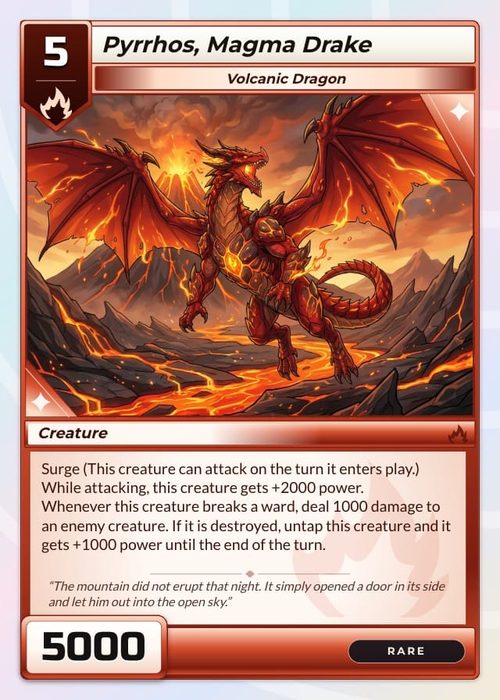
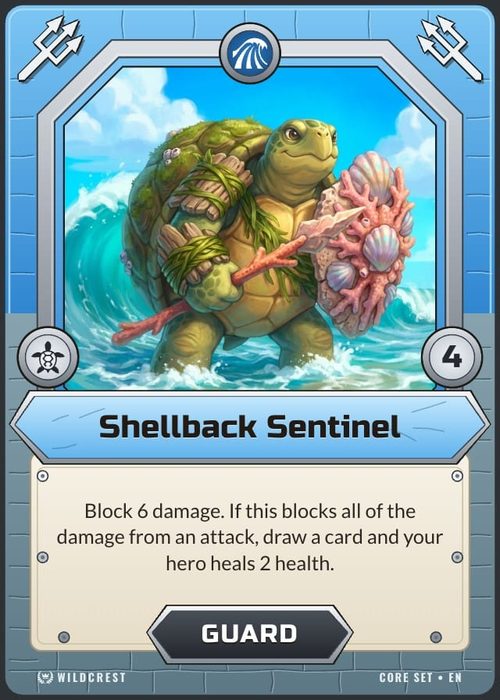
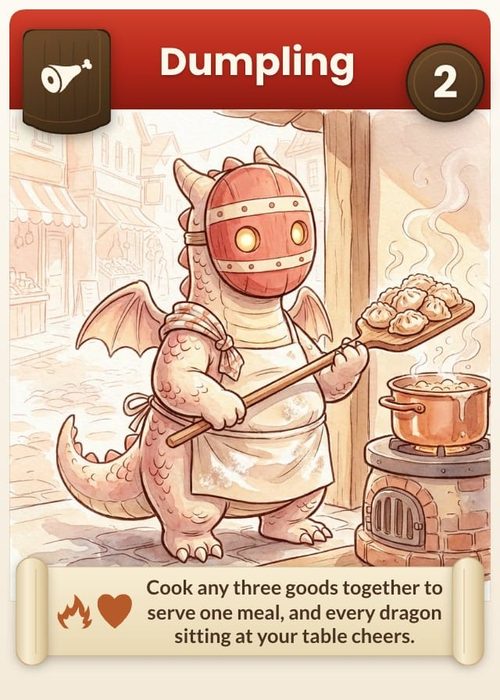
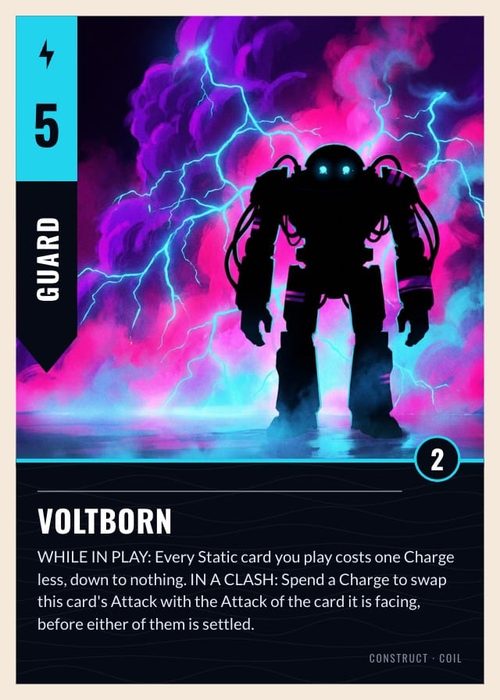
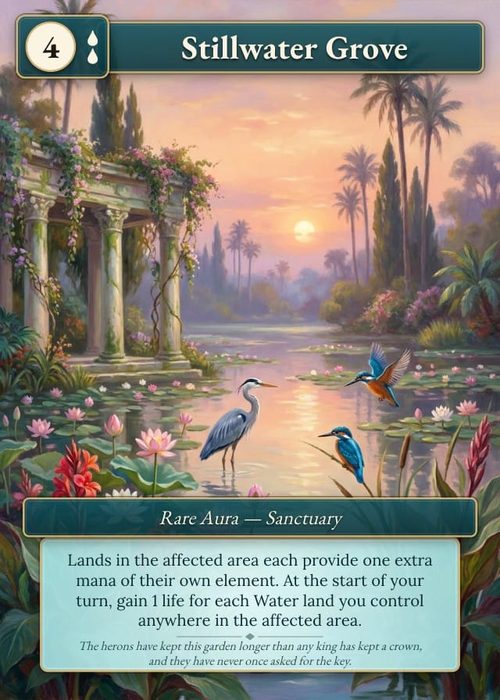
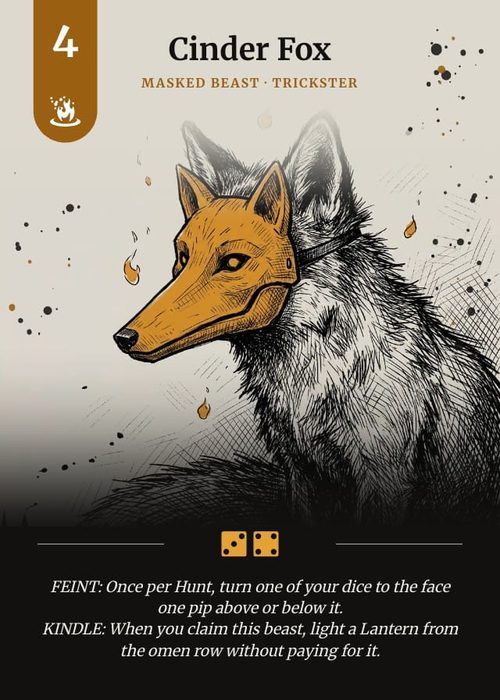
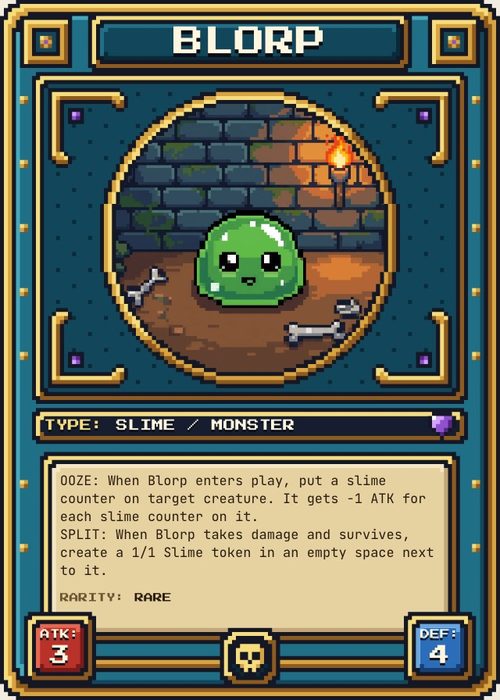
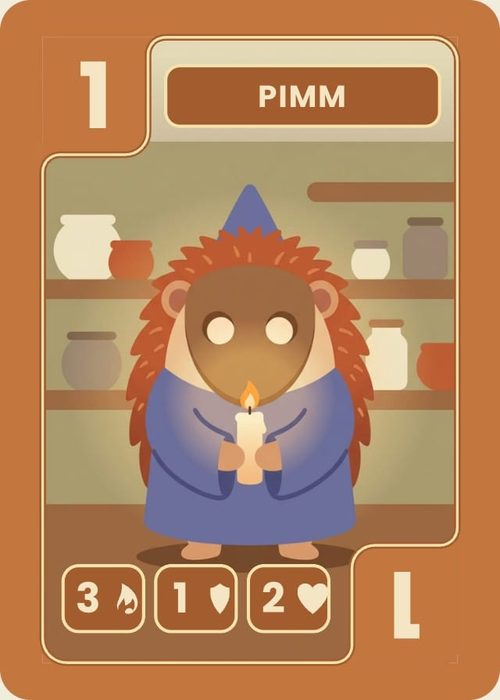
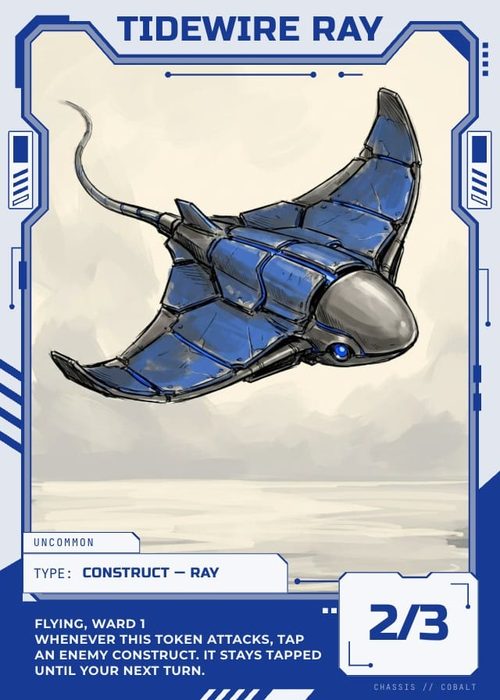
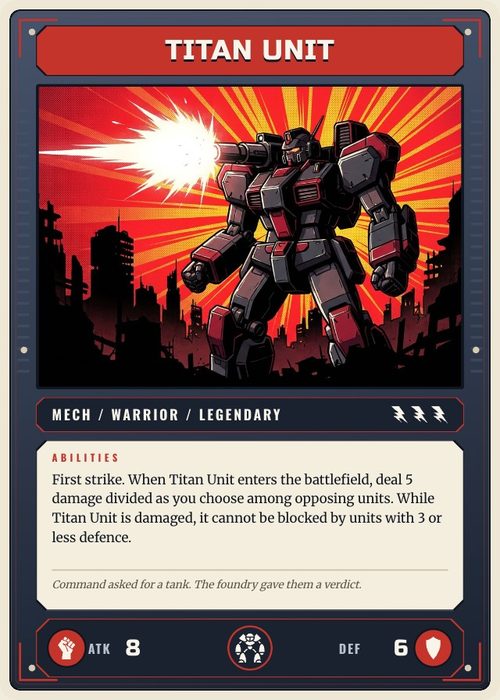
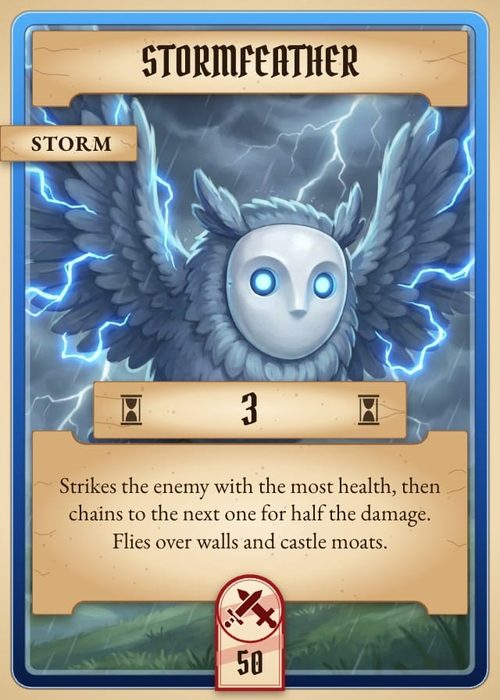
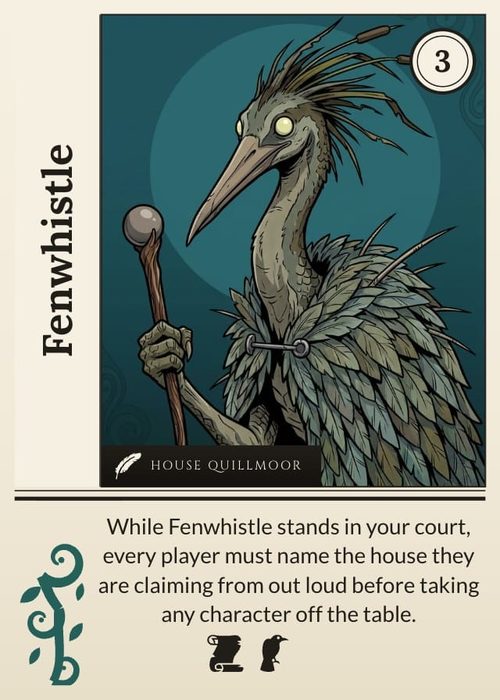
Shufflo AI can change your card designs from the chat: what each element shows, when it shows, how it looks and where it sits, which design each card uses, and what size the cards are. It is quickest for changes you can describe in a sentence ("put the Cost in a red circle top left", "a purple version of this design for Spell cards", "make my cards tarot size") and for finding out why a card looks wrong. This page covers design work only. For the panel itself, the composer, Holo and Undo in general, see Shufflo AI.
Before you start
Shufflo works on designs that already exist. It cannot start a design from nothing or apply a template, so a project needs at least one front design first. If the card preview says No front design yet, click Design the front, or in the Design editor's Designs panel use From a template or Blank design (see Layouts & Priority). A plain blank design is enough: Shufflo can build the look on it.
Ask in the Shufflo AI tab of the Cards page side panel. The Cards panel is where design results show the changed card and an Open layout button. The full-screen Shufflo page makes the same changes, but its results are a single line without the card picture or the button.
Shufflo reads every design in the project: which cards it draws and how many, and each element's size, position, colours, font, layer name (a connected element goes by its column), connected column and show/hide rule. So you can ask questions before asking for changes: "what's on my Spell cards?", "why is the Cost blank on Fire Imp?". In a project you can only view, Shufflo can answer those questions but changes nothing, and says so.
In Shufflo's results a design is called a layout. They are the same thing: the entries in the Designs panel.
A first design from a description or a picture
Describe the look and Shufflo builds it on the design you name, or on the default front when you name none: colours, fonts, rounded corners, a border, badges, labels, and boxes connected to your columns. "Design a dark fantasy frame with a gold border, the name in Cinzel at the top and the cost in a coin top left" is a request it carries out in one reply. When the request says what to make and leaves the details to Shufflo, it picks them and tells you what it chose.
To match a picture, attach it with the paperclip and ask, for example, "make my card front look like this". Shufflo cannot turn a picture into a design directly. It reads the picture and rebuilds what it can with design elements: colours, fonts, corners, and the boxes, badges and text the picture shows, each connected to the column it shows. Then it looks at a card and says in one line what it could not match, such as drawn ornaments, textures, or a font ShuffleKit doesn't have. When the look is only for some of your cards, it first makes a copy of the design for those cards (see the variants section below).
If the design already exists as a Photoshop file, Import from PSD… in the Designs panel brings it in with its layers, which is closer than any rebuild. A PDF or Illustrator file with one card per page becomes a new project from the Cards page's File → New project from a PDF or Illustrator file.... See Use Your Own Card Design.
Pictures on a design come from your Library or from the chat. Shufflo can put a Library picture in an image frame, or put one behind the whole card ("use the parchment picture as the background of the card back"). It can also draw a picture in the same reply and place it, for example "draw a stormy sky and put it behind the whole card back". Drawing uses image credits, 1 a picture.
Connecting elements to columns
An element connected to a column shows each card's own value. Ask in plain words: "show the Cost in the top-left circle", "the art box should use Artwork", "disconnect the Type label". Shufflo picks the element from the design and the part of it that fits the column: the text or picture for a value, the text colour or fill for a colour column.
A column can also set an element's colour. "Colour the frame by Faction: Fire red, Water blue, Forest green" gives the Faction choices those colours and connects the frame's fill to the Faction column, so each card's frame follows its faction. This works with a Select or Color column.
When you ask to add a value to the cards ("add HP to the cards"), Shufflo adds the column if the project has none, fills it where your cards already give a value, and puts it on the design: in an empty element that fits, or in a new text box placed in free space. A new image frame for a picture column shows only on cards that have a picture in it, so cards without one don't show an empty frame; the result says so, and "always show the art frame" turns that off.
If the design already shows that column somewhere and Shufflo adds a second element for it, it says so, so you can keep one.
Each change shows as a line in the reply, such as Connected Title to Name. The same work by hand is in Connecting Properties.
Show and hide rules on elements
A show/hide rule makes one element appear on some cards only. Ask "show the gold frame only on Legendary cards", "hide the Cost badge on cards with no Cost" or "only show the shield icon when Defense is more than 0". Shufflo writes the same rule as Show on some cards only in the Connect data panel, and the result says how many of the design's cards show the element now. "Always show the gold frame" removes the rule.
Shufflo's element rules take one condition each: a column compared with a value (equals, doesn't equal, contains, greater or less than, is any of, is empty, is not empty), or whether the card is in a deck. For an element that depends on two columns, set the rule in the editor. See Element Visibility.
To switch an element off for every card without a rule, ask Shufflo to hide it ("hide the flavour text for now"); "show the flavour text again" brings it back. Hiding keeps the element on the design, while asking Shufflo to remove it takes it off.
Moving, adding and arranging elements
Shufflo can add a text box (fixed words or a column), an image frame, a rectangle, a round badge, a line, a fixed icon, or a row of each card's own icons from an icon list column. It can move and resize elements, and restyle them: fill, outline colour and width, text colour, opacity, rounded corners, font, size, bold and italic.
Positions are in card pixels at 300 per inch, from the top-left corner. You don't need numbers: "top left", "under the art" or "across the bottom" are enough. With no place named, Shufflo puts a new element inside the safe area, 1/8 in inside the cut, clear of what is already there.
The arranging tools:
- Turn an element by any angle, clockwise about its centre: "turn the side banner 90°", "the bottom corner upside down".
- Align text left, centre or right across its box, and top, middle or bottom down it. Line spacing is set as a multiple of the font size ("tighter line spacing in the rules text").
- Shrink long text to fit. "Long names should get smaller so they fit, short ones stay big" sets a largest and smallest size, and each card's text is sized on its own.
- Layer order: bring an element to the front, send it to the back, one layer up or down, or directly above or below another element. "The rules text is hidden behind the banner" is fixed by putting the text above the banner.
- Duplicate an element a number of times in a row, a column or a grid, with a step between copies. Every copy is a full copy with the same connections and rules. For a hex map, the rows can be staggered. Up to 100 copies at a time, and every copy must fit on the card.
- A playing-card corner: "copy the top-left corner to the bottom right, upside down" makes one copy turned 180°.
- Thin lines: a divider or rule as thin as 1 px. Ask for a vertical line and it is drawn upright for you.
- Picture fit: "the art doesn't fill the box" makes the picture cover its frame, cropped at the edges. "Show the whole picture" fits it inside the frame instead.
Shufflo adds, copies and moves only what you asked for. Before it writes, each add, copy and move is checked against your messages, and one you didn't ask for is not made. Restyling, connecting and hiding are not checked this way, because they change what is already on the card.
Variants: a second design with a rule
A change to a design reaches every card that design draws. When you want some cards to look different ("a purple version of this design for Spell cards", "a second frame for Legendary cards"), Shufflo duplicates the design, gives the copy a rule for those cards, and restyles the copy in the same reply. The original stays as it was.
Shufflo can also:
- Make a design the default card front or back, the one cards use when no rule matches them ("use Dark Frame for every card"). If another design was the default, the result names it.
- Give a design a rule or clear it ("use Tarot Portrait for cards whose Type is Space"). A design's rule can combine several conditions; a card must match all of them.
- Change the order rules are checked in ("check the Legendary design before the Spell design"). Cards take the first design whose rule they match, so a broad rule checked early takes cards meant for a narrower one below it.
After each change, Shufflo counts how many cards each design on that face now draws, and checks the count against what you asked. A copy made with a rule is checked first, so the cards it was made for switch to it at once. If your front had no default picked, the design that drew those cards before becomes the default, so the rest keep it.
These changes arrive in a box headed Changed the layouts in "
When Shufflo makes a copy instead of changing your design
Sometimes you ask for a change and Shufflo makes a new design rather than editing the one you have. This happens when the change is meant for only some cards.
A design is shared by every card it draws. Ask for "one more card, all blue with our logo" and Shufflo creates the card in the same reply. If it then painted the shared front blue, every other card using that front would turn blue too. So when a reply has created cards and also changes how they look, ShuffleKit refuses changes to a front design that also draws the cards that were there before. Shufflo then copies the design with a rule that matches only the new cards and changes the copy. Connecting a column is still allowed on the shared design, because it changes what cards show rather than how they look.
If you did mean every card, say so ("make every card blue, the old ones too") and the shared design changes.
Shufflo also asks one short question when a request could mean two different things. "One more card, all blue with just our logo" might be your card back. When it can't tell, Shufflo asks once whether you mean the back of every card or a card of its own, then does it.
Resizing a design to another card size
"Make my cards tarot size" changes the design's size and fits the design to it in the same step: elements, text sizes and margins scale with the card, backgrounds and art still reach the edges, and corner badges stay in their corners. Card sizes Shufflo knows by name are Poker (2.5 × 3.5 in), Bridge (2.25 × 3.5 in), Tarot (2.75 × 4.75 in), Mini (1.75 × 2.5 in), Square (3 × 3 in), Large (3.5 × 5 in), Japanese small (59 × 86 mm), Japanese mini (44 × 67 mm) and Meishi card (55 × 91 mm). You can also give any size in inches, and ask for landscape or portrait. Without that, a design keeps its orientation.
Card size belongs to the deck, so Shufflo resizes every card design, front and back, unless you name one. The result rows carry the Size badge and say the old and new size.
A deck you print through Print & Ship keeps its own size setting. If a deck still orders at the old size, the result says so, for example that the deck still orders as Poker and Print & Ship would scale the design to fit. Change the deck's size in its details (see Card Collections & Quantities).
Asking Shufflo to look at a card
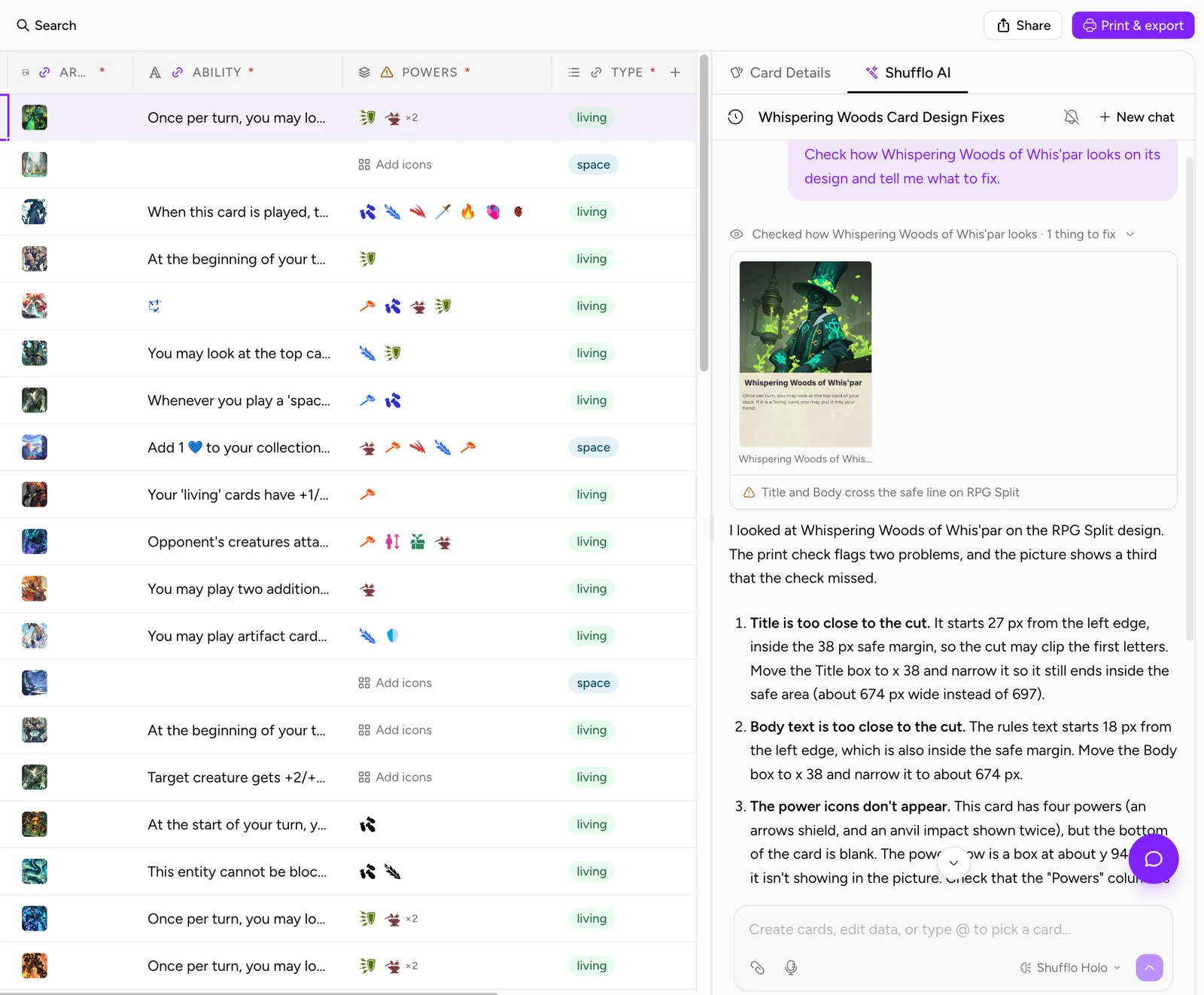
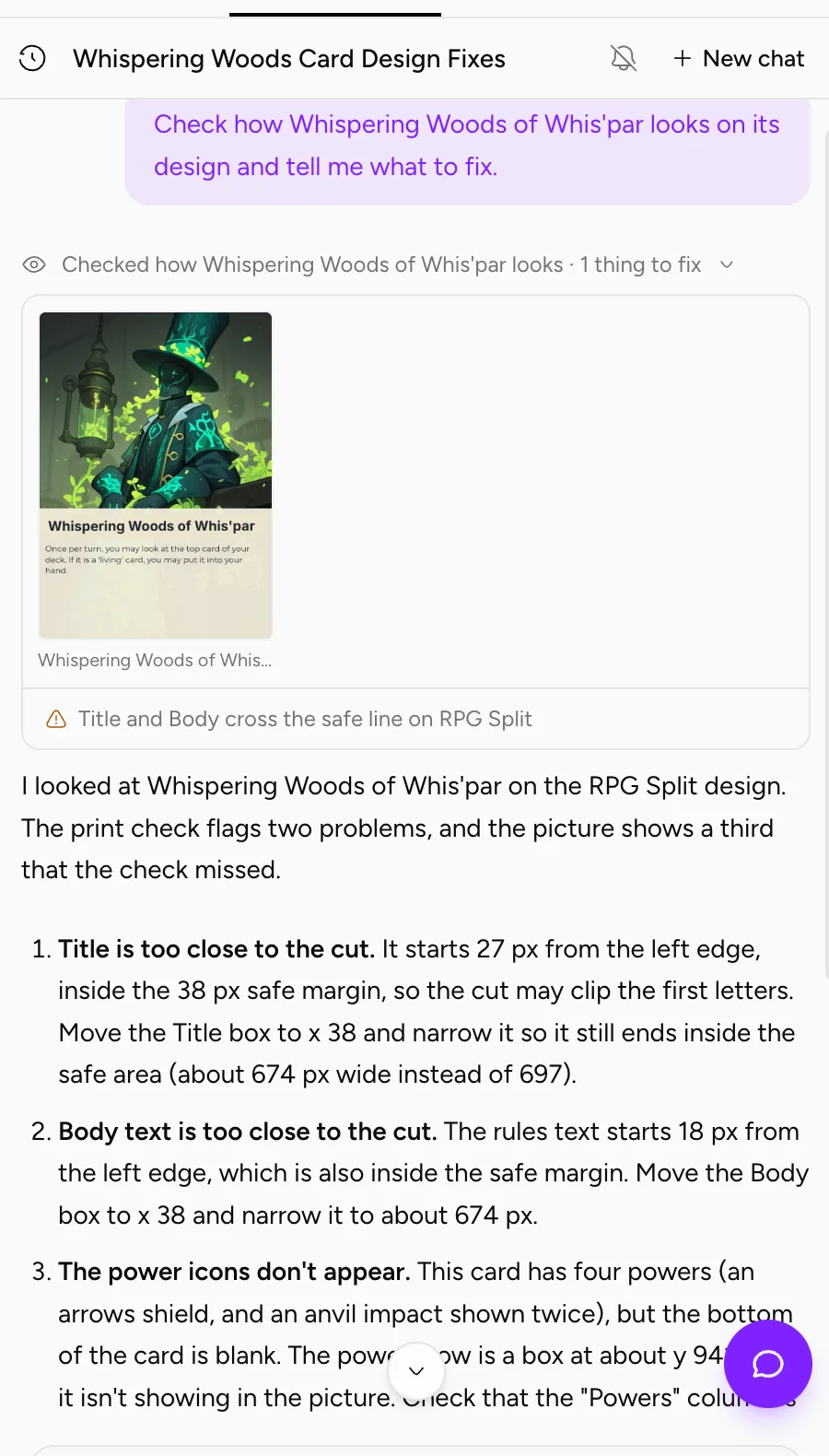
Shufflo can see a card the way it prints. Your browser draws one or two real cards with their designs and Shufflo gets the pictures, together with print checks:
- Safe line: text, icons, or a connected picture or shape that crosses the safe line, 1/8 in inside the cut.
- Bleed: a background that stops short of the edge, so the bleed shows whatever is behind it.
- DPI: a picture that prints below 300 DPI at the size it is drawn.
- Empty fields: a column the design shows that is empty on that card.
Shufflo looks on its own after it changes a design, and describes what the picture shows rather than what it meant to do. Ask for a look yourself with "look at Fire Imp and tell me if it's ready to print", "why does the title look cut off on Ancient Dragon?" or "show me how the card back looks".
The result is one line, such as Checked how Fire Imp looks · 2 things to fix. It opens by itself when a check found something, with the pictures and one line per problem: Title and Body cross the safe line on RPG Split, Background stops short of the bleed on RPG Split, Art prints below 300 DPI on Fire Imp, or Fire Imp leaves Cost empty. Click the line to open or close it. A problem an earlier look in the same reply already showed is counted once rather than listed again.
A look is a sample. Shufflo makes at most 3 looks in one reply, each of one or two cards, and it says which cards it saw. It never claims to have checked every card. To check the whole deck, export it: ShuffleKit runs the same print checks on every card before a PDF export or a Print & Ship upload (see Print at Home).
Cards are drawn in your browser, so keep the ShuffleKit tab in front. A look started while the tab is in the background waits for you to come back, for up to three minutes, then answers without a picture. If the card can't be drawn, the line reads Couldn't draw the card: with the reason.
Undoing a design change
Every design change is saved the moment Shufflo makes it. Undo under Shufflo's message puts back everything that reply wrote: element changes, connections, rules, layer order, new elements, copies of designs, defaults, rule order and sizes, together with any cards and columns from the same reply. The result lines are struck through and marked Undone.
Undo leaves your own later work alone. A setting goes back only while it still holds what Shufflo wrote. A copied design is deleted only while it is as Shufflo left it, and a resize is put back only while the design is still at the new size. If you edited something in the Layout Editor after the reply, that edit stays.
Shufflo has no undo of its own. Ask it to undo and it points you to the button. For smaller steps back, ask for the reverse ("put the cost badge back where it was") or use the Layout Editor's own undo while the design is open.
Writing requests Shufflo can carry out
Name the element and the result you want, and the cards it is for. Shufflo reads your designs, so names from the Layers panel and your column names work best. These requests use what Shufflo can do today:
- "Put the Cost in a round red badge in the top-left corner, with the number in white bold."
- "Hide the Cost badge on cards with no Cost."
- "Colour the frame by Faction: Fire red, Water blue, Forest green."
- "Long names should shrink to fit: 64 px at most, 32 px at the smallest."
- "Make a version of this design for Spell cards with a deep purple background, and check it before the other rules."
- "Copy the top-left corner to the bottom right, upside down, like a playing card."
- "Add a 2 px gold line under the title, and put the rules text in front of the banner."
- "Make my cards tarot size, front and back, then look at Fire Imp and tell me if it's ready to print."
A few habits help:
- Say which cards. "Make the card red" changes every card on that design. "Make the boss card red" gets a copy for the boss card.
- Say where. "Top right", "under the art" or "along the bottom edge" places an element where you want it. Without a place, Shufflo picks free space inside the safe line.
- Ask for the add or move itself. Shufflo adds and moves only what you asked for, so "add a cost badge" works where "tidy up the card" does not.
- Fonts by name. Use a font ShuffleKit offers or one you uploaded (see Use Your Own Fonts). An unknown name fails, and Shufflo gets the list of fonts it can use instead.
- Ask why first. "Why is the Cost blank on my Spell cards?" usually finds an unconnected element, a hidden one, or a rule, before anything changes.
What Shufflo can't do in the editor
- Start a design from nothing, apply a template, or turn a picture into a design. Start one in the Designs panel, then ask Shufflo to style it.
- Delete or rename a design.
- Retype the fixed words of a text box that is already on the design. Change those in the Layout Editor.
- Draw traced paths or free-form shapes, or put elements in a layer folder.
- Give an element a show/hide rule with more than one condition.
- Reorder layers on a design with so many layers that Undo could not hold the change. Shufflo says so, and Bring to Front and Send to Back in the layer's menu in the Layout Editor do it.
When part of a request is one of these, Shufflo does the part it can and says which part is done in the Layout Editor. It does not remove other elements to make room for something it can't add.
Limits by plan
Design changes cost no credits. Each Shufflo reply counts as one message however many changes and looks it makes, and a reply that stopped or failed doesn't count. A single reply can take up to 15 steps, so a long list of changes may need a second message.
- Shufflo Holo: Free includes 20 Holo replies a month, then 10 more "extra on us". After that your messages go to standard Shufflo. Paid plans include more; the numbers for each plan are in Settings.
- All replies on Free: 100 a month, Holo and standard together. Paid plans have no limit on standard Shufflo.
- Designs: Free holds 10 card designs. When you are at the limit, a variant can't be copied and the result says Not changed: with the reason. Paid plans have no design limit.
- Pictures Shufflo draws for a design use image credits, 1 a picture.
Your usage this month is under Usage this period in Settings → Plan and billing.
On a phone
On a phone, open Shufflo from the Cards page with the eye button at the bottom right of the sheet, then the Shufflo AI tab. Design changes, rules and resizes work the same way. Open layout and the drawn card in a result open the design in the phone editor.
Looks are drawn by your phone's browser. Switching to another app puts the tab in the background, and the look waits until you come back, for up to three minutes.
Common problems
A result line starts with Not changed:. That one change was not saved, and the line says why: an element that isn't on the design, a font name ShuffleKit doesn't have, a picture that isn't in your Library, or a copy that would not fit on the card. The rest of the reply's changes were saved.
Shufflo didn't add the element I mentioned. Adds, copies and moves go ahead only when your message asked for them. If it was part of a longer request, ask for it on its own: "add a round badge top left for the Cost".
Every card changed, not just one. The change went on a shared design. Press Undo, then ask again naming the cards ("only the boss card"), and Shufflo makes a copy for them.
The new design draws no cards. A copy with no rule, or with the original's rule, draws nothing until it gets a rule or becomes the default; the result says so. Ask for a rule ("use it for Spell cards") or to check it earlier ("check the Spell design first").
The picture frame is missing on some cards. A frame Shufflo added for a picture column shows only on cards with a picture there. Ask "always show the art frame" to show it on every card.
The look says it couldn't draw the card. The ShuffleKit tab was in the background or was closed. Keep it in front and ask again.
The resize result mentions Print & Ship. A deck still orders at the old size. Change the deck's size in its details, or Print & Ship scales the cards to the deck's size.