Project sharing gives someone access to the live workspace for one game. It is different from exporting a file or publishing a template: a project invite stays connected to the project, can be revoked, and lets the invited person use the normal ShuffleKit workspace after they sign in.
Choose the right access
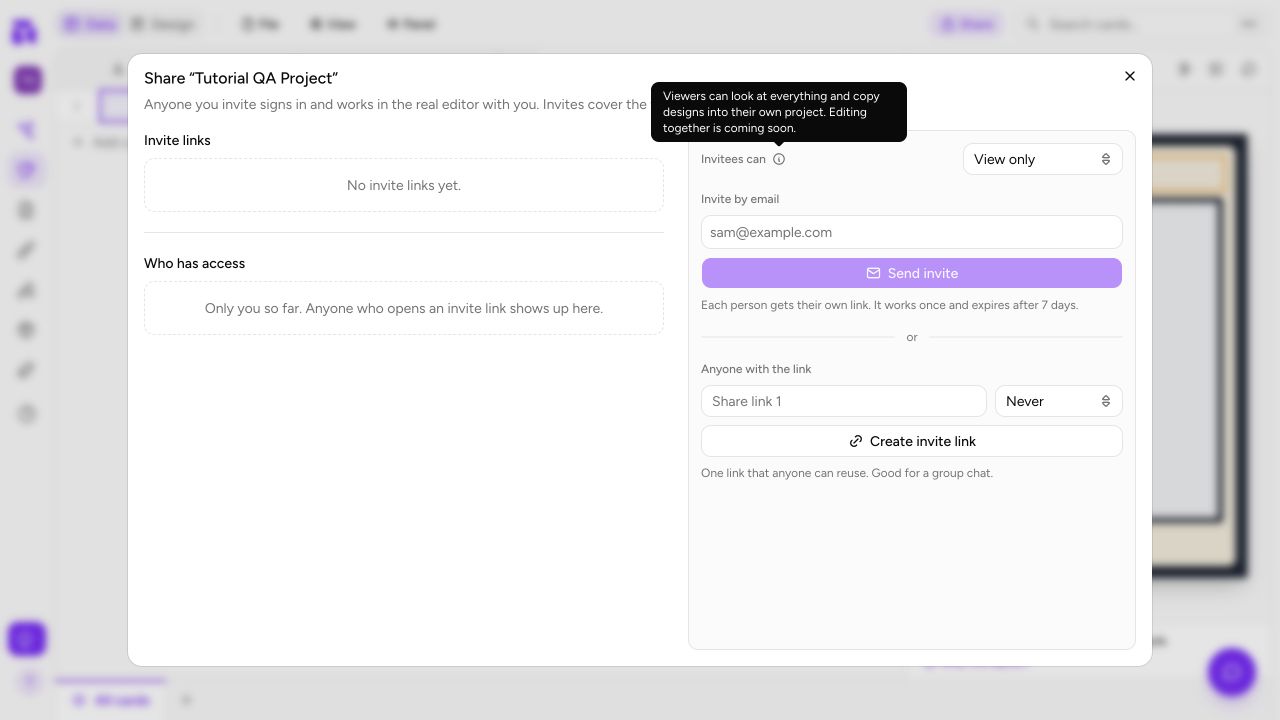
Only the project owner can create and manage invitations. Open Share from the project workspace. At present, project invitations are View only:
| Access | What it permits | Best for |
|---|---|---|
| View only | Open the whole project, inspect its cards, data, layouts, media, and rules, and copy designs into a project they can edit. It cannot change the shared project. | Playtesters, reviewers, and a safe design handoff. |
The live dialog labels simultaneous editing as coming soon. Do not promise that an invitee can edit the owner's project. For now, send a view-only invite; the recipient can inspect the work and copy a design into their own editable project.
Send an invitation
The Share dialog has two delivery paths. Invite by email creates one personal, single-use link for each address and expires after the period shown in the dialog. Use it for a named teammate. Anyone with the link creates a bearer link: label it clearly, choose an expiry when the audience is temporary, copy it, and share it only in the place you intend.
The recipient opens the invite page, signs in or creates an account, and ShuffleKit opens the view-only project. The shared project appears in their ordinary project switcher, labelled with the owner's name. An invite page shows only the deliberately shared project name, owner, role, and optional preview until the recipient signs in; it does not expose the project's working data to an anonymous visitor.
Work safely in the live project
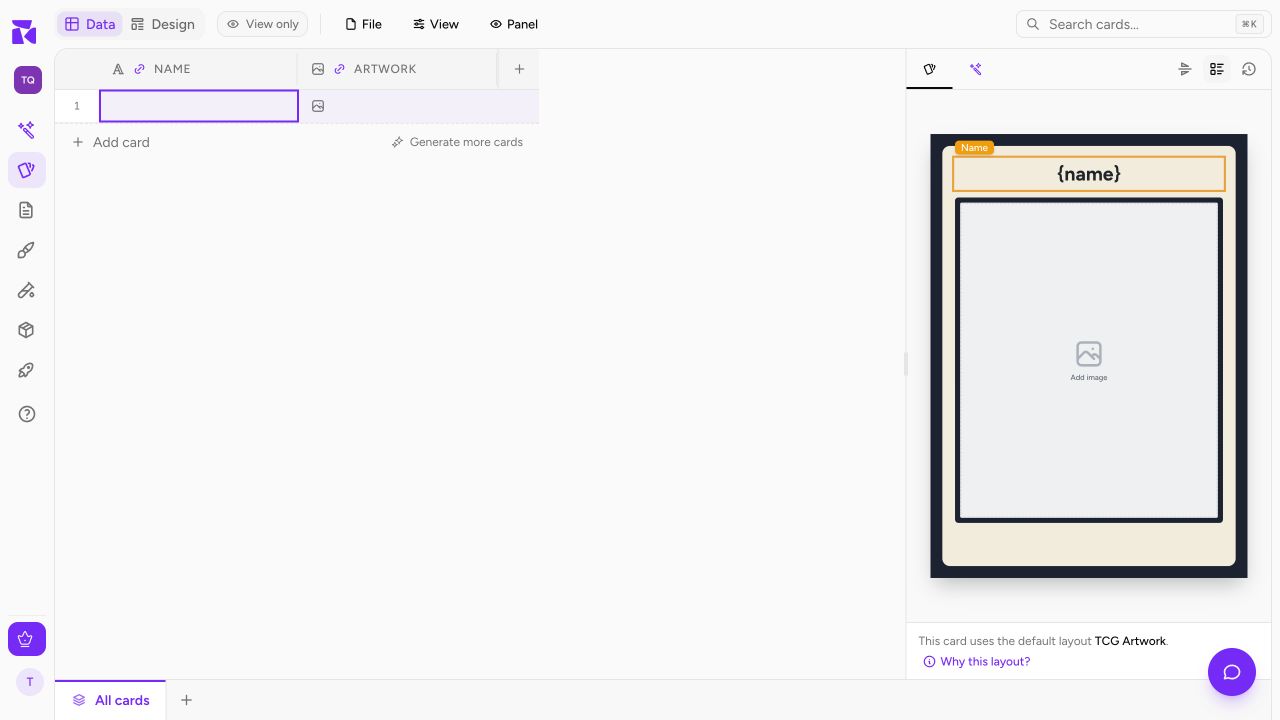
A viewer sees the View only chip beside the workspace tabs. They can read and navigate but cannot edit the shared data or layouts. Use this mode for feedback; leave notes or send the owner a clear change request rather than expecting an unsaved edit to land. If the recipient needs to modify a layout, have them copy the design into their own project first.
Review and remove access
The Share dialog lists pending email invitations, reusable invite links, and current members. Owners can copy or revoke a live link. Revoking a link prevents future acceptance; remove a member when that person should no longer have project access. Check the exact target before removing access, especially when several collaborators have similar names.
For a design you want others to adapt, publish a template instead. A template installs as a copy into another project; it does not grant anyone access to your cards, rules, media, or future edits. Use project sharing for review, and templates for reuse or independent editing.