A card collection is a named subset of your cards with a quantity attached to each one. Starter set, expansion, promo pack, a specific playtest build: all are card collections. The collection rail is also home to boards, mats, tokens, dice and other component types, but this tutorial is specifically about the card workflow.
Cards can belong to several card collections at once. There's one shared card library; collections are views into it.
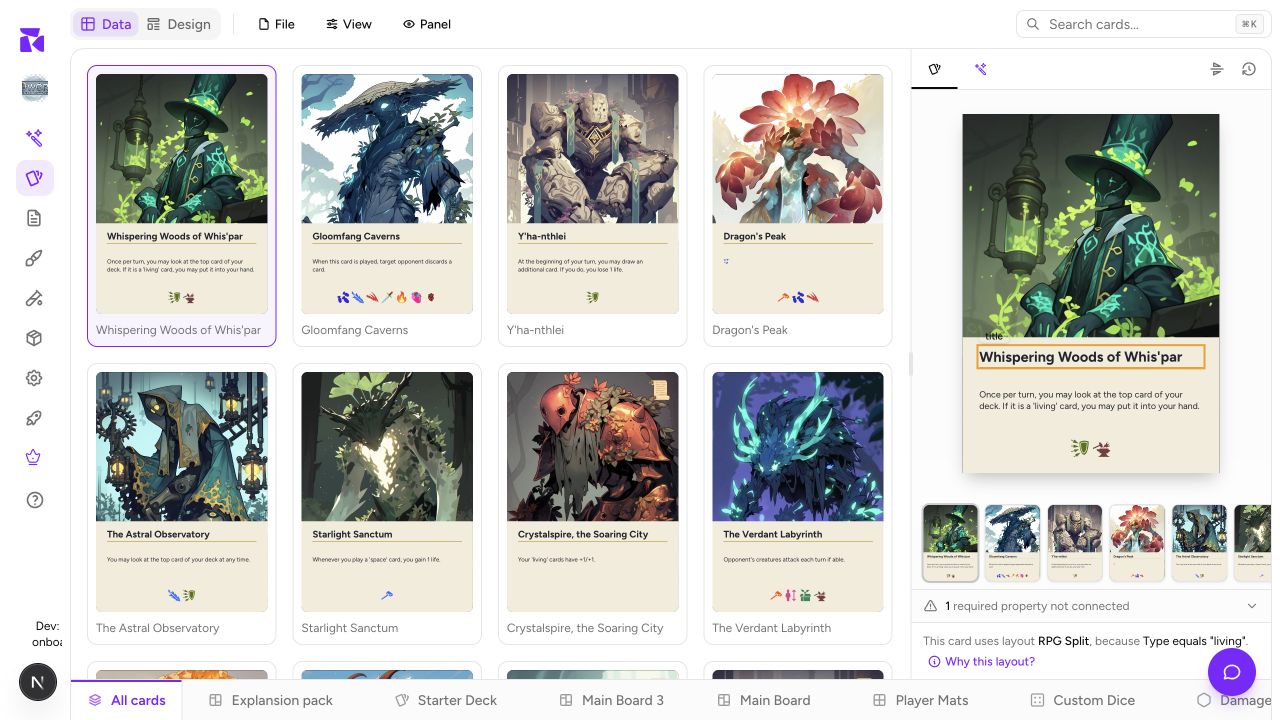
The collection rail
Along the bottom of the grid:
- All cards: the full library. Always first.
- One tab per card collection:
Starter,Expansion pack,Expansion 2in the example. - New collection: opens the component catalog. Choose Cards for another card collection, or choose a different type to add a board, token set, die, and so on.
Click a collection to switch. The grid re-scopes to that collection's cards.
You can drag deck tabs left or right to change their order. The order is shared by the project, so put the deck you use most often near the front. On a narrow screen the tabs collapse into a deck selector; the same deck membership and quantity rules apply.
What changes inside a card collection
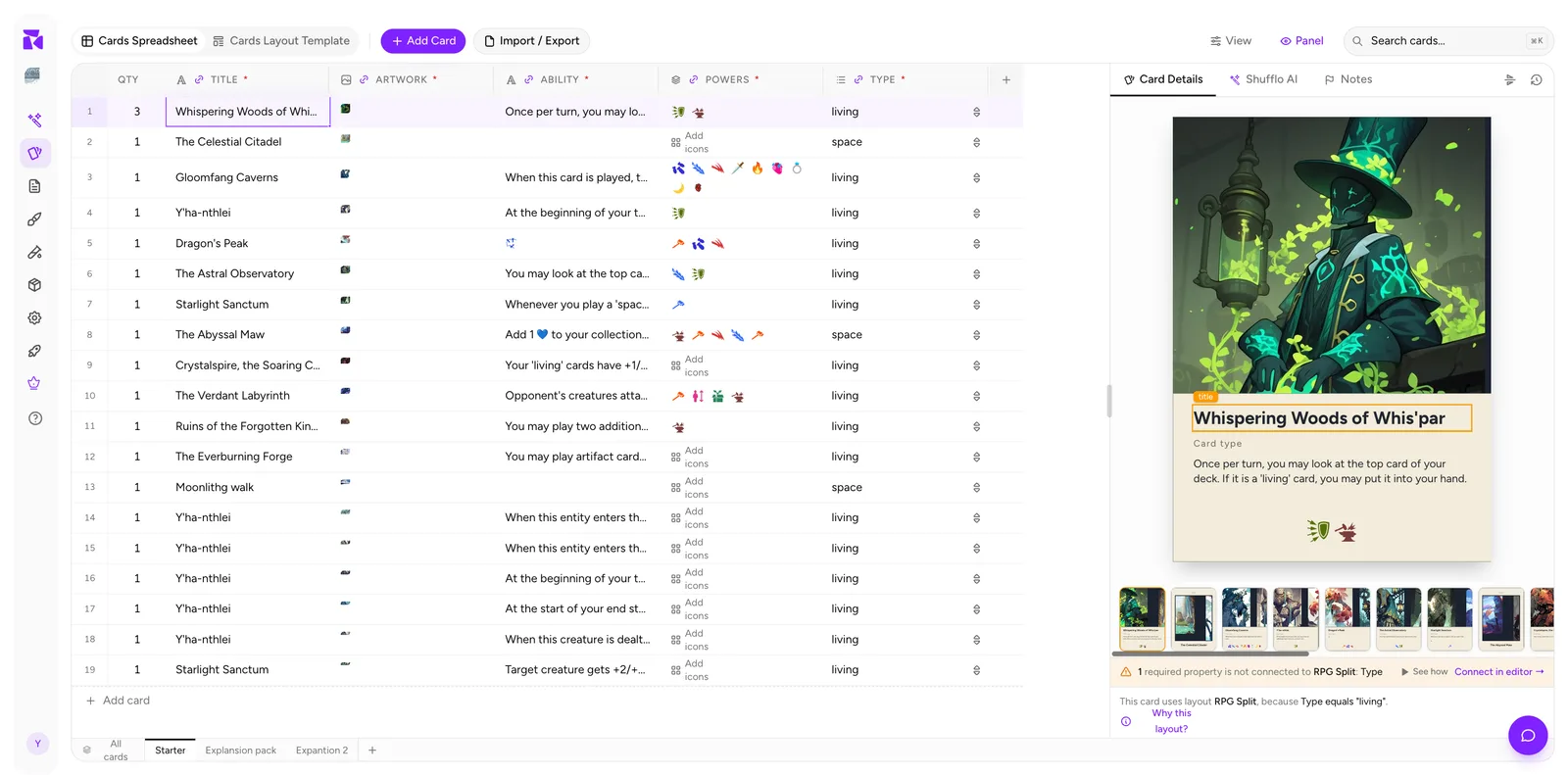
Compare this with the All cards view and one thing jumps out: the DECKS column has been replaced by QTY.
That's the core of the card-collection model. In All cards you see which collections a card is in; inside a collection you see how many copies it wants. Row 1 above has a quantity of 3, so the Starter collection carries three copies of that card. Everything else is a single.
Quantity drives print runs. When you send a deck to Print & Ship or export a PDF print sheet, a card with QTY 3 is laid out three times.
Changing a quantity
Inside a card collection, click the number in QTY, type a value from 1 to 99, then press Enter or click away. Press Escape to cancel an edit. Quantity belongs to this collection only: changing a card from 1 to 3 here does not change how many copies it has in another collection.
To make the card absent from this collection rather than setting its quantity to zero, remove it using the bulk Delete... action and choose the option to remove it from the collection. The card and its data remain in All cards.
Adding a card to a deck
From the All cards view, click the DECKS cell on the card's row:
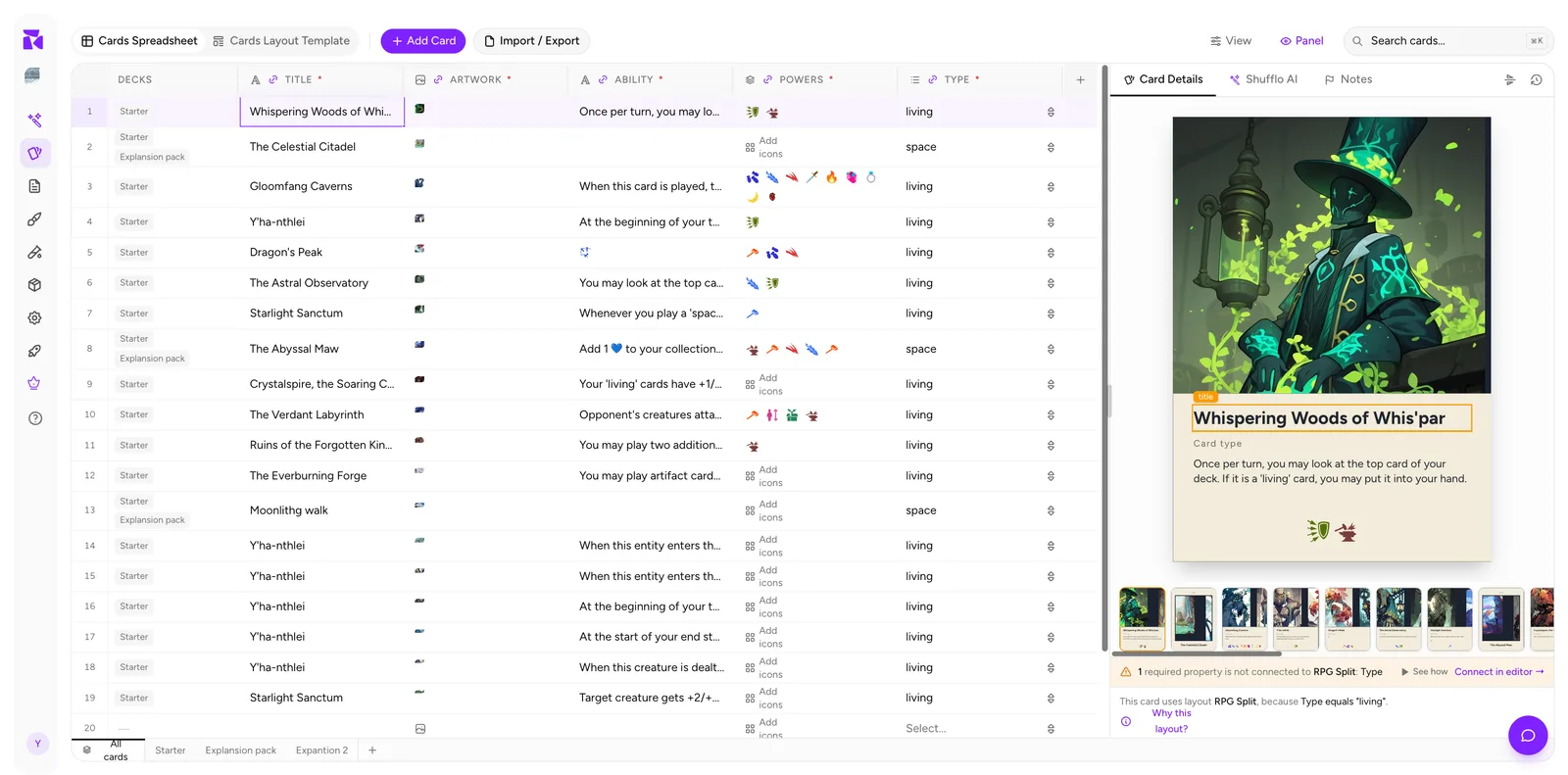
Tick every deck the card belongs to. The chips in the cell update immediately.
In bulk, select several rows, then use Add to Deck in the bulk action bar. See Working With Cards.
Creating a deck
Click the + at the end of the deck tabs and name it in the Create New Deck dialog. A checkbox offers to add all your existing cards to the new deck; leave it off and the deck starts empty.
Renaming, describing and deleting
Right-click (or Ctrl-click) a deck tab:
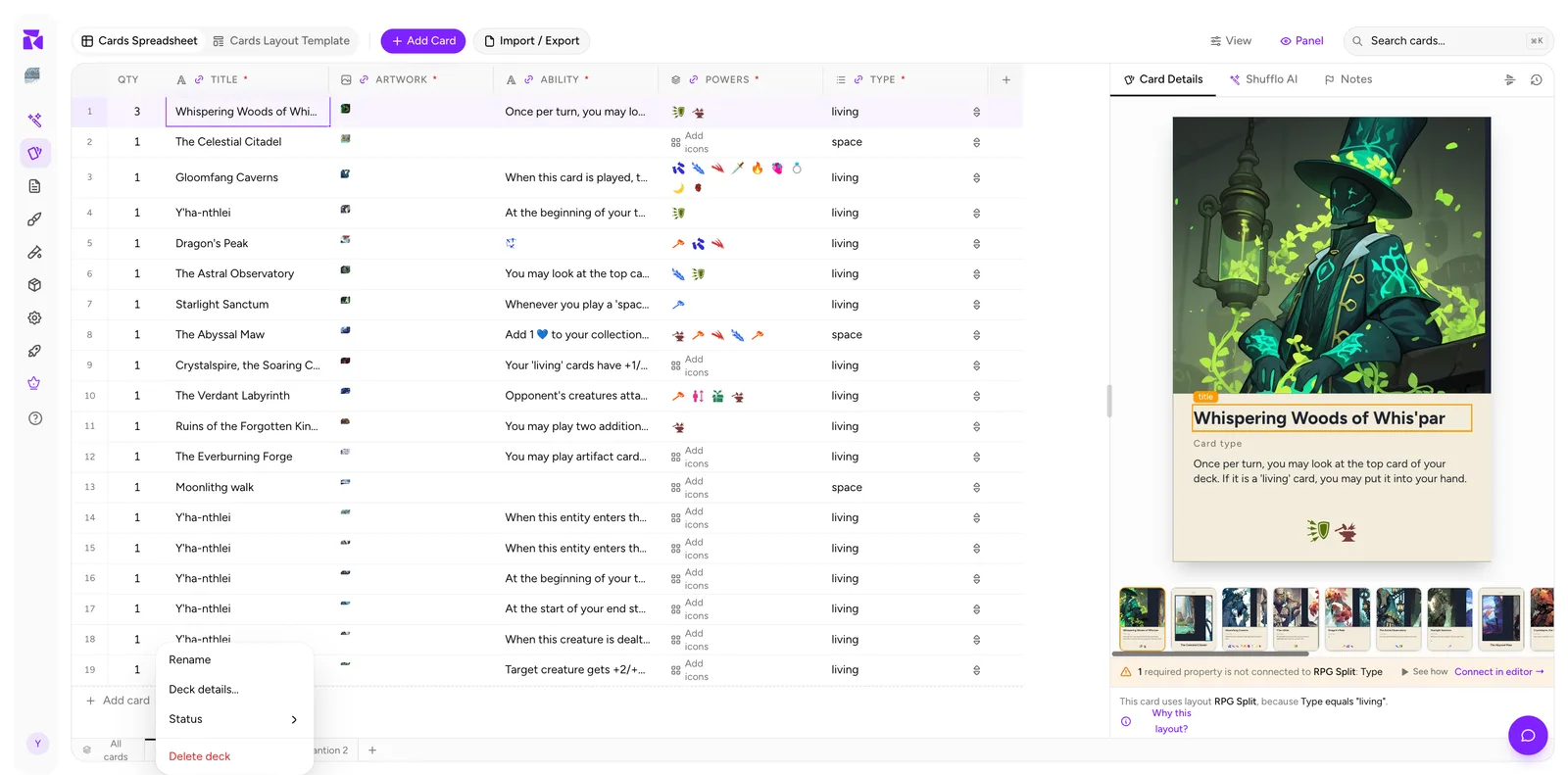
- Rename renames inline on the tab.
- Deck details… opens the full editor (below).
- Status: Draft / Active / Archived, the same three states as cards.
- Delete deck removes the deck, after a confirmation. The cards survive: they stay in the library and in any other decks. Only the grouping and its quantities are lost.
Deck details
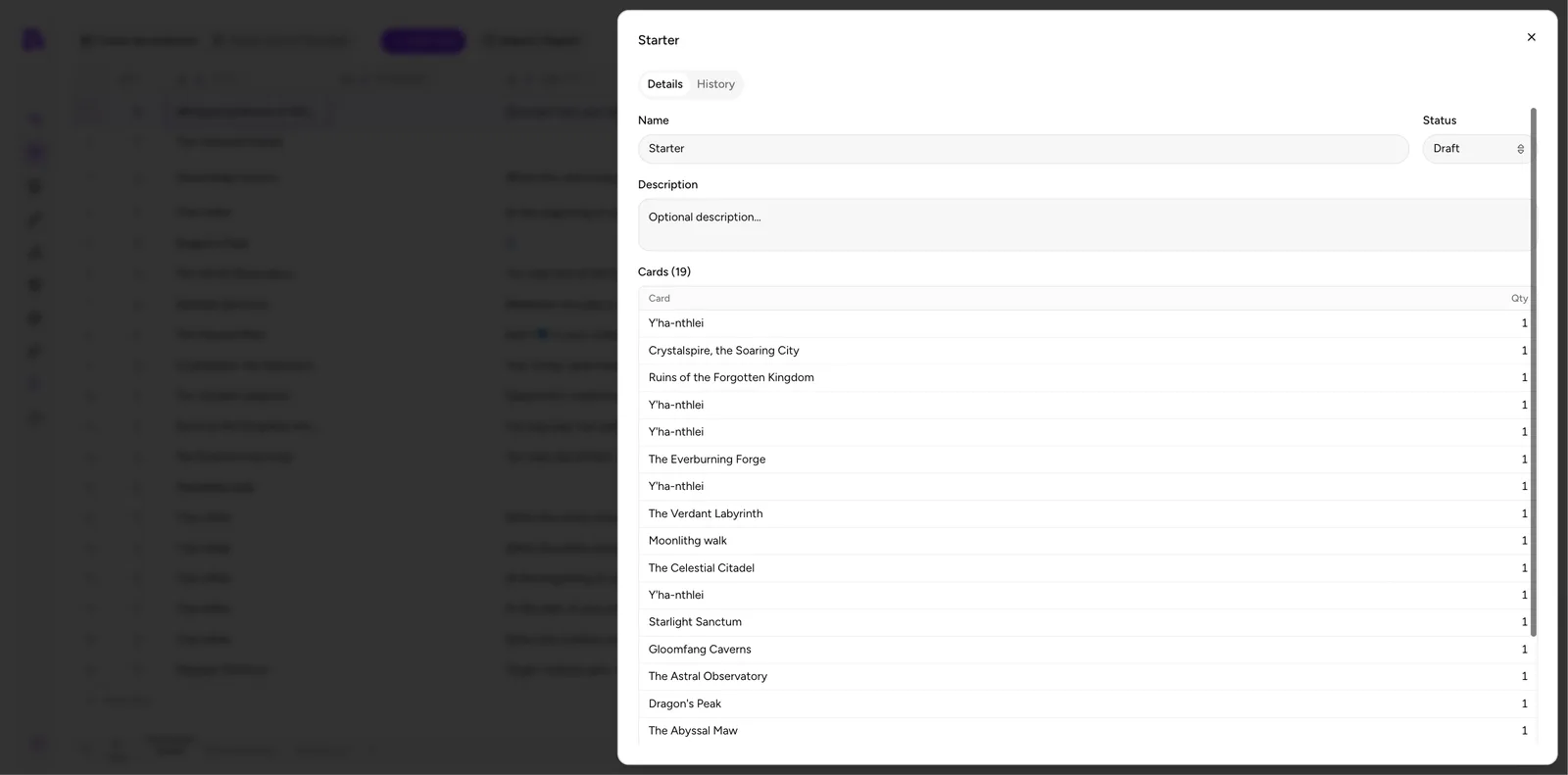
Two tabs:
Details holds the deck's Name, Status and an optional Description, plus a read-only contents list of the deck's cards with their quantities. The count in the heading (Cards (19)) is the number of distinct cards, not total copies.
Use the description field. Six months into a project, "Starter" alone won't remind you it was the 2-player intro set with no expansion mechanics.
History shows the deck's version history.
Delete deck sits at the bottom of the dialog as well as in the context menu.
Deck status
Deck status mirrors card status:
- Draft: in progress. The default for a new deck.
- Active: the current shipping version.
- Archived: kept for reference, out of the way.
Setting a deck to Archived doesn't archive its cards.
A workflow that scales
- Keep All cards as the single library. Every card you've ever written lives here.
- Make one deck per product: core set, each expansion, promo cards.
- Make throwaway decks per playtest build (
Playtest 2026-03) so you can reproduce exactly what was on the table when feedback came in. - Archive playtest decks once you've mined their Notes.
Because cards can sit in many decks, this costs you nothing in duplication.