Two features that matter once a project has been playtested more than once: capturing feedback against specific cards, and being able to go back.
These are deliberately scoped tools, not a whole-project undo. Notes belong to cards. The History panel opened for a selected card snapshots that card's data. Deck details → History snapshots that deck's membership and quantities. Restoring one does not restore layouts, properties or every card in the project.
Notes
The Notes tab in the side panel holds feedback attached to the selected card.
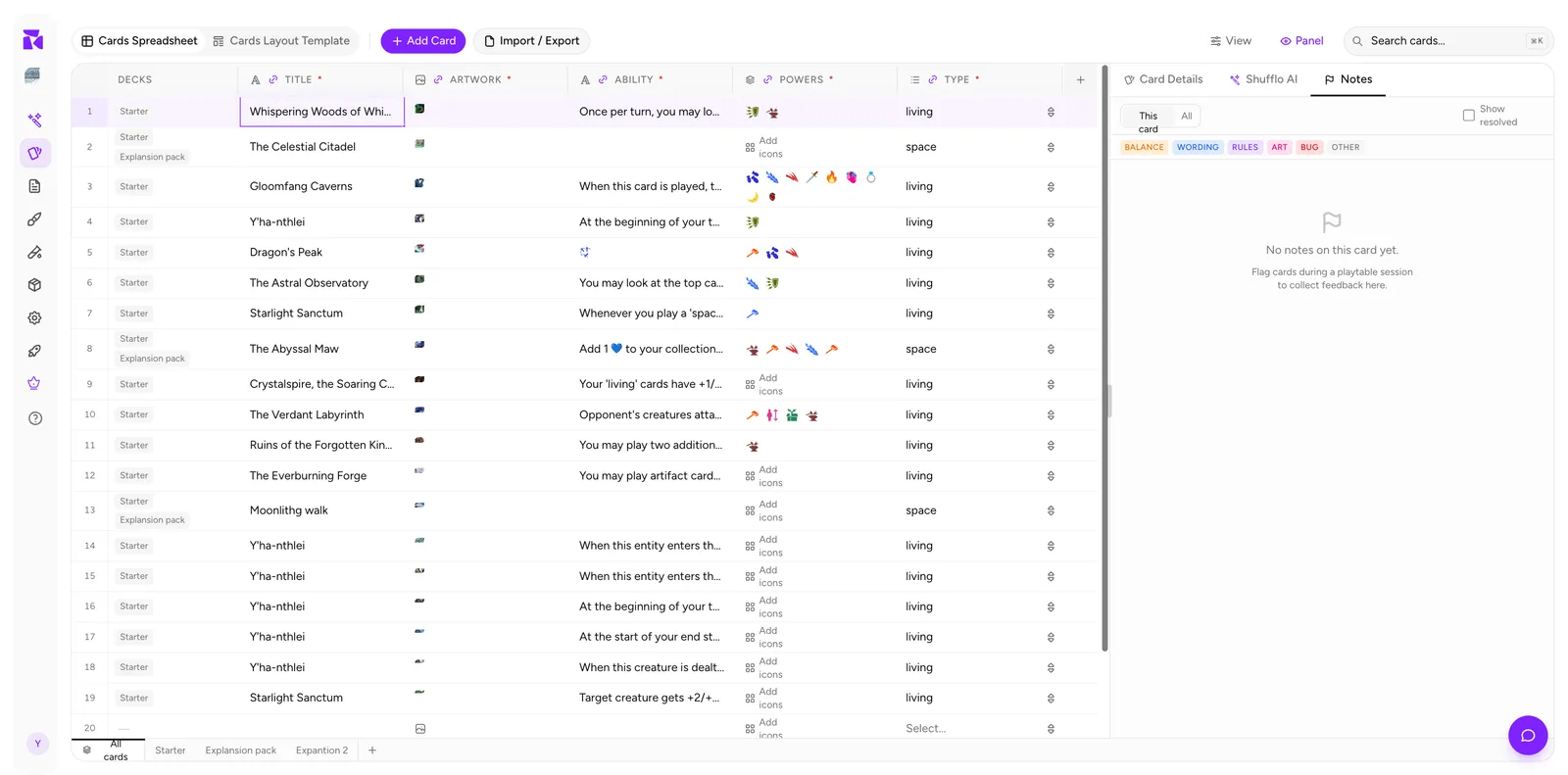
Scope toggle: This card / All. Start on This card to review one card, switch to All for a project-wide feedback sweep.
Category chips: BALANCE, WORDING, RULES, ART, BUG, OTHER. Tag a note so you can triage by kind: hand all the WORDING notes to an editor, all the BALANCE notes to a designer.
Show resolved: a checkbox that brings closed notes back into the list. Off by default, so the panel shows only outstanding work.
The empty state explains where notes come from:
No notes on this card yet. Flag cards during a playtable session to collect feedback here.
That's the intended loop: notes are raised during play on the Playtable, not typed in afterwards from memory. The Data workspace is where you process them.
If you have not used Playtable yet, start with a project and one or more decks, then return here after the session. The Notes panel is the review queue; it is not a separate copy of the card. Editing the card changes the source data, while resolving a note records that the feedback has been handled.
A workflow
- Run a session on the Playtable. Anyone at the table flags a card the moment something feels wrong.
- Afterwards, open Notes with scope set to All and work through the list.
- Fix the card in the spreadsheet.
- Resolve the note.
- Save a version snapshot (below) so you have a marker for "post-playtest-3 balance pass".
The reason to flag in the moment is that "this card felt swingy" is worth writing down within ten seconds of it happening and nearly worthless an hour later.
In the Notes panel, use Resolve when the issue is handled. Resolved notes disappear from the normal list and can be brought back with Show resolved. Notes with suggested value changes can also offer Apply suggestions, which writes those changes to the card before you resolve the note.
Version history
The version history icon at the panel's top-right opens the snapshot panel.
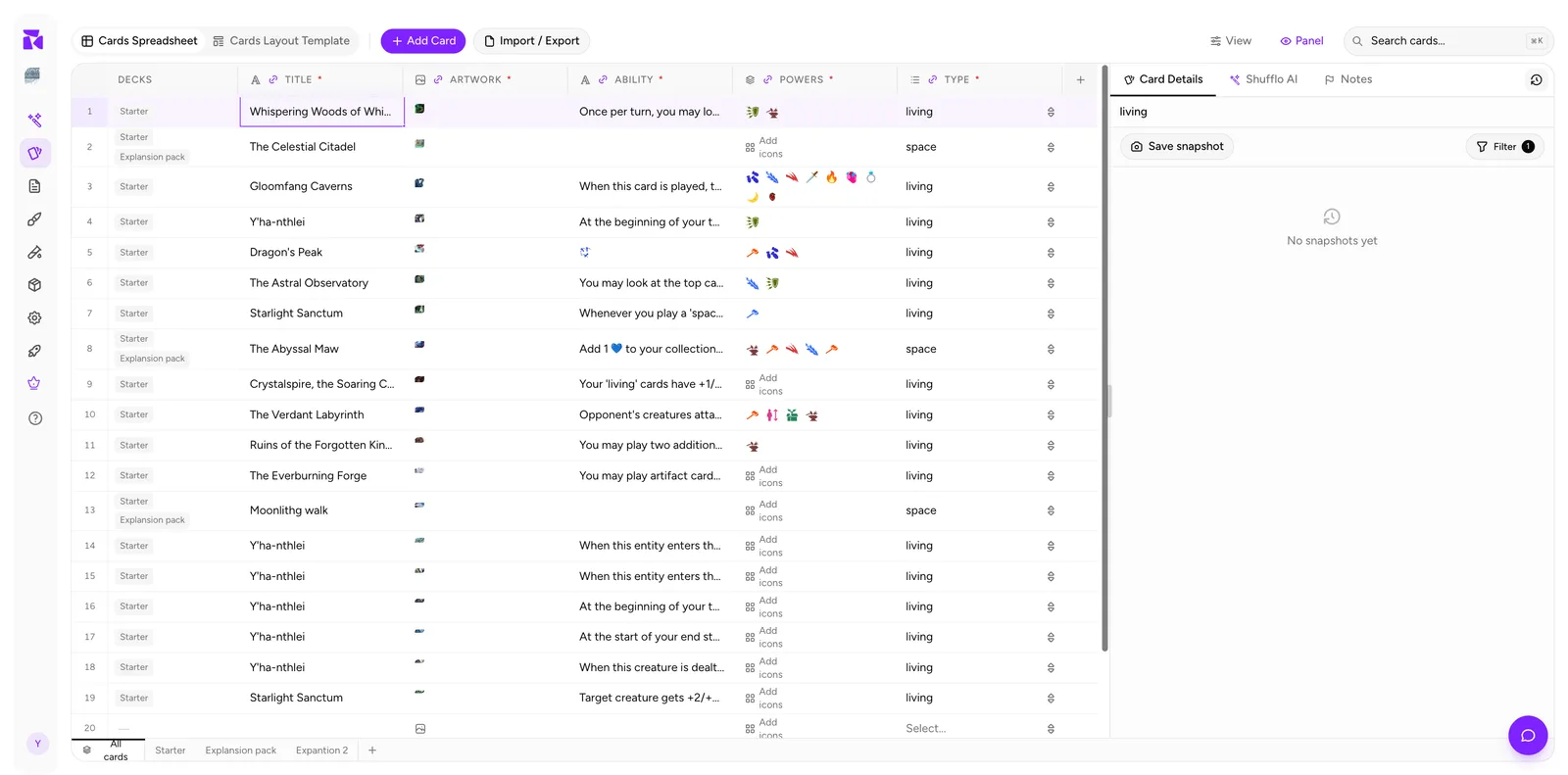
- Save snapshot captures the current state.
- Filter narrows the snapshot list.
- The list, or
No snapshots yetif you haven't taken one.
The list shows your manual snapshots by default, and they aren't the only safety net: ShuffleKit also captures automatic versions before imports, restores, status changes and AI edits. Open Filter to see those too.
To go back, select a version in the list and review the preview underneath it. Use Data preview for a card or Deck composition for a deck. Then choose Restore this version and confirm. Restoring overwrites that card or deck, but ShuffleKit creates a backup snapshot before it does so. Use Filter → All versions when the version you need was created automatically.
When to snapshot
Manual snapshots are for the moments you decide matter:
- Before a bulk operation. A mass delete, or a type change on a property. (Imports and AI edits already snapshot automatically.)
- Before a balance pass. So you can diff what changed and, if the pass makes things worse, get back.
- At each playtest build. One snapshot per session, named for the session.
- Before restructuring layouts. Reordering condition priorities can quietly reassign dozens of cards.
The cheap insurance for the operations that don't have an undo (deleting a column, deleting cards) is a snapshot immediately before.
Deck history
Decks keep their own version history. Open the deck's Deck details… dialog and switch to the History tab. See Decks.
The belt-and-braces backup
Snapshots live inside ShuffleKit. For card data you'd be genuinely upset to lose, also take a periodic Import / Export → All as CSV or All as JSON and keep the file somewhere else. Both carry your card data, one row per card with its property values; note they don't include layouts, decks or notes.
See Import & Export.