Cards are rows. This tutorial covers creating them, editing them, and acting on many at once.
Adding a card
Two equivalent ways:
- Add Card in the top action bar.
- Add card at the bottom of the grid, under the last row.
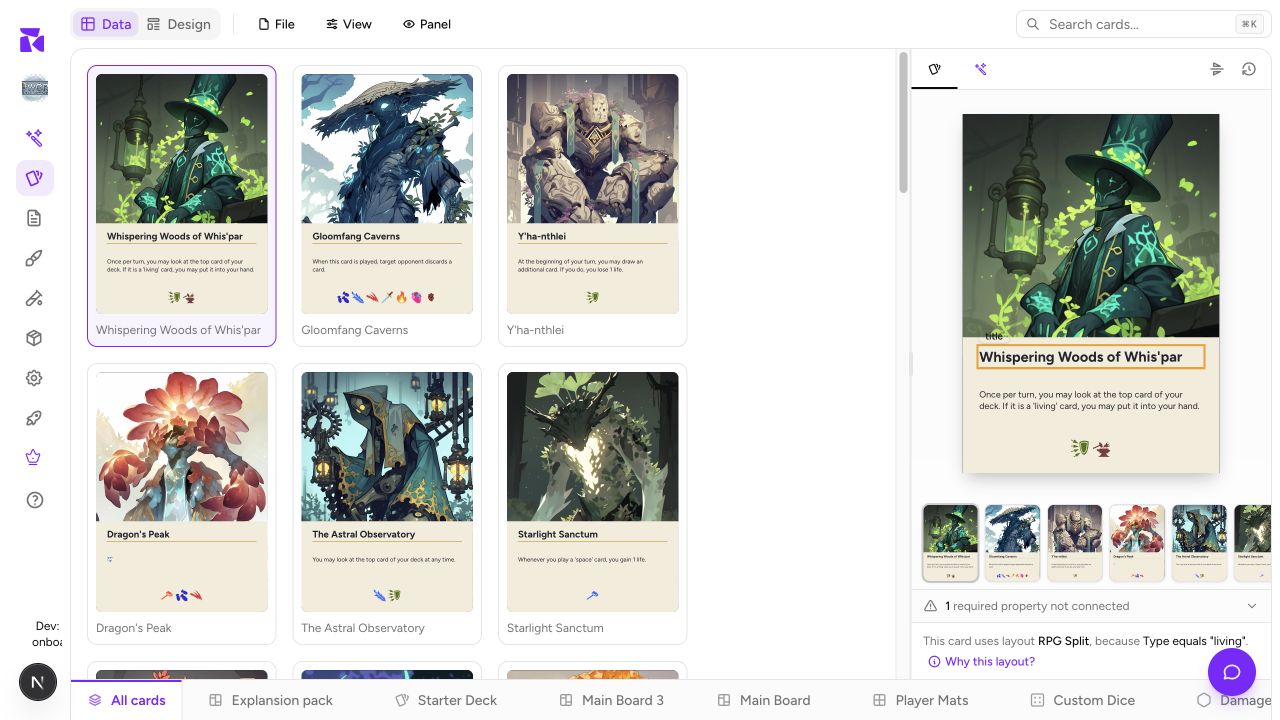
Either appends a new blank row. Any properties with a Default value are pre-filled; everything else is empty, and the preview shows the layout's own placeholder text until you fill it in.
If you're building a set from scratch, it's usually faster to write the cards in a spreadsheet and bring them in through Import than to add rows one at a time.
Editing values
Click a cell and type. The behaviour depends on the property type:
- Text / Number: click and type,
Tabto the next cell,Enterto commit and move down a row. - Select: click to open the dropdown of allowed options.
- Image: double-click an empty cell to add art from the media library, or use the cell's ⋮ menu to preview, reframe, replace or remove.
- Icon / Icon list: double-click to open the icon picker. (An empty icon list cell reads Add icons.)
- Boolean: click to toggle.
- Color: click the swatch to open the colour picker.
Every edit saves immediately, and the Card Details preview on the right re-renders as soon as you commit a cell.
Keep your place in a large sheet
The grid renders the rows around your viewport, so large collections stay responsive without changing their behavior. Its row order is stable: after a value edit, the card remains in the same place unless you deliberately apply a sort, filter, or view change. The row numbers therefore remain useful references when you are comparing a card with a teammate or returning to a long import.
On a touchscreen, press and hold a row to open its row menu. The menu acts on the row under your finger, not the last row you happened to use. A normal tap still selects a cell; tap the selected cell again when you need to edit it.
Selecting cards
Hover a row and a checkbox appears in the left gutter. Click it to select the card. Click the header checkbox to select every visible row.
As soon as one row is selected, the action bar swaps into bulk mode:
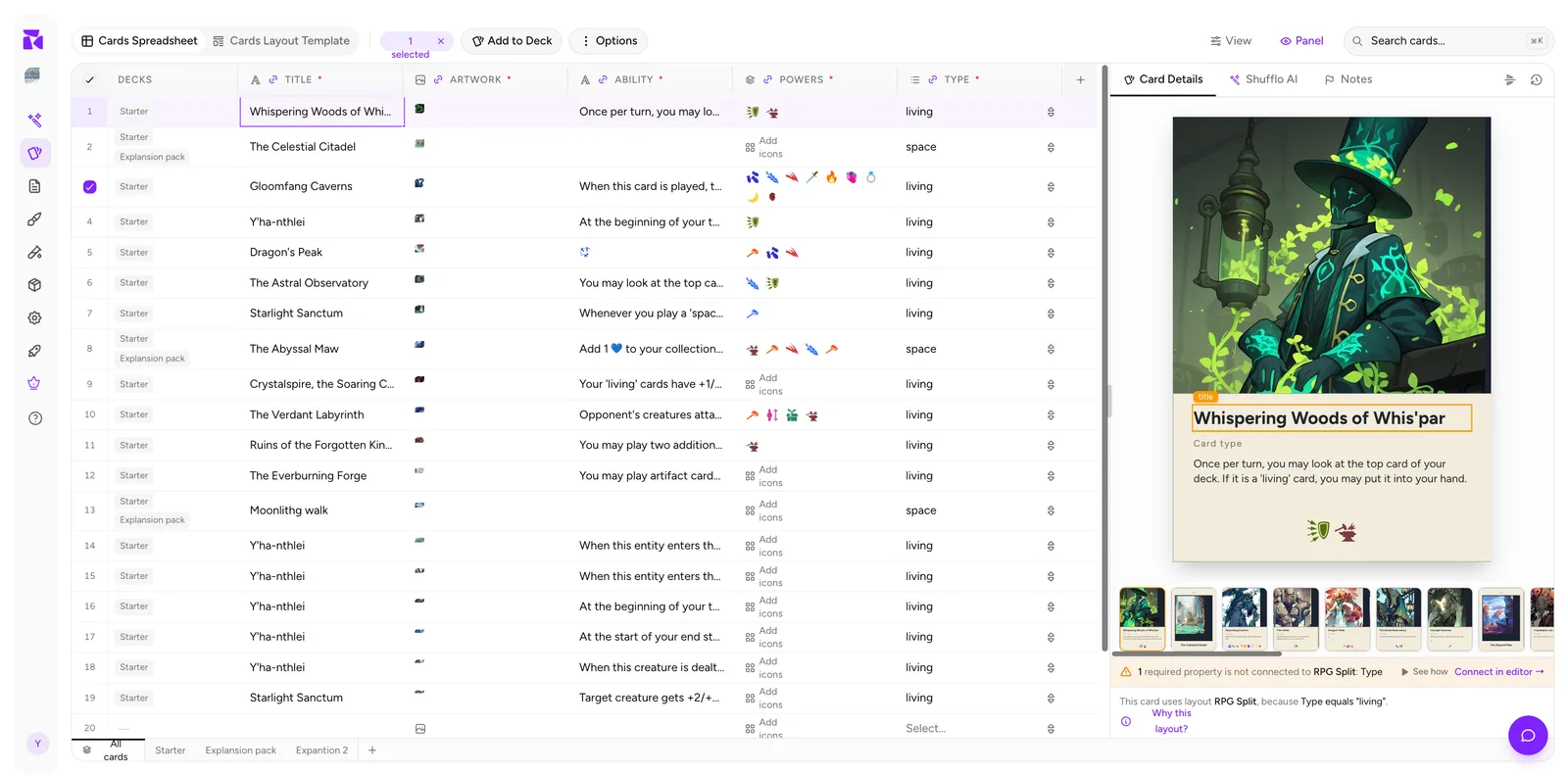
You get:
- N selected ×: the count, with an × to clear the selection.
- Add to Deck: add every selected card to a deck in one go.
- ⋮ Options: the bulk actions menu.
Bulk actions
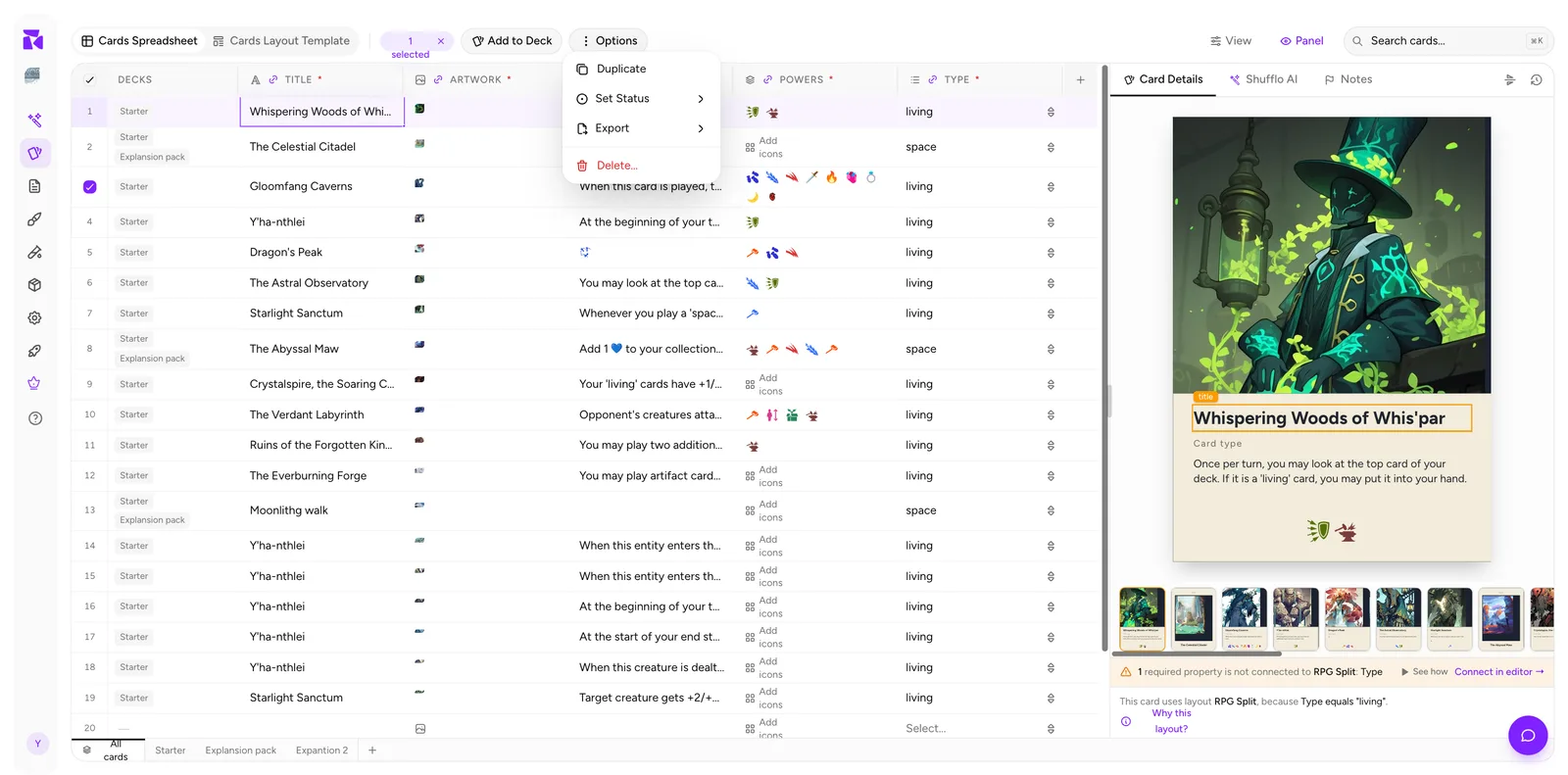
| Action | What it does |
|---|---|
| Duplicate | Copies the selected cards, including all property values. The fastest way to build variants of a card. |
| Set Status | Moves the cards between Draft, Active and Archived. |
| Export | Exports only the selection. CSV and JSON download straight away; the image and PDF options open the Export dialog scoped to these cards. |
| Delete... | Removes the cards, with a confirmation step; not undoable. Inside a deck tab, the dialog first offers to just remove the cards from that deck instead. |
Selection respects your current filter and search, so a useful pattern is: search for a term → select all → bulk edit.
Card status
Every card carries a status: Draft, Active or Archived. It's a system property, hidden from the grid by default.
To work with it:
- Show the column: View → Columns → System → Status.
- Filter by it: View → Filter → Status → Draft / Active / Archived.
- Change it in bulk: select rows → Options → Set Status.
Archived is the safe alternative to deleting. Cards stay in the project, keep their deck memberships and history, and dim in the grid; add a status filter when you want them out of view entirely.
Quantity
Quantity is a per-deck number, not a per-card one: the same card can appear once in one deck and three times in another. It only shows up when you're inside a deck tab, where the DECKS column is replaced by QTY. See Decks.
Duplicate names are allowed
ShuffleKit doesn't force titles to be unique; the example project has several cards called Y'ha-nthlei. That's intentional (variants, reprints, tokens), but it does mean you should lean on search and deck tabs rather than titles alone when you're hunting for a specific card.