The problems people write in about most often, each with its cause and fix. Where a tutorial covers the feature in full, the section links to it.
My export says some cards were "skipped — no matching layout"
The finishing message reads like Exported 52 cards as PDF Print Sheet (2 skipped — no matching layout), and the export settings show the same count before you start: 2 cards skipped (no matching layout).
A skipped card is one ShuffleKit found no front design for, so it was left out of the file.
- Close the export and select one of the missing cards in the sheet.
- Look at the Card Details preview. If it reads No matching layout, that card has nothing to print on.
- Open Design for that collection and add a front design, or open the Designs panel and choose Use for every other card from a design's ⋯ menu so it catches every card no rule claims.
If export stops with No card layouts yet. Design one first., the collection has no front design at all; the toast's Design a layout button takes you there. See Layouts & Priority.
Some cards came out without their artwork
The finishing message turns into a warning that stays for 15 seconds: Exported 54 cards as PNG Images. 3 cards came out without all of their artwork (Fire Drake, Ember Imp, Ash Golem). Export again to retry. It names up to three cards and counts the rest.
The file still downloads with every card. The named cards lost a picture that did not load in time or could not be fetched. Export again; if the same card fails every time, check its image cell in the sheet and replace a missing or broken picture.
Card art goes missing when I export from Safari or an iPhone
Safari's own image capture used to drop card art, so exports from Safari on a Mac, and from any browser on an iPhone or iPad, are now drawn on ShuffleKit's server: the progress line reads Starting the renderer…. If the server can't be reached, the export finishes in your browser and names any card that lost its art, as above. SVG exports are always made in the browser.
If art is still missing after a second try, tell us through Support (last section) which browser and device you used.
A card shows the wrong design
Each card takes the first design whose rule it matches, checked top to bottom in Designs; cards that match none go to the fallback (Every other card). A wrong design usually means a broad rule sits above a narrow one, or a value in the sheet doesn't match the rule exactly, such as a typo in a Text column.
- Select the card in the sheet.
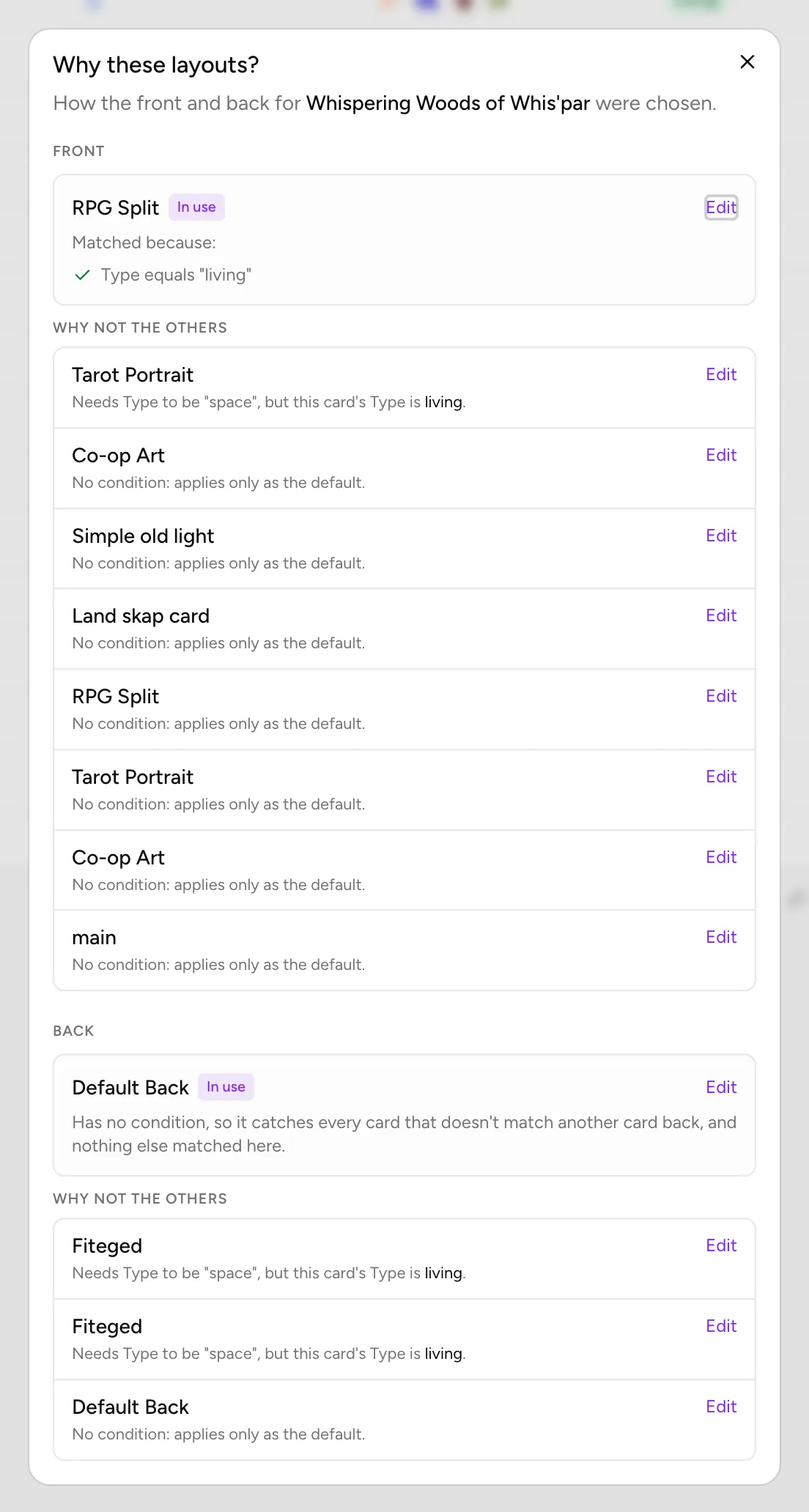
- Under the preview in Card Details, click Why this layout?.
- The dialog shows the design In use with the clauses it matched, then every other design and why it lost, such as Needs Type to be "space", but this card's Type is living.
- If the design you wanted reads Also matches, but … ranks higher., click Use this beside it to move it up. This changes the order for every card, so check a few others afterwards.
To point cards at a design without writing a rule, right-click a row and choose Use this design. See Conditions and Component Preview & Details.
My cards have no back, or a plain dark back
A back only has a fallback if you made one. When no back rule matches a card and no back design is the fallback, that card has no back:
- Export: the Card back choice only appears once the collection has a back design. On Auto (match card conditions), a card that matches no back rule and has no fallback gets no back.
- Print & Ship: with no back designs at all, the deck settings say No back layouts yet, cards print a dark back.
The fix is one back design with no rule, set as the fallback with Use for every other card. See Layouts & Priority.
My card shows {name} instead of text, or prints a blank field
A connected text box with no value on a card shows the text you typed into it in the editor. If you typed nothing, the editor and preview show the column in braces, such as {name}, and the connection panel warns: 3 of 16 cards have no value, and print {name}. Type fallback text into the box to give them something else.
Exports leave those fields blank by default. Before you export, the settings column shows N cards have empty fields that print blank:
- Details names each card and its empty columns.
- Show in sheet selects those cards so you can fill them in.
- Fill them with the column name instead prints the braces, which is useful on a proof.
To fix it, fill in the cells, type fallback text into the box, or hide the element on cards where the field is empty. See Data Binding and Element Visibility.
Text doesn't fit, and "Auto" is greyed out
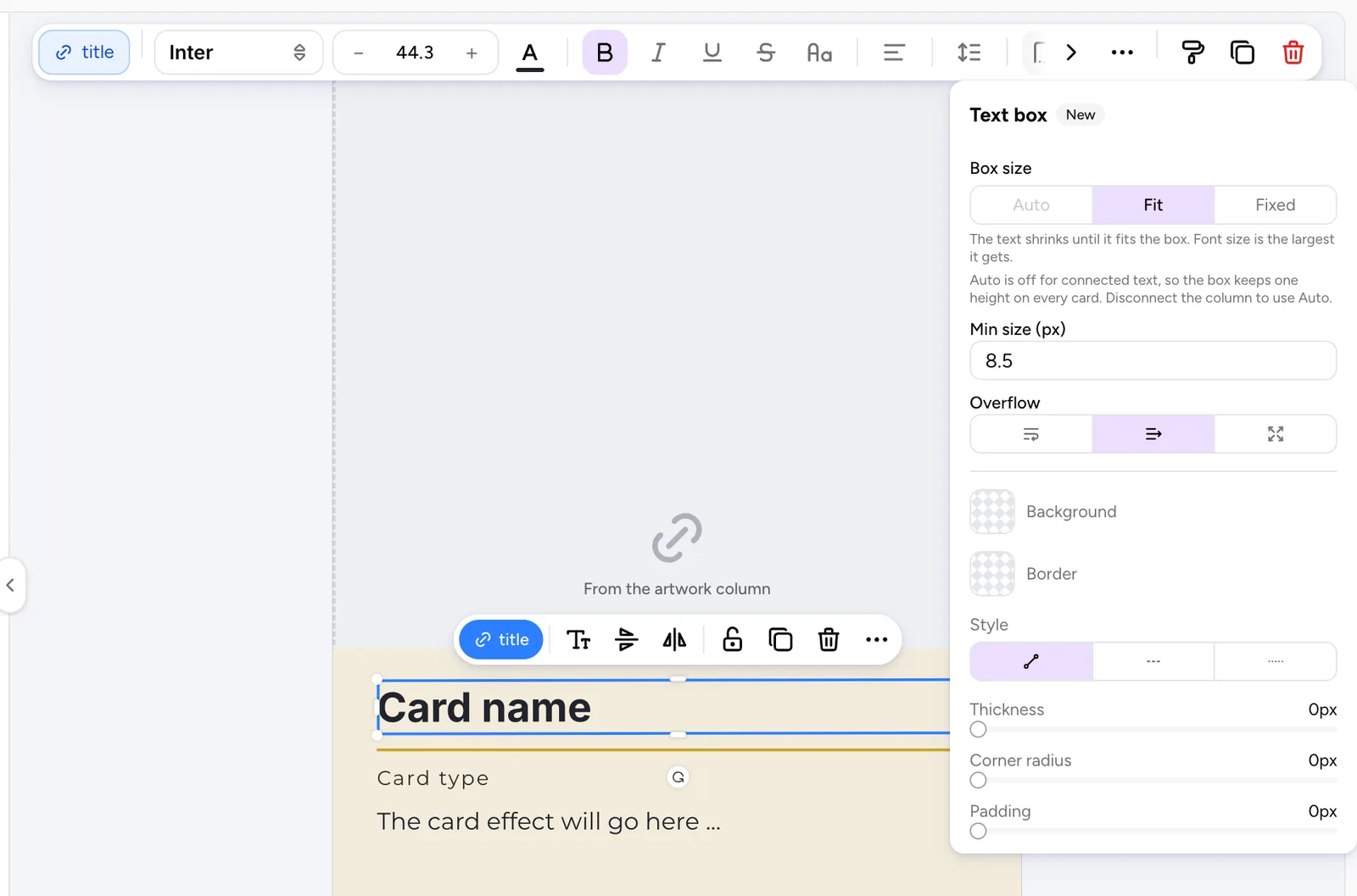
A text box has three Box size modes: Auto (the box grows with the text), Fit (the text shrinks until it fits the box) and Fixed (box and text keep their sizes, and Overflow decides what shows). Connecting a text box to a column switches Auto to Fit, and Auto stays greyed out while connected. The panel says why: Auto is off for connected text, so the box keeps one height on every card. Disconnect the column to use Auto. It is not a paid feature.
For long rules text, keep Fit and make the box as large as the design allows. Fit never shrinks below Min size (px), so enlarge the box or lower that minimum if the longest card still overflows. Check it in Preview mode. See Advanced Editor Controls.
Shufflo didn't answer, or says it is busy or down for maintenance
A failed reply says what happened and whether anything changed:
- Shufflo is busy right now and couldn't reply. Nothing was changed, so try again in a minute. Google's AI service was at capacity. Wait a minute, then press Retry.
- Shufflo stopped responding before it replied. or Shufflo hit an error before replying. Press Retry.
- Shufflo is down for maintenance on our side and couldn't reply. The problem is ours, so there is no Retry button. Try again later.
- You were signed out, so Shufflo couldn't reply. Reload the page to sign in again.
- Connection lost: your connection dropped. Press Retry.
Usage notices are not errors. On Shufflo Holo, a line above the composer counts your monthly messages near the limit (30 on Free, 80 on Hobby, 400 on Indie, plus 15 "extra on us"). Past that, Shufflo Holo limit reached offers Use standard Shufflo, which is never counted. Image generation stops at its own monthly limit with You've reached your monthly image generation limit. and Upgrade to continue. See Shufflo AI.
A bar says "ShuffleKit has been updated."
We released a new version while your tab was open. The old tab can show your work but can no longer save: This tab is running an older version and can no longer save. Reload when you are ready. Click Reload.
Save anyway and That change was not saved opens: press Reload now and make the change again (nothing saved earlier is affected), or Not yet to copy text out first. An export from an old tab stops with ShuffleKit updated while this tab was open. Reload the page and try again. and a Reload button.
A background tab with nothing unsaved reloads itself.
I can't sign in with Google from Instagram, TikTok or Facebook
A link opened inside another app uses that app's built-in browser, where Google refuses to sign anyone in. The sign-in and sign-up pages show You're inside another app's browser.
- Tap the app's ⋯ or share button and choose Open in Safari (iPhone) or Open in Chrome (Android), or
- Tap Copy sign-in link and paste it into your browser, or
- Choose Use email instead and use an email address and password, which work in any browser.
If you see That Google sign-in didn't finish. Signing in again takes a second., the sign-in was interrupted, often by the Back button. Sign in again. See Account & Onboarding.
Why does a button show a crown or "Upgrade"?
Free is for trying ShuffleKit out on one game. These need a paid plan:
| What | Free | Needs |
|---|---|---|
| PNG, JPEG, SVG and PDF exports, Tabletop Simulator and Roll20 sheets | Preview only | Hobby |
| Publishing a game to Print & Ship | No | Indie |
| Projects | 1 | Hobby holds 10, Indie unlimited |
| Cards and components | 120 | Hobby or Indie, unlimited |
| Designs (layouts) | 10 | Hobby or Indie, unlimited |
| AI image credits a month | 30, then 15 extra | Hobby 80, Indie 400 |
In Print & export, options your plan doesn't include carry a crown. On Free the export dialog still opens, but the preview is blurred behind PDF export is a paid feature (or Image, or Spritesheet) and the button reads Upgrade to Export. CSV and JSON data exports work on every plan.
At the project cap, New project shows Upgrade to create. If your one project is still an early try, the dialog also offers Start over, which deletes it and creates the new one in its place after you confirm Delete and start over. That can't be undone. See Manage Your Profile, Plan & Security.
Where do I get help?
- Shufflo is the AI. Ask it to make, change or check cards: open the Shufflo AI tab in the Cards side panel, or Shufflo in the sidebar.
- Support goes to a person on the ShuffleKit team. On a computer it is the round chat button at the bottom right of the screen; on a phone it is Support in the sidebar menu. Need help? in Settings opens it too. Pick a topic such as Bug Report or Billing, write your message and attach a screenshot if it helps. We reply in the same box and by email within 48 hours.
Typed a request for the AI into the support box? The ask Shufflo link under it moves your text into Shufflo's composer, unsent. Help & tutorials in the sidebar has short videos and what's new.