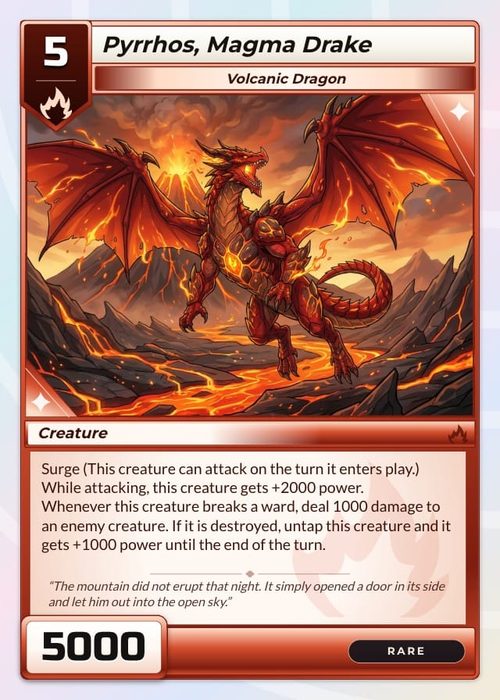
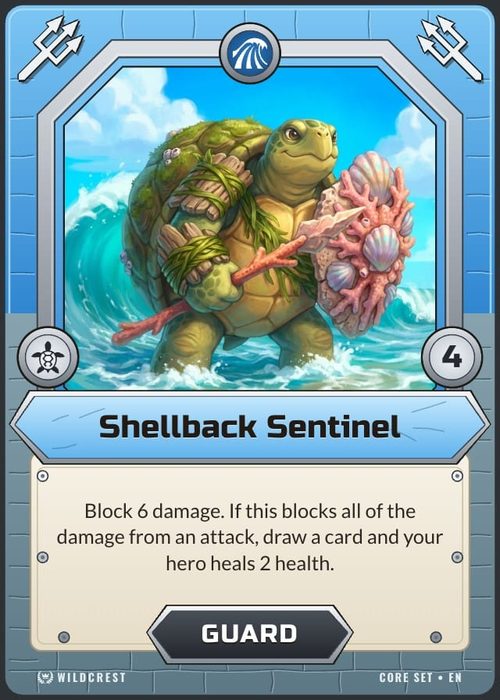
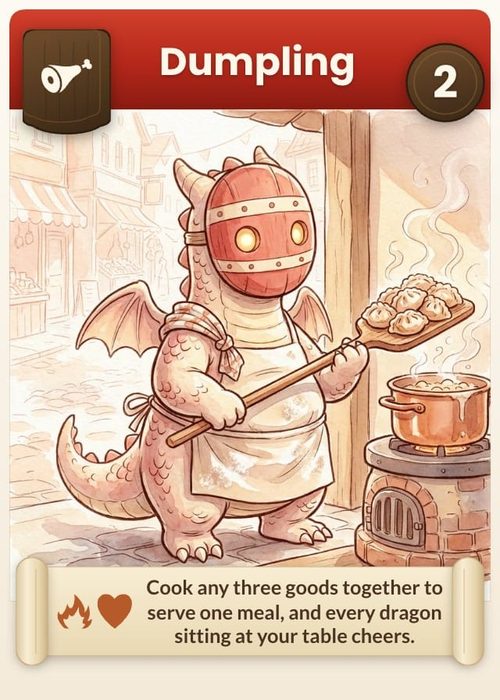
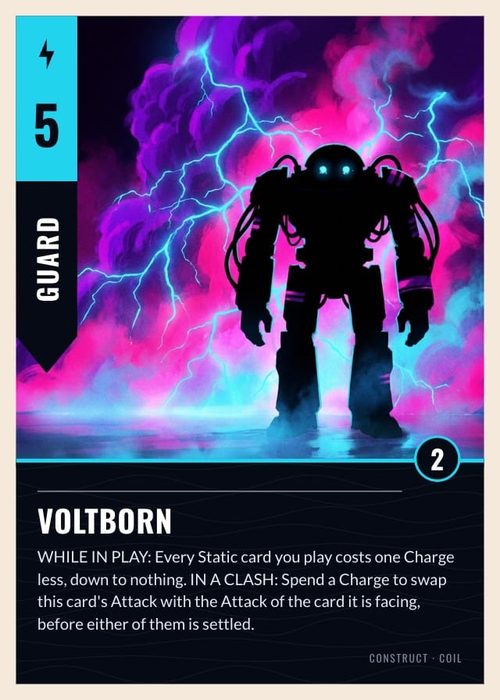
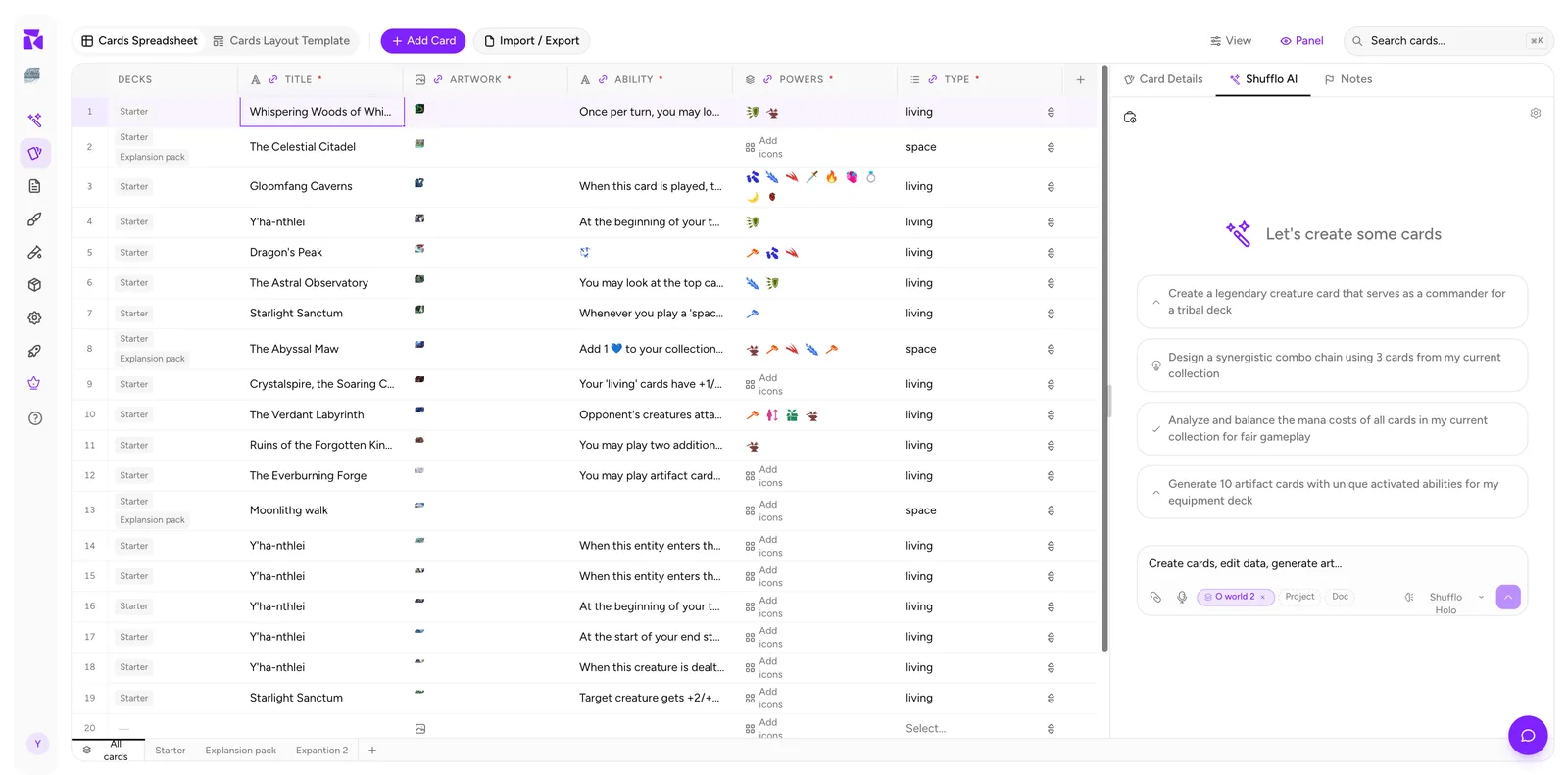
Shufflo AI has its own tab in the side panel, alongside Card Details and Notes. It reads your actual project (cards, properties, decks) and can create cards, edit data and generate art without you leaving the spreadsheet.
ShuffleKit has several AI surfaces. Use the Cards-page Shufflo panel to create and edit cards; use Docs AI for rules and design documents, Ideator for early game concepts, and Generator when you want to create or manage artwork independently of a card proposal. They can share project context, but opening one does not automatically perform the same action as opening another.
Opening it
Click Shufflo AI in the side panel tab strip. If the panel is collapsed, click Panel in the top action bar first.
Suggested prompts
The empty state offers four starting points, drawn from a rotating pool. The mix is a good map of what the feature is for:
- Analyze and balance the mana costs of all cards in my current collection for fair gameplay
- Suggest power-level adjustments for overpowered or underpowered cards in this deck
- Generate creature cards with evoke and alternative casting cost mechanics
- Create a legendary creature card that serves as a commander for a tribal deck
Some are analysis (look at what exists, tell me what's wrong) and some are generation (make new cards). Click one to run it, or write your own in the composer.
The composer
The input reads "Create cards, edit data, generate art...", which is the three things it does. Below it sits a row of controls:
- Attachment and microphone icons: add a reference image, or dictate.
- Scope chips: your project chip (
O world 2in the screenshot) plus Doc. These set what the AI can see. Including the project gives it your real cards to reason about: Doc brings in your rules document from Docs & Rules. - Model selector: Shufflo Holo, the default, is the more capable model and carries a monthly quota: Shufflo is the faster everyday alternative.
- Send.
Scope is the setting that matters most. "Balance my costs" is meaningless without the project in scope, and "write cards that match our keyword rules" needs the doc.
The model selector controls the chat model, not the card data itself. Shufflo Holo is the more capable model and has a monthly message allowance. Shufflo is the faster standard model. If the Holo allowance is exhausted, the panel offers to continue the message with standard Shufflo or cancel and upgrade. Image generation has a separate monthly image allowance, so a card batch can finish with some cards missing artwork when that limit or a provider rate limit is reached.
Writing good prompts
Be specific about constraints. "Generate 5 common-rarity creature cards, cost 1-3, that reward playing multiple 'space' cards" gets you something usable. "Make some cards" doesn't.
Reference your own properties by name. The AI can see your columns, so naming them (Type, powers, ability) keeps output in the right shape.
Ask for analysis before generation. Run a balance pass on what you have, read the reasoning, then ask it to generate into the gaps it found.
Iterate in the panel. It's a conversation. "Too strong, halve the effect and add a drawback" is a perfectly good follow-up.
Review everything
New cards and card edits go straight into your sheet. The result in the panel is marked Added, and its Undo button takes the whole batch back out, or puts the edited values back, in one click. Cards created while a deck was open are also added to that deck. Shufflo writes up to 50 cards per request, without artwork, so a large batch arrives in seconds.
Artwork is a separate step. Ask Shufflo to illustrate the cards and the pictures arrive as previews in the panel, and nothing is written to an Image property until you accept them. Suggested designs, and some column changes, also come as previews you accept or reject.
Two habits are worth keeping anyway:
Snapshot around bulk AI edits. ShuffleKit snapshots automatically before applying AI edits, but a named manual snapshot ("pre rebalance") is easier to find later. See Notes & Version History.
Read every generated card. AI is good at plausible-looking rules text and less good at rules text that's actually unambiguous under a real rulebook. Generated cards are drafts: check wording against your Docs & Rules, and mark them Draft status until they've been playtested.
Where it fits
Shufflo AI is most useful at the two ends of a project:
- Early, to get from a blank spreadsheet to fifty cards you can react to. A bad first draft you can edit beats an empty grid.
- Late, as a second pair of eyes on balance across a set that's grown too large to hold in your head.
In the middle, when you know exactly what card you want, typing it yourself is usually faster.
Related
Generated artwork lands in Image properties like any other art, so it flows straight into your layouts. See Properties & Columns and Connecting Properties.