Conditions are the single feature that decides whether a large component collection is maintainable or a nightmare. Get them right and items design themselves. Get them wrong and you'll be hand-assigning frames forever. They evaluate only properties from the active component type.
There are two independent condition systems in ShuffleKit, and confusing them is the most common source of trouble:
| Layout condition | Element visibility rule | |
|---|---|---|
| Lives on | A whole layout | A single element or group |
| Decides | Which design a card uses | Whether one piece of that design appears |
| Set from | The condition chip in the editor header | CONNECT DATA → Advanced visibility |
| Combines | Multiple clauses, all must match | One rule per element |
| Polarity | Always "render when" | Explicit Show when / Hide when |
| Can read | Card properties and deck membership | Card properties only |
The operators themselves are the same in both places. They are driven by the property's type, not by which system you're in. This tutorial covers the first system. See Element Visibility for the second.
The resolution model
Every layout sits in a numbered list, front and back kept separate, and the rule is stated at the top of the list:
Priority. Each card uses the first layout it matches, top to bottom.
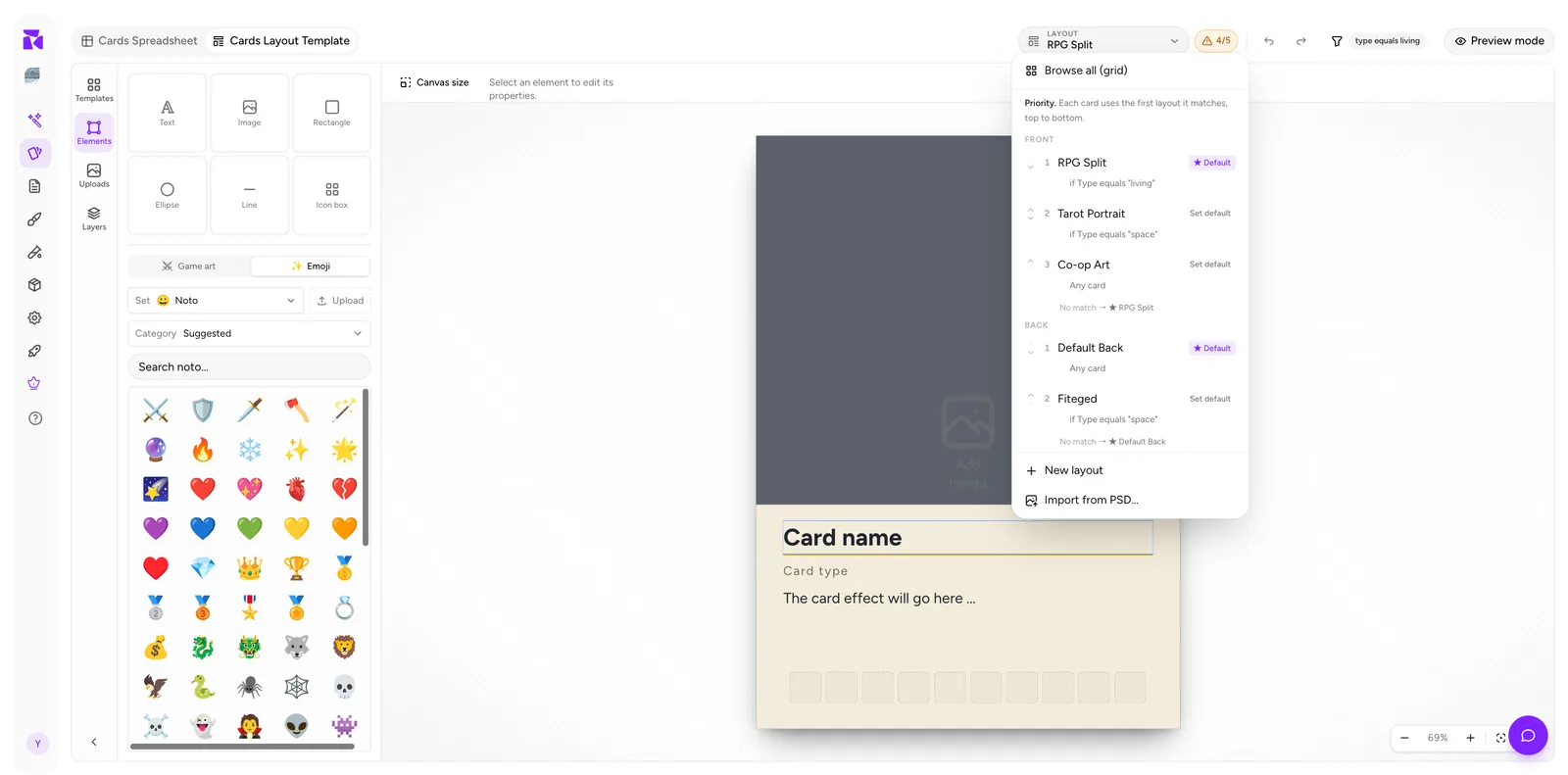
Three consequences worth stating plainly:
- Order is logic. Moving a layout up or down changes which cards it captures.
- First match wins. A card never uses two front layouts, and never "merges" them.
- The starred default catches the remainder. It should have no condition.
Writing a condition
- Open Design for the active collection.
- Select the layout from the LAYOUT dropdown.
- Click the condition chip in the header. It shows the current rule (
type equals living) when set, and readsConditionwhen empty. - Choose Property, Operator, Value.
- Click Apply.
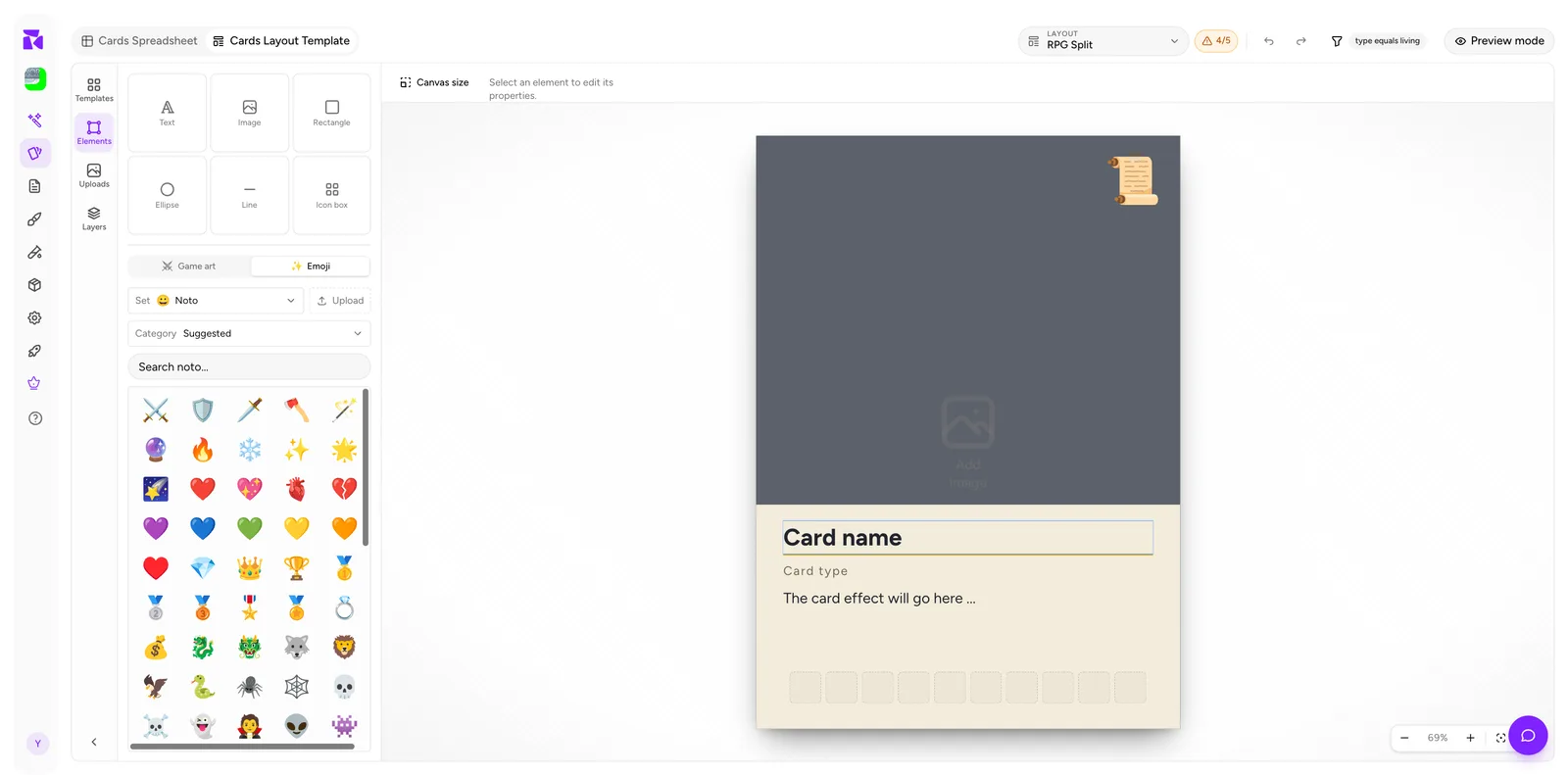
Clear removes the condition entirely, turning the layout back into an unconditional catch-all.
As you build the rule, the popover counts it against your real cards: "Matches 8 of 19 cards", or "Matches 8 of 19 cards · 5 will use this layout (3 match a higher-priority layout first)." Two of those readings are warnings:
- "No card satisfies this rule (0 of 19 cards): this layout won't be used."
- "All 8 matching cards are already claimed by a higher-priority layout, so this layout won't be used. Raise its priority to change that."
Read that line before you click Apply and you'll catch most mistakes on the spot.
The operators depend on the property type
There is no single fixed operator list. The Operator dropdown offers only what makes sense for the property you picked:
| Property type | Operators offered |
|---|---|
| Text | equals, does not equal, is empty, is not empty |
| Number | equals, does not equal, greater than, greater than or equal, less than, less than or equal, is empty, is not empty |
| Select | equals, does not equal, is any of, is empty, is not empty |
| Yes / No | equals, does not equal |
| Color | equals, does not equal, is empty, is not empty |
| Icon | equals, does not equal, is empty, is not empty |
| Image | is empty, is not empty |
| Icon list | is empty, is not empty |
| Deck (membership) | is any of, is empty, is not empty |
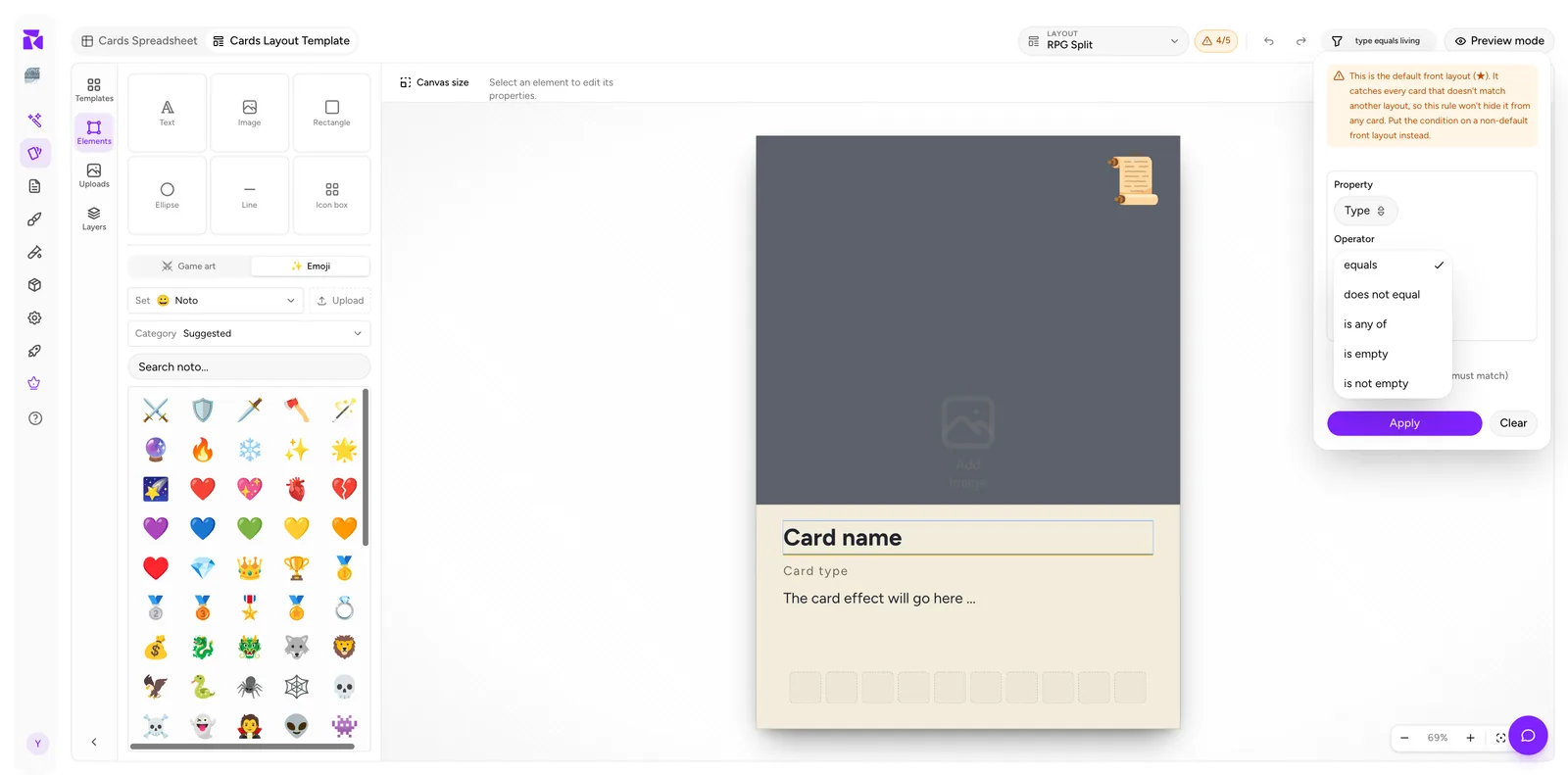
Two of those are worth calling out:
is any of is a Select feature. It's the operator that keeps layout counts down: three near-identical elemental frames become one layout with a three-value rule. It only appears when the property is a Select (or when you're conditioning on Deck). Its value control is a checkbox list of that Select's options, so a typo is impossible.
Numbers get real comparisons. greater than and less than are there, so a range-based frame is a single clause: Cost greater than or equal 4. No helper property needed.
is empty has a use that isn't obvious: it's a work-in-progress detector. A layout at the top of the list with Artwork is empty and an obvious placeholder design makes unfinished cards impossible to miss in a print proof.
Conditioning on a deck
The Property dropdown has one entry that isn't a property: Deck (membership). It reads which decks the card belongs to, so Deck is any of Expansion gives an entire expansion its own frame without adding a column to hold that fact.
It's multi-valued, which is why it only offers the set operators. Deck is empty catches cards that haven't been filed into any deck yet.
Multiple conditions
Click + Add condition. The label states the combination rule:
Add condition (all must match)
It's AND, always. There is no OR at this level.
To express OR you have two options:
- Use
is any ofon a single Select property. Covers most cases. - Split into two layouts at adjacent priorities, with the same design. Slightly more maintenance, but it handles OR across different properties:
Type equals heroORFaction equals royal, whichis any ofcan't handle.
A worked AND example: a premium frame for high-rarity creatures only.
Type    equals     creature
Rarity  is any of  rare, mythic
Both must hold. A rare artifact fails the first; a common creature fails the second.
Don't put a condition on the default
If you add one to the starred layout, ShuffleKit tells you it won't do anything:
This is the front fallback (★). It catches every card that matches no other rule, so this rule won't hide it from any card. Put the rule on another front layout instead.
This is worth understanding rather than just obeying. The default is defined as "what happens when nothing else matched". A card that fails the default's own condition has, by definition, already failed every other layout, so it lands on the default regardless. The condition can never exclude anything.
If you find yourself wanting to condition the default, what you actually want is a new layout above it carrying that condition, with the default left bare underneath.
Debugging: "Why this layout?"
When a card renders with the wrong frame, don't guess. Select the card in the spreadsheet and click Why this layout? under the preview. (Flip to the back and the same link reads Why this card back?.)
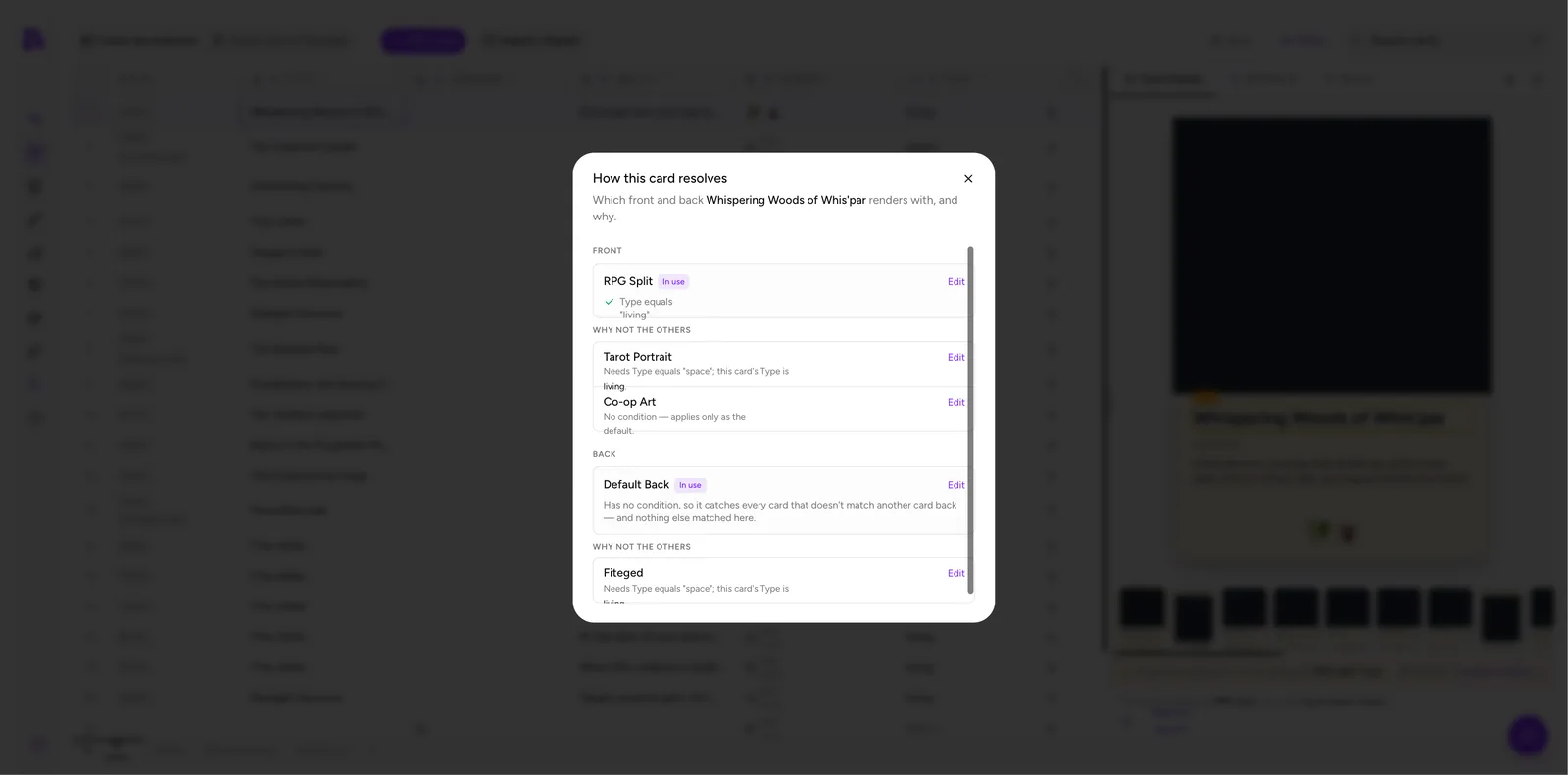
The dialog, titled How this card resolves once your project has a back layout, shows the result for FRONT and BACK separately:
- The layout In use, with a tick or cross beside each clause of the condition it was judged on, and an Edit link to jump straight into it.
- Why not the others: every layout that lost, each with a specific reason:
- "Needs Type equals 'space': this card's Type is living." The rule was evaluated and failed.
- "Also matches, but RPG Split ranks higher." It would have worked, but priority went the other way. These rows get a Use this button that promotes the layout above the current winner in one click.
- "No condition: applies only as the default." It was never in the running for this card.
Those last two are the ones that catch people out, and they need opposite fixes: the first is an ordering problem, the second means the layout can only ever be reached as a fallback.
The Card Details panel also states the outcome in one line without opening anything:
This card uses layout RPG Split, because Type equals "living".
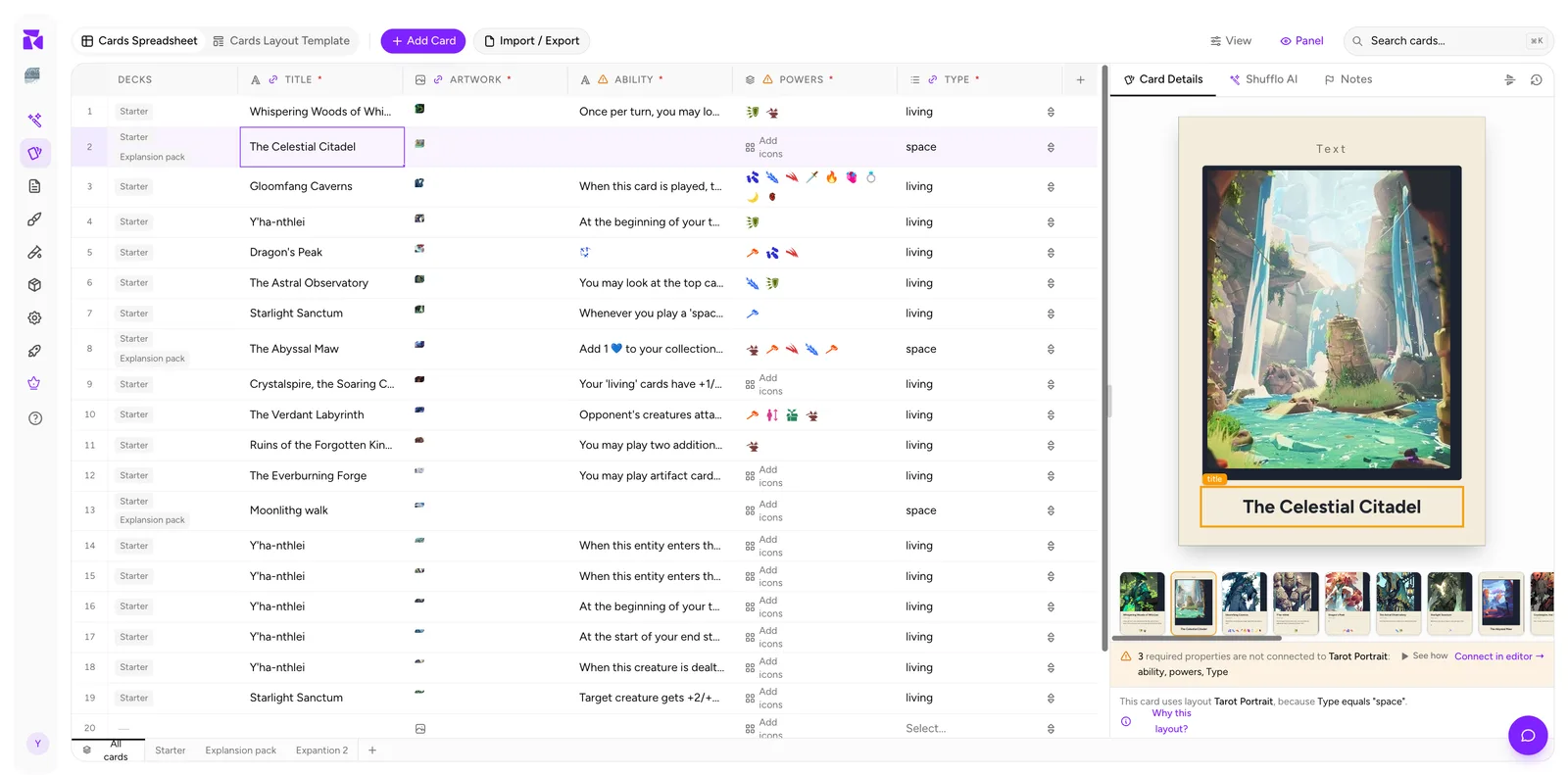
Select a different card and the sentence changes. Clicking through five or six cards is the fastest sanity check there is.
Choose the right property type
Conditions compare values. That makes the type of the property you condition on a design decision, not a detail.
Use Select. A Select property offers a fixed list, so a condition on it can never miss because of a typo, and it's the only type that unlocks is any of. Type as a Select with options living / space / artifact is robust.
Avoid Text. With a free-text property, Living, living (trailing space) and livng are three different values, and only one of them matches your rule. The card silently falls through to the default and the design looks "randomly wrong".
Yes / No is fine for on/off distinctions, such as Legendary equals true.
Number is fully ordered, so cost bands and power tiers work as plain comparisons rather than needing a helper column.
If you inherit a project built on Text properties, converting the column to Select before you build conditions is time well spent. See Properties & Columns.
Patterns that work
The ladder. Most specific at the top, broadest at the bottom, plain default last.
1  Legendary Frame   Rarity equals mythic
2  Creature Frame    Type equals creature
3  Spell Frame       Type equals spell
4  Basic Frame       ★ Default, no condition
The WIP catcher. A loud placeholder layout at position 1 with Artwork is empty. Unfinished cards announce themselves.
The one-property switch. A single Select property that exists purely to drive layout choice, called Frame, with options that name the designs. When a card needs a specific frame for reasons no rule can express, you set Frame directly and the condition system stays simple.
Fold near-duplicates. Before adding a fourth layout, ask whether it differs from an existing one by a badge or a colour. If so, it's one layout with a conditional element, not a new design to maintain.
Pitfalls
Broad rule above narrow rule. The narrow one never fires. The popover's live count says so: "All N matching cards are already claimed by a higher-priority layout". The resolution dialog says the same thing for each card.
Two layouts, same condition. The second is unreachable. The resolution dialog reports it as "Also matches, but … ranks higher."
Conditioning on a property that isn't on the layout. Perfectly legal and often correct. Type can drive layout choice without ever being printed. But it will make the connection counter complain if Type is marked Required. Either connect it somewhere, or turn Required off. See Data Binding.
Editing the condition of a layout you're not looking at. The chip always edits the layout currently loaded in the header selector. Check the selected layout and face before you click the chip.
Forgetting card backs. Backs have their own list and their own default. A front-side change never affects them.