Voice chat lets everyone at an online Playtable game talk to each other from the table itself, with no separate call app and nothing to install. It is built for playtests: you hear a tester say "wait, can I do that?" the moment it happens, and you can explain a rule without typing. It works in Chrome, Safari, Edge and Firefox, on a computer or a phone. Nothing anyone says is recorded.
Who can use it
Voice comes with the host's plan. When the person who opened the table is on Indie or Professional, everyone at that table can join the call, guests included, without a plan of their own. On a Free or Hobby host's table nobody has built-in voice.
- Your own online table (Play online on the setup screen): you are the host, so your plan decides.
- A table opened from a published playtest link: whoever pressed Play on the link is the host, so their plan decides, not the designer's. A guest tester is on no plan, so their table has no built-in voice. See Share a Playtest Link with Testers.
- Solo games have no voice button. There is no one to talk to.
On a table without voice, the toolbar shows Voice with a small lock. The host's version explains Voice chat is built into the playtable on Indie: mute, push-to-talk and who's speaking, for you and everyone you invite. Nothing to install, nothing recorded., with See Indie and Open Discord. Everyone else reads Voice chat comes with the host's Indie plan. Until then, a Discord call works fine beside the table. with Open Discord.
The host's plan is checked when the table opens and again whenever the call reconnects. Plans are compared in Settings & Plan.
Join the call
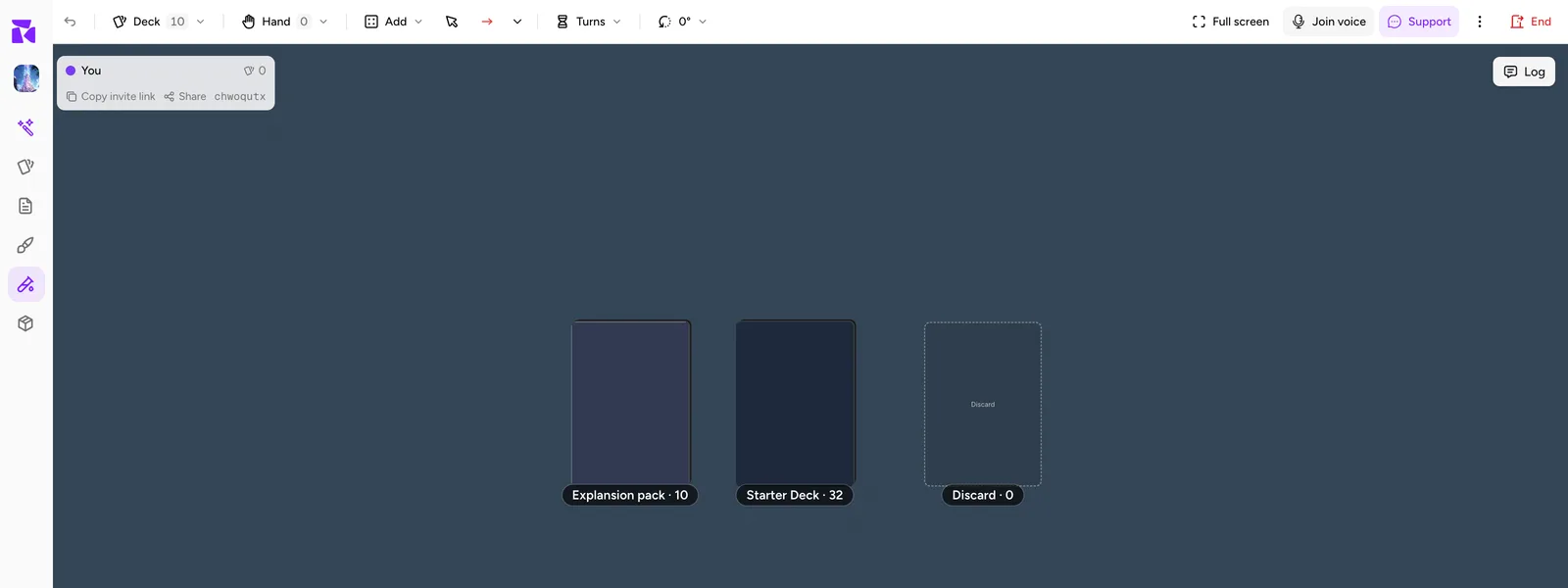
At an online table, Join voice sits in the toolbar beside Full screen. When others are already talking it reads Join voice · 2, with the number of people in the call.
- Press Join voice. The button changes to Joining… and the voice panel opens.
- The first time, your browser asks to use your microphone. Allow it.
- Once connected, the button becomes Voice · 3 (everyone in the call, you included), with a microphone button beside it.
You join with your microphone on, unless you last used push-to-talk (see below). A call holds six people, the same as a table's seats. If six are already in it, pressing Join voice shows The call is full: 6 people are already talking.
On a phone, the toolbar is in the More sheet at the top of the table: open it to find Join voice and, once you're in, the microphone button and Voice.
Mute, deafen and leave
The microphone button beside Voice mutes and unmutes you with one click. Its tooltip says what it will do: Mute your microphone or Unmute your microphone. When you are muted the icon is crossed out.
Voice opens the call panel:
- The heading counts the people in the call, or says joining… or reconnecting….
- You and everyone else in the call, each with their seat colour. A green ring round the dot means that person is talking. A crossed microphone means they are muted, red if the host muted them. A crossed headphone means they deafened themselves.
- Mute / Unmute: the same as the microphone button.
- Deafen (Hear nobody, and send nothing): you stop hearing the others and your microphone goes off too. Undeafen brings both back.
- Leave call ends the call for you. You stay at the table and can join again with Join voice.
If you start talking while muted with an open mic, the panel reminds you: You're muted. Unmute to be heard.
Leaving the table also leaves the call, and when the host ends the game the call ends with it.
Open mic or push to talk
The switch in the panel picks how your microphone works:
- Open mic (the default): you are heard whenever you aren't muted.
- Push to talk: you are heard only while you hold a key. The panel shows *Hold
to talk*, and the default key is ````, the backtick underEsc, which the table uses for nothing else. While push-to-talk is on, the microphone button is greyed out and its tooltip says Push to talk: hold `.
To use another key, press Change key. It reads Press a key… (Esc cancels): press the key you want. Space, Esc, Tab, Enter, Backspace, Delete, Caps Lock, and Shift, Ctrl, Alt or Cmd on their own can't be used, because the table or the browser already uses them (Space + drag pans the table, for example). While you're in the call with push-to-talk on, the key belongs to voice, so the table's own shortcut for that key does nothing.
Typing in the chat or any other text box never triggers push-to-talk, and if you switch to another window while holding the key, your microphone switches off.
On a phone or tablet there is no key: with Push to talk chosen, the panel shows a Hold to talk button. Press and hold it while you speak; it reads Talking… while held.
Your browser remembers your choice of mode, key, microphone and speaker for next time. It is per browser, so a different computer starts from the defaults.
Choose your microphone and speaker
Once your browser has allowed the microphone, the panel lists Microphone and, where the browser supports it, Speaker. Each starts on System default; pick a named device to switch to it mid-call without rejoining. Speaker appears only in browsers that can send sound to a chosen output, such as Chrome and Edge. Safari can't, so it shows no Speaker picker and plays through the output your system is set to.
If the microphone you picked is unplugged, the call goes back to System default. A newly plugged-in device appears in the list without rejoining.
ShuffleKit asks the browser for echo cancellation, noise suppression and automatic volume on every microphone.
Muting other people (host)
The host has two extra controls in the panel:
- Mute beside a person's name (its tooltip reads Mute {name} for everyone). It appears only next to people who aren't already muted.
- Mute everyone, at the top of the panel, mutes everyone in the call except the host.
The muted person gets a message, The host muted you, and their panel says The host muted you. Unmute when you're ready to talk. (with push-to-talk: Hold your talk key when you're ready to talk.). The host can't unmute anyone. A muted player unmutes themselves by pressing Unmute or holding their talk key, so host mute works as a polite "quiet please", not a lock.
Who is talking, from the table
You don't need the panel open to see who is speaking. In the player list at the top left of the table, and on each player's seat marker at the edge of the table, the seat-colour dot of someone in the call gets a green ring while they talk and a small crossed microphone while they are muted. Hovering the dot says Talking, In the call or In the call, muted.
On a phone: "Tap to hear the table"
Phones, and Safari in particular, only play sound after you touch the page. If the call connects but your browser holds the sound back, the panel shows Tap to hear the table. Tap it, or tap anywhere on the page, and the others come through.
The same can happen after you switch away from the browser and come back. On an iPhone, putting Safari in the background or taking a phone call can also take the microphone away; when you come back to the tab, the call picks the microphone up again and reconnects by itself.
When the call drops
If your connection blips, the button reads Reconnecting… and the panel says reconnecting…. The call retries by itself, waiting a little longer each time, and waits for your connection to come back if you went offline. If it can't get back after several tries, you see Voice dropped and couldn't reconnect. Join again to retry. and the button reads Voice off.
Messages when voice won't start
When joining fails, the button turns red and reads Voice off. Click it for the reason, a Try again button and Use Discord:
| Message | What to do |
|---|---|
| Your browser blocked the microphone. Allow it for this site (the icon in the address bar), then join again. | The panel adds how: On iPhone: Settings → Safari → Microphone → Allow. In Chrome: the lock or tune icon left of the address → Microphone → Allow. Then press Try again. |
| No microphone found. Plug one in or pick another, then join again. | Connect a microphone or headset, or check that the computer's microphone is switched on in your system settings. |
| Another app is using your microphone. Close it, then join again. | Quit the other call or recording app (Zoom, Teams, a voice recorder), then Try again. |
| Couldn't connect the call. Your network may be blocking it; try again, or use Discord. | Work, school and some public networks block calls. Try again, switch to another network or your phone's data, or use Discord. |
| Couldn't start the call. Try again in a moment. | A problem on our side. Wait a moment and press Try again. |
| This browser can't do voice calls. Try a recent Chrome, Safari, Edge or Firefox. | Update your browser, or open the table in one of those. |
| Voice needs a secure (https) page. | Open the table from its normal https:// address. |
| Take a seat at the table to join the call. | You are signed out, or no longer at this table. Open the invite link again to rejoin, then join the call. |
| This table has ended. | The host ended the game. Start or join a new table. |
| Voice chat is part of the host's Indie plan. | The host's plan doesn't include voice. Use Discord, or the host can upgrade. |
| Voice chat isn't available right now. | Voice is switched off on our side for the moment. Use Discord. |
If an online table shows no voice button at all, not even a locked one, voice is off on our side for now: use More → Voice on Discord instead. Troubleshooting has the same fixes alongside other common problems.
Is voice recorded?
No. The panel says Not recorded at the bottom. Online games are recorded so the designer can replay them, but the recording holds moves, chat and card flags, never audio. Your voice goes through Cloudflare's servers to the other players at that table and nowhere else; it isn't stored by ShuffleKit or by Cloudflare. ShuffleKit keeps only that a call happened and how long it lasted.
If you want what testers said on record, write it down as it happens: flag the card (N), or put it in the table's chat, which the recording keeps.
Using Discord instead
Discord is the fallback for any table without built-in voice, for a call larger than six, or for a network that blocks the built-in call. In an online game, More → Voice on Discord instead opens Discord in a new tab, and Open Discord and Use Discord in the voice popovers do the same. Start a call there with your group and keep the Playtable open beside it. Both work at once, so you can keep Discord for talking and still use the table's player list to see who is where.