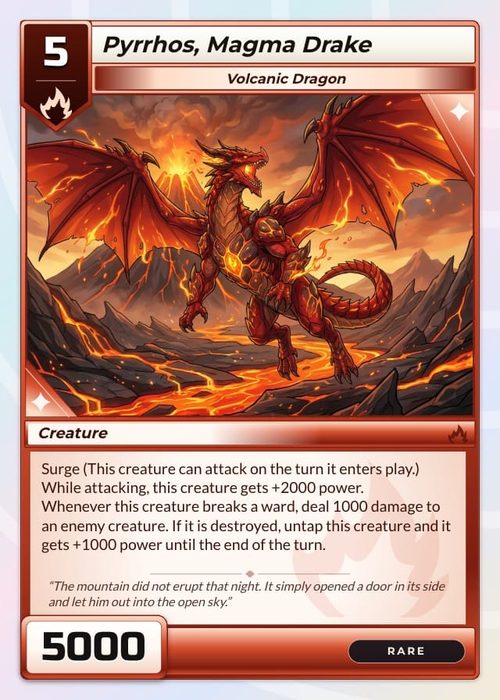
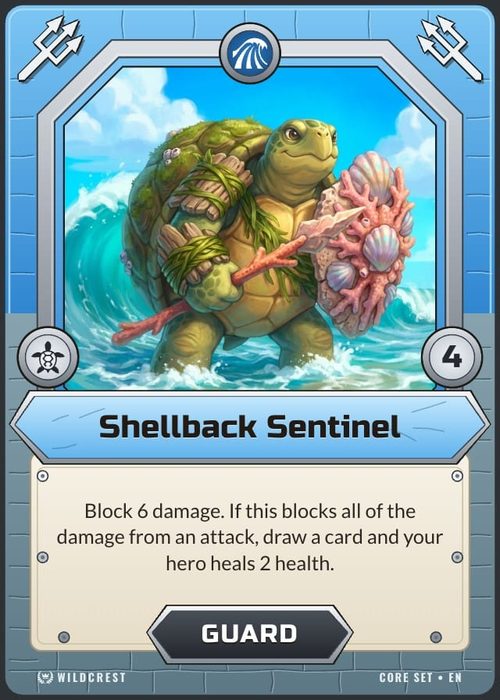
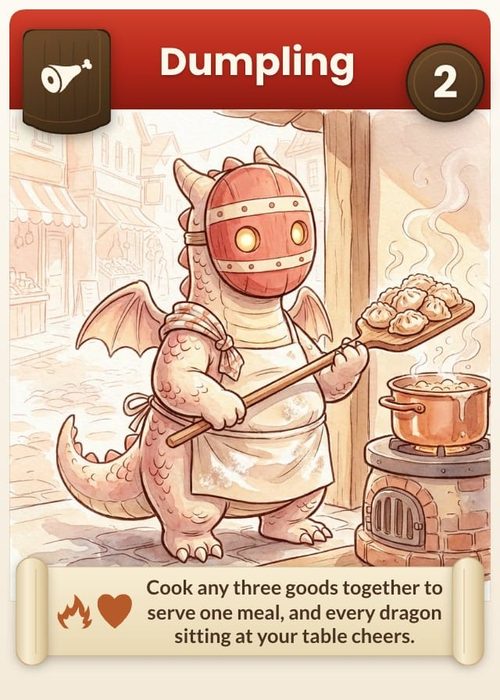
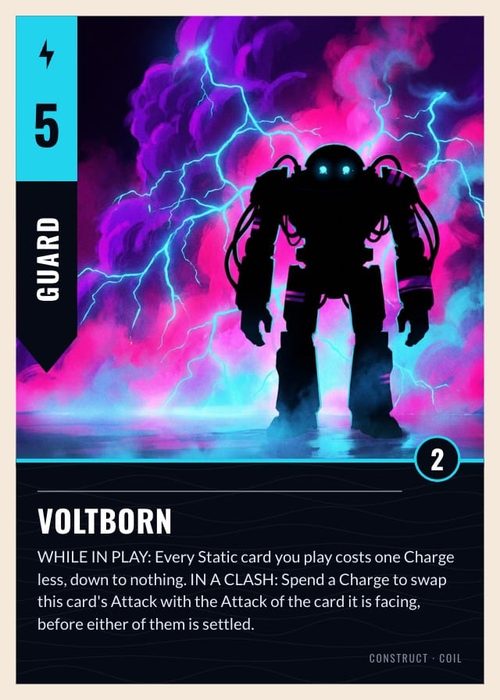
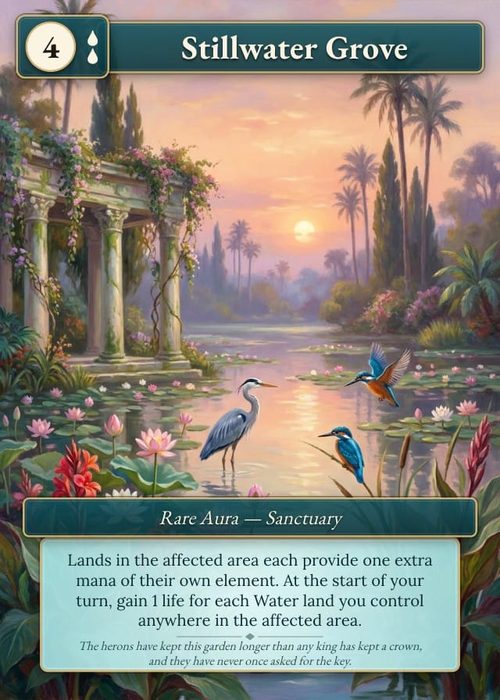
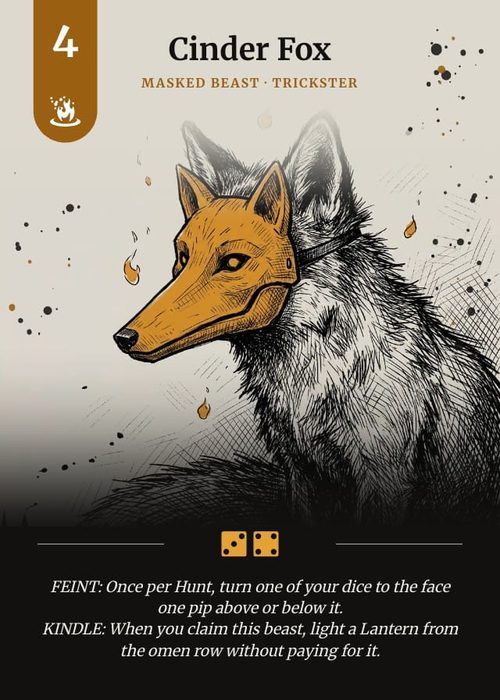
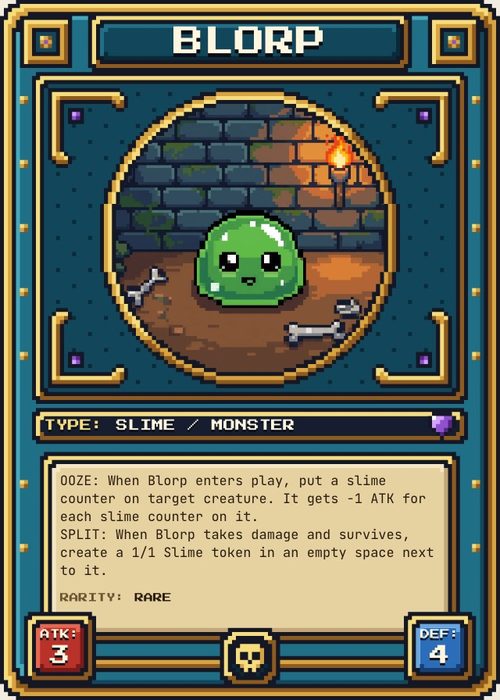
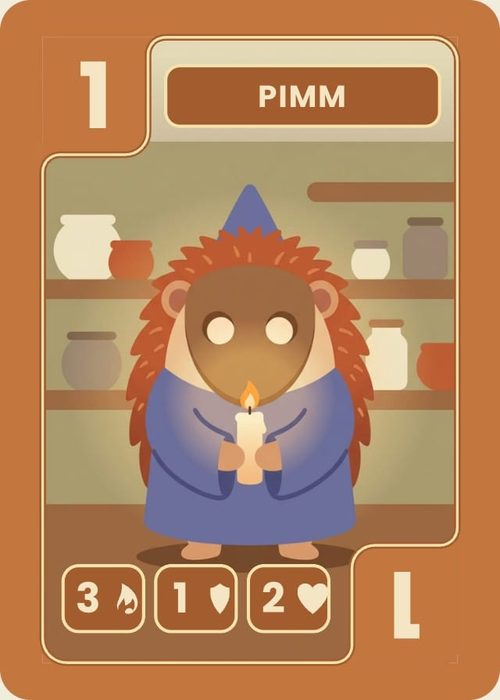
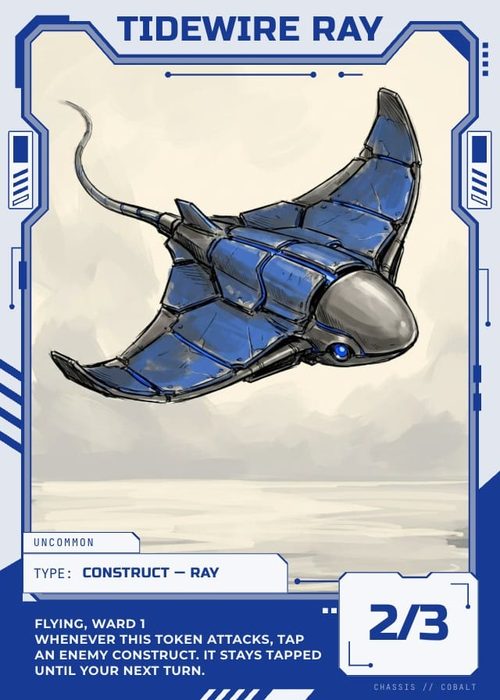
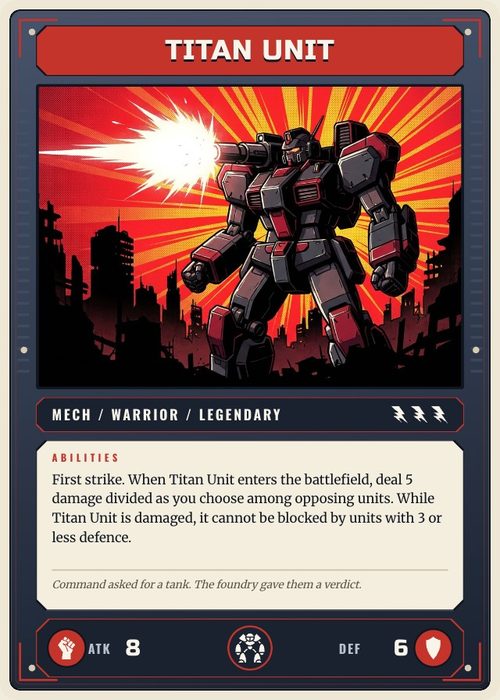
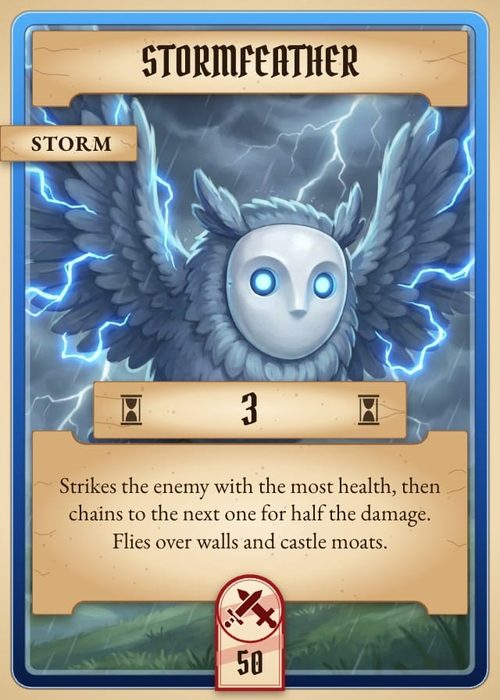
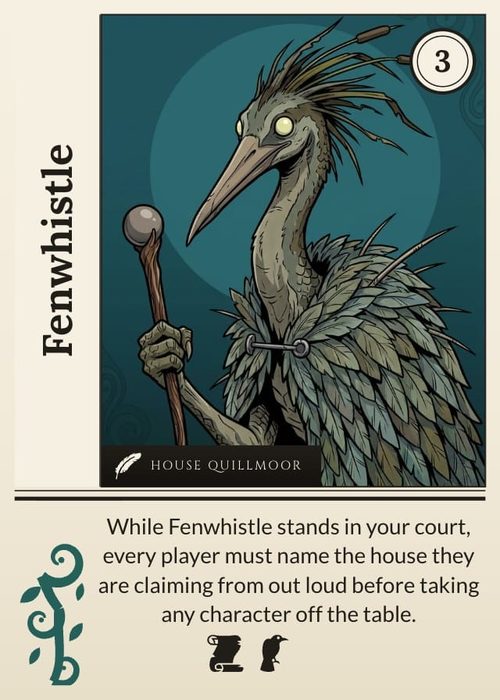
A template is a snapshot of your designs that other people can copy into a project of their own. Publish one when you want to give a card frame to a friend, hand a playtester the exact layout you use, or share a finished game's look in the community gallery. The people who use it get their own copy; they never see your project, your cards or your later edits.
What a template contains
When you publish, ShuffleKit copies these from your project at that moment:
- The designs you pick, up to 8, fronts and backs alike, with their layer groups and any snap slots on a board.
- The columns those designs read. A column no chosen design is connected to stays behind.
- Sample rows, if you tick the box: up to 12 per kind of component, taken from the first rows in your sheet that have something in those columns. Only the connected columns' values go; the rest of each row stays in your project.
- The pictures the designs and samples use, up to 30 in all.
A design's condition (the rule for which cards use it) travels when every column it tests is in the template; a condition that tests deck membership is left out. Your project itself, its other cards, its rules documents, notes and history stay private.
A template is a snapshot. Edits you make to your designs after publishing don't change it, and they never reach copies people have already made.
Who can publish
Only the project's owner can publish its designs, on any plan, Free included. If someone shared the project with you, the publish options aren't there for you; ask the owner, or copy the design into a project of your own first (see Collaborate on a Project).
You can publish up to 3 templates in any 24 hours. A fourth is refused with Publish limit reached (3 packs per day); try again the next day.
Open the publish dialog
There are two ways in, both in Design:
- From the design you're on. Click Share in the top bar. At the bottom of the invite dialog, click Publish "
" as a template . The line under it reads A snapshot others can copy. Your project stays private. - From any design. Click Browse all at the top of the Designs panel, switch to Your layouts, open a design's ⋮ menu and choose Publish as template.
Either way the dialog opens with that design already ticked.
Pick the designs
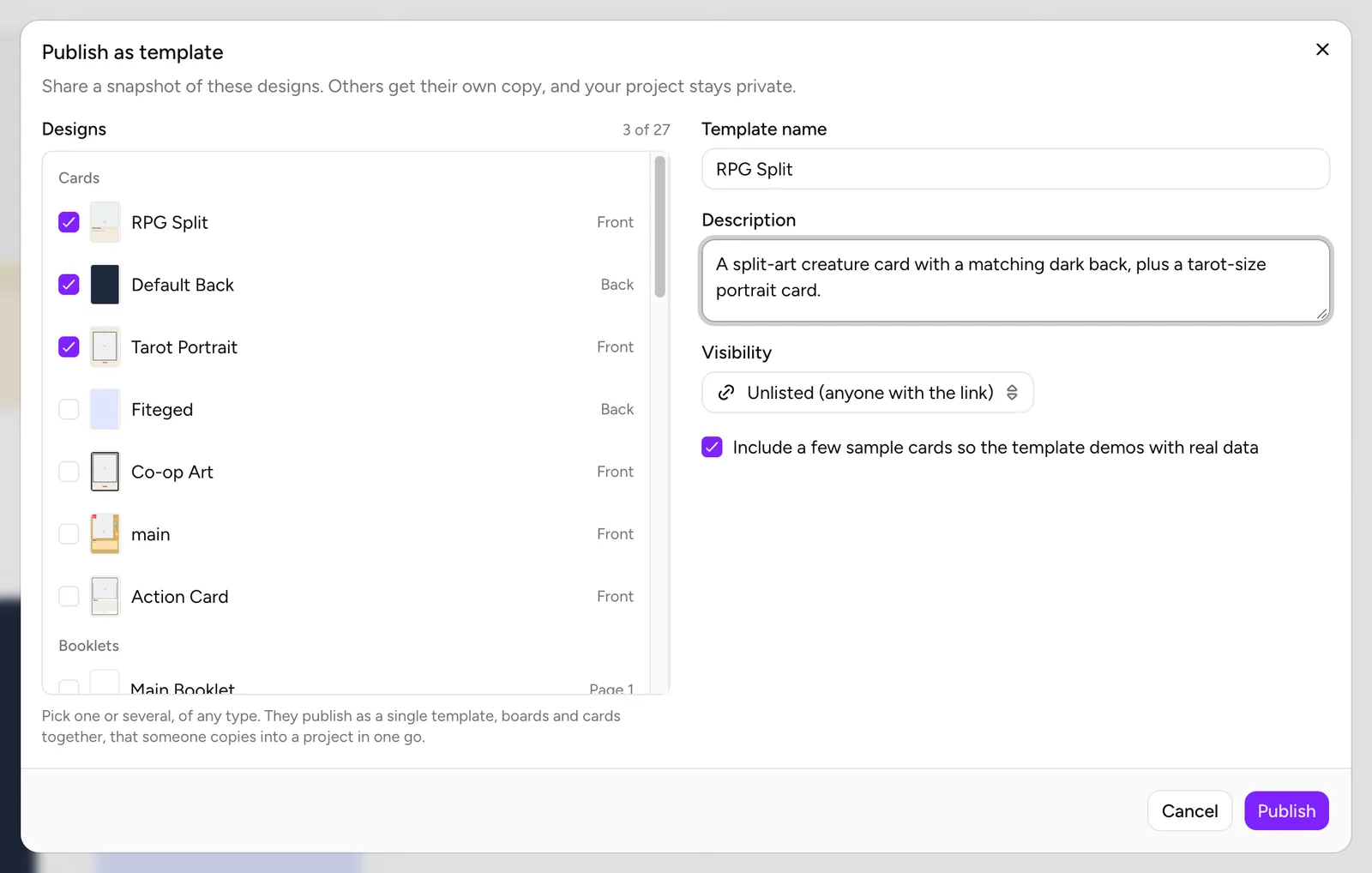
The Publish as template dialog lists every design in the project. Designs shows how many you've picked (1 of 7), and each row has a small picture of the design, its name and its side (front or back).
- Tick one design for a single frame, or several to publish them together. A card front and its back make a pack someone adds in one go.
- In a project with more than one kind of component, the list is grouped by kind, the one you were looking at first. Tick a board and the cards that go with it and they publish as one template, boards and cards together, that someone copies into a project in one go.
The Template name follows the first design you tick until you type your own. Names can be up to 80 characters.
Name, description, visibility and samples
- Template name: what people see on the template's card and page, for example
Mystic Creatures. - Description: up to 600 characters on what the template is for. For a Public template left blank, the dialog reminds you: Worth filling in for a public template. This is what people read in the gallery.
- Visibility:
- Private (only you): no page and no listing. Use it to publish now and decide later.
- Unlisted (anyone with the link): the default. The template has a page at its link, but it isn't listed in the gallery, and its page asks search engines not to list it.
- Public (listed in the gallery): listed with the community templates inside ShuffleKit, and its page can appear in search results.
- Include a few sample cards so the template demos with real data: on by default. With boards and cards picked together, it reads Include a few sample boards and cards…. Leave it on unless your rows hold something you don't want to share, such as unannounced card text.
Click Publish. While it works, the button reads Publishing…; ShuffleKit saves the template and then draws a preview picture of each design for its page.
Share the link
Once published, the dialog title changes to Template published and the link appears at the top of the right-hand column, as shufflekit.com/templates/p/ followed by the template's id. Click the copy button beside it, then Done. The line under the title says who can use it:
- Unlisted: Anyone with this link can use your template.
- Public: Your template is live in the community gallery.
- Private: Only you can see this template until you change its visibility.
Anyone who opens the link sees the template's page: its designs, the number of sample rows, the size, and the columns it brings. Use this template copies it into one of their projects, or a new one. Start from a Template walks through that side.
The publish dialog can't be edited after you click Publish; the fields stay on screen as a record of what went out. Use My templates for changes.
My templates
My templates is where you manage everything you've published:
- In Design, click Browse all at the top of the Designs panel and stay on the Templates tab.
- Set Show to Community packs (or leave it on All templates and scroll to the Community packs heading).
- Click My templates beside the heading.
The window lists each template with its name and install count (12 installs). Each row has:
- Visibility: switch between Private, Unlisted and Public at any time. The change applies straight away.
- Copy link: copies the template's current link.
- Generate a new link: gives the template a new link and stops the old one working (New link generated. The old one no longer works). Use it when an unlisted link went further than you meant. Copies already made are not affected; anyone who wants the template again needs the new link.
- Open public page: the template's page in a new tab. Private and hidden templates have no page, so this shows a page-not-found for them.
- Delete template: asks Delete "
"? and explains Its page and link stop working. Copies people already installed stay as they are.
A template's name, description and designs can't be edited after publishing. To change them, publish again from your updated designs, then delete the old template or set it to Private. The new one has its own link and starts at 0 installs.
Keep the template's pictures in your library
Each install copies the template's pictures from your image library at the moment someone adds it. If you delete one of those pictures afterwards, later installs get a missing image in its place. Copies made before you deleted it keep theirs. See Your Image Library.
Hidden by moderation
Anyone can report a template from its page with Report this template. The ShuffleKit team reviews reports and can hide a template that breaks the rules. A hidden template drops out of the gallery, its page stops working, and other people can no longer add it. In My templates its install count reads · hidden by moderation. Copies people made before it was hidden stay as they are. If you think it was hidden by mistake, contact Support.
What someone who adds your template gets
When someone adds your template, ShuffleKit copies into their project:
- the designs, as their own designs they can edit,
- the columns those designs read, connected the same way,
- the sample rows, if you included them and their plan has room,
- the pictures, as copies in their own image library.
The copy belongs to them. When you change your designs, delete a picture or delete the template, their copy stays exactly as it was. They can't see your project, and you can't see what they do with the copy. The designs and sample rows count toward their own plan's limits: when the samples would take them past their card limit, the designs still arrive without them.
Each install adds one to the template's install count in My templates.
Find community templates
Public templates from other ShuffleKit users are inside the Design editor:
- Click Browse all in the Designs or Templates panel and open the Templates tab.
- Set Show to Community packs. Search templates and packs searches their names and descriptions too.
- Each template shows as a card with a Community badge and its install count (or its description, before anyone has installed it). Click the card or Use pack to see its designs and add it.
The shelf shows templates that include the kind of component you're designing: a creator's board game with a board and cards appears on the boards shelf and on the cards shelf. If nobody has published one for that kind yet, it reads No community packs yet. Publish one from a layout's menu.
On a phone
The publish dialog opens as a sheet, with the design list above the name, description and visibility fields; scroll down to reach Publish. Browse all and My templates work the same way as on a computer. See Use ShuffleKit on Your Phone.
Common problems
- No publish option. The project belongs to someone else, or no design is open. Publishing is for the project's owner.
- Publish limit reached (3 packs per day). You've published three templates in the last 24 hours. Try again later.
- This pack references 34 images, and the limit is 30. Untick a design with a lot of pictures, or untick the sample rows, and publish again.
- "Card front" has 2 element(s) or group(s) that failed validation. Open that design, make any small change so it saves again, and publish again.
- Someone's link stopped working. You generated a new link, set the template to Private, deleted it, or it was hidden by moderation. Send them the current link from My templates.