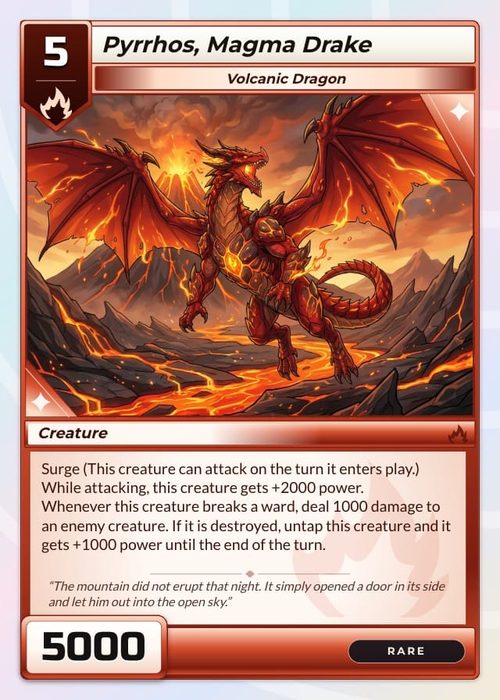
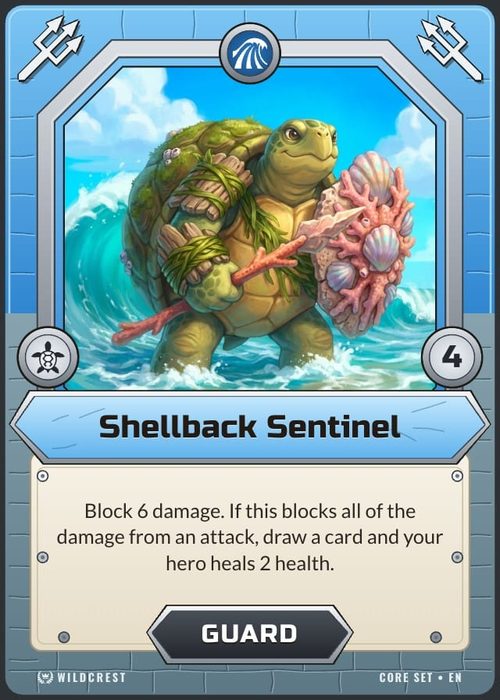
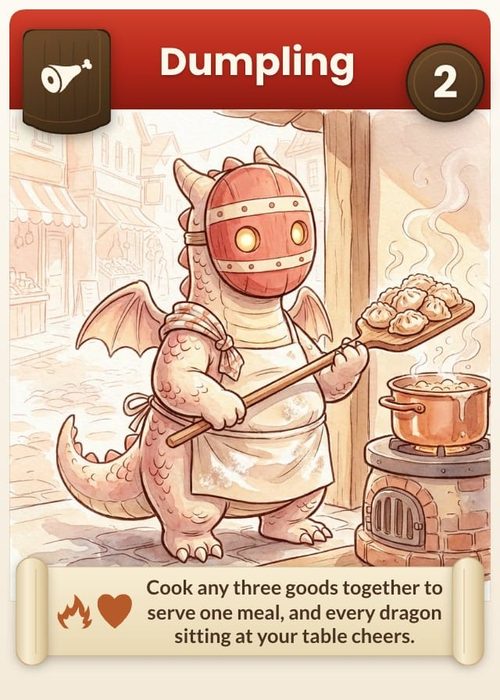
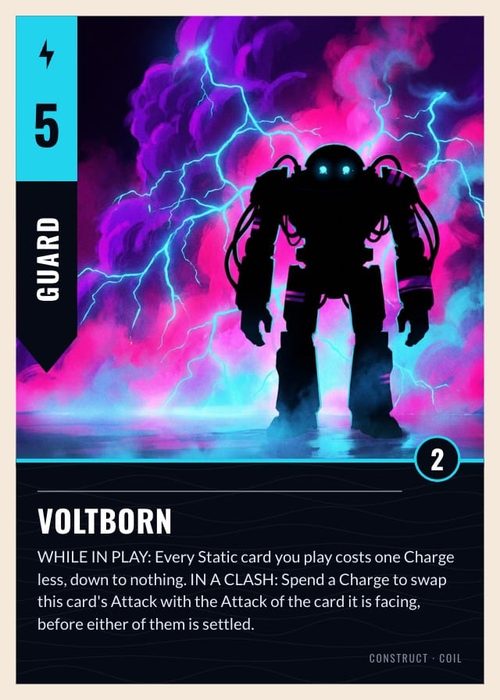
A playtest link lets people play your game while you are somewhere else. You set up the table once, press Publish online, and send the link to testers. Each person who opens it hosts their own game of it in the browser, with no account and nothing to install, can bring friends to their table, and leaves notes on your cards and a short rating at the end. Every one of those games is recorded for you. Use it when you want more plays than you can sit in on: a playtest group, a Discord server, a convention list, or a friend in another time zone.
Before you publish
Publishing turns the table you have set up into the link, so set it up first. Open Playtable in your project and choose what goes on the table and how the game starts: the card collections, Starting hand, Hand limit, turn tracking and clocks, the felt colour, dice and coins, and the Rules document players can open at the table. Start a Card Playtest walks through each option. The link keeps all of it.
Your cards stay live. The player page describes the deck as The designer's current version: when you edit a card on the Cards page, the next game played from the link uses the new version. The table options and the chosen collections are taken when you publish, so to change those, publish a new link.
Only the owner of a project can publish it. In a project someone shared with you, the setup screen says Only the owner can set up this game.
Publish the table
Publish online sits at the top of the Playtable setup screen, beside the project picker; on a narrow screen it shows only a globe icon. Once you have published links, a small number on the button counts them, and hovering it shows how many links you have and how many times they were opened. You can also start from the Cards page: Print & export → Publish online (A link anyone can open and play) brings you to the setup screen with the dialog already open.
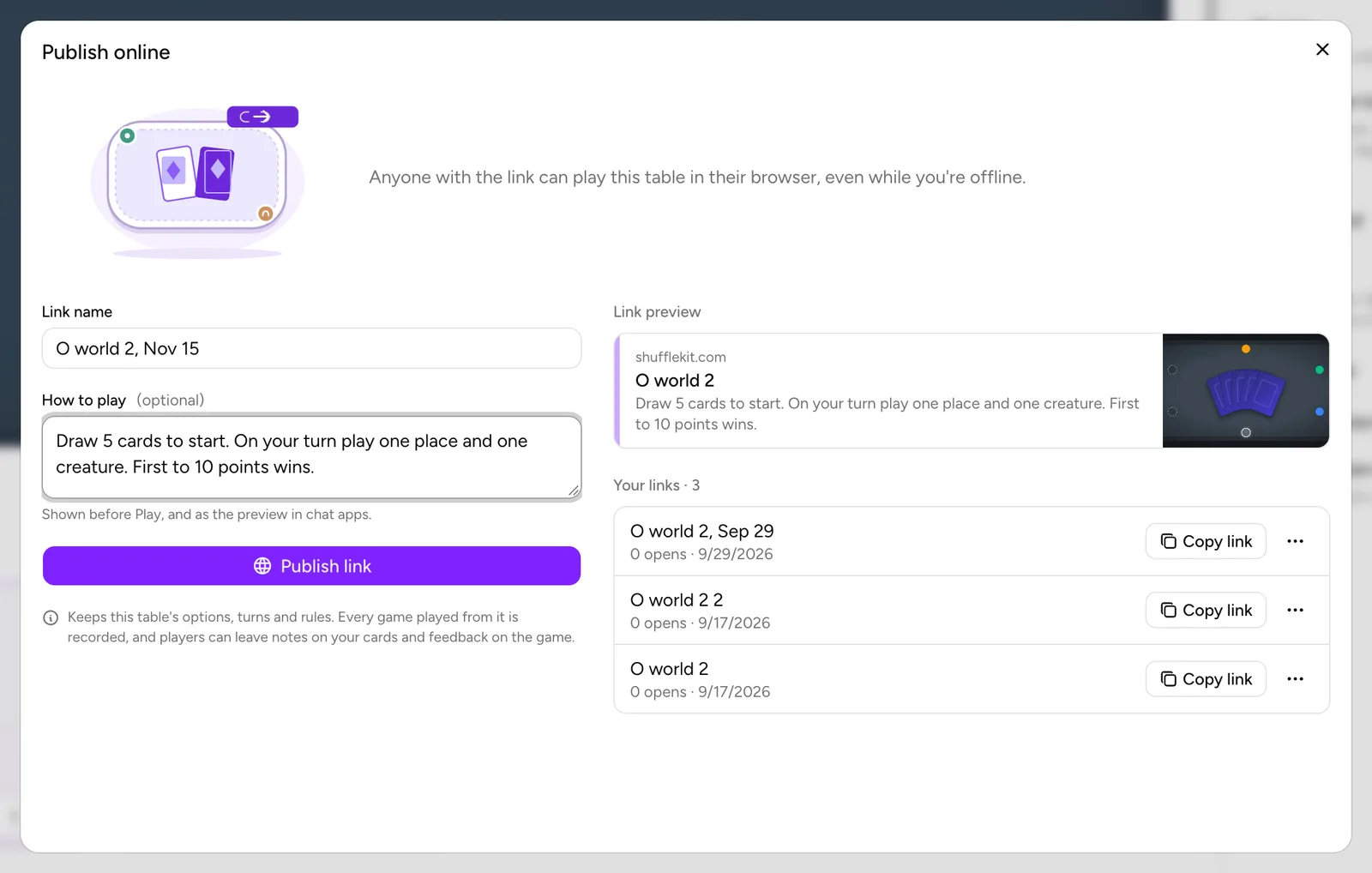
The dialog, Publish online, says Anyone with the link can play this table in their browser, even while you're offline. Fill in two things:
- Link name: starts as the game's name and today's date, such as Ember Court, Nov 15, so links from one project read apart. If that name is already taken, a number is added (Ember Court, Nov 15 (2)). Up to 80 characters. Players see it on the player page under the game's name when the two differ, and it titles the feedback form at the end.
- How to play (optional): up to 600 characters, shown to players before they press Play, for example A duel for two. Draw 5 to start, first to 10 points wins. The hint under the box reads Shown before Play, and as the preview in chat apps. Write the first line as the pitch: chat apps show only that line, cut at about 150 characters.
On a wide screen, Link preview on the right shows how the link will look when it is pasted into a chat app, and changes as you type: the site, your game's name, the first line of How to play, and the table picture. With How to play empty, the preview falls back to Plays in your browser, nothing to install. Flag cards as you go and leave a minute of feedback at the end. The real preview's title reads {your name} shared {game} with you, or Play {game} when your account has no name.
Press Publish link. The link is created and copied in one step (Link published and copied), ready to paste. If the browser refuses the copy, the toast says Link published. Copy it from its row below, and the link appears selected in its row so you can copy it yourself.
The note under the button sums up what the link carries: Keeps this table's options, turns and rules. Every game played from it is recorded, and players can leave notes on your cards and feedback on the game.
On a phone the dialog opens as a sheet from the bottom of the screen, with the form first and your links below it. The link preview is left out there.
Publish a saved position
A link can open mid-game instead of at a fresh deal, which is how you test a specific turn, a puzzle, or a late-game situation without asking testers to play up to it.
- Play to the position you want, solo or online, then choose More → Save this table as a scenario and give it a name.
- Back on the setup screen, find it under Saved scenarios, open its … menu and choose Publish this position.
- The dialog now says Players open this link at the position you saved, not a fresh deal, and play in their browser even while you're offline. A note above the name box names the position and when you saved it, and explains seating: Hands go to whoever takes the same seat; a hand whose seat nobody fills goes back on the table face down. The button reads Publish this position.
The link's row in Your links then shows Opens at and the position's name, and the player page shows a badge such as Starts at "Turn 12", not a fresh deal, with the line Set up mid-game, as the designer left it.
If you play one of your own published links and save a scenario there, it goes into that link instead of this browser: Saved "Turn 12" into the setup: every published link now opens here. On the setup screen that scenario carries a Published badge. A link holds one position at a time, so saving another replaces it.
To send a link back to dealing from scratch, open Publish online and press Deal fresh instead in its row. The toast confirms This link now opens at a fresh deal.
Manage your links
Your links lists every link you have published from this project, newest first, with a count in its heading. Each row shows the link name, how many times it was opened, and how long ago you published it. An open is counted when someone presses Play on the link; looking at the player page doesn't count, so you can check your own link without inflating the number.
- Copy link copies the address again. It turns to Copied for a moment once it lands.
- … opens the rest:
- Open the player page opens the link in a new tab, exactly as a tester sees it.
- Show feedback opens the ratings and comments under the row (see below). Hide feedback closes them.
- Delete link removes it at once, with no confirmation: Link deleted. It no longer opens. Anyone who opens it afterwards gets a page-not-found. The ratings and comments left on that link are deleted with it, so read or copy them first. Recordings of games already played from it stay in Recordings, and card flags stay in Notes.
There is no pause or edit. A link stays live until you delete it, with no expiry date. To change a link's name or How to play, publish a new link and delete the old one once you have read its feedback. To change where it starts, use Deal fresh instead, or save a new scenario while playing the link.
What a tester sees
The player page
The link opens a page with a preview of your table on one side, cards and all, drawn from the current setup or the saved position. On the other side:
- {Your name} shared a game with you (or A game to play), the game's name in large type, and the link name under it when it differs.
- Your How to play text in a box.
- The Play now button.
- Four short points: Plays in your browser (Nothing to install. Invite friends from inside the game.), what is in the deck, Flag a card as you go, and A minute of feedback (Three ratings and a line of text when you leave.).
- A privacy line: Your session is recorded so {you} can watch it back, including the cards in your hand., with Hands are private by convention. and a Why? that explains hands are private the way they are across a kitchen table.
Joining as a guest
Someone who isn't signed in types a name in Your name at the table (What should the other players call you?) and presses Play now. No account needed. Sign in if you have one. Someone already signed in sees Play now on its own.
Either way, they become the host of a new table of your game. While they play as a guest, the bar at the top says Playing as {name} (guest) with a Keep this account button. If many guests join from the same network in a short time, the page says Too many guests have joined from this network just now and asks them to try again later or sign up.
From inside the game, the tester can invite friends with Copy invite link in the player list, the same as any online table. A table seats six.
Flagging cards
During the game, a tester right-clicks a card and chooses Flag / Add note, or points at it and presses N. On a phone they tap the card, then Flag in the selection bar. The Flag card dialog takes a category (Balance, Wording, Rules, Art, Bug or Other), an optional note, and optional suggested values for the card's fields. Testers can flag as many cards as they like on every plan. Each flag reaches your project at once and appears in the card's Notes tab on the Cards page; see Notes & Version History.
The feedback form
When a tester presses Leave or End, or the host ends the game, a form asks How was {link name}? Only the designer sees this. Skip anything you'd rather not answer. It has three questions, each answered 1 to 5:
- Was it fun?
- Were the rules clear?
- Did it feel balanced?
Then Anything else?, a free-text box. Send feedback sends it (Thanks! Your feedback is on its way to the designer); Skip sends nothing. Every question is optional. Everyone who played is asked; people who only watched are not.
After the game
A signed-in tester goes back to their own Playtable. A guest lands on a thanks page: Thanks for playing, {name}. and The table's down, which tells them you can watch the session back and read anything they flagged. Below it, Keep this account offers Continue with Google, or an email and password with Keep this account with my email. After confirming the email, the guest seat becomes a normal ShuffleKit account, and their games and notes come with it. If the email already has an account, the page says so and suggests signing in to it instead. A guest who does nothing keeps their seat: guest seats that never played are cleared after a couple of days, but one with a game on it stays.
Read what testers left
Feedback arrives in three places:
- Publish online → Your links → … → Show feedback lists each answer under its link: the ratings as fun: 4/5, clarity: 3/5, balance: 5/5, the date, and the comment. With none yet it reads No feedback yet. Card-level notes show up in your cards sheet as players flag them.
- Results, on the Playtable's section menu, has a Game setup menu that narrows everything to the games played from one link, and a Tester feedback panel with the ratings and comments. On Free and Hobby, Results summarises your newest session; Indie and Professional see every session together.
- Recordings marks each game played from a link with a Playtest link badge and the link's name. Open one to replay it, with a flag on the timeline wherever a card was flagged, or press Debrief with AI. See Playtest Recordings & Replays and Playtest Results.
Card flags go to the Cards page, as above.
Plan limits and your own branding
How many links you can keep live at once depends on your plan, counted across all your projects:
| Plan | Live playtest links |
|---|---|
| Free | 1 |
| Hobby | 1 (Free's allowance, kept as a gift) |
| Indie | Unlimited |
| Professional | Unlimited |
At the limit, the dialog shows Your plan keeps 1 playtest link live at a time and the button becomes Upgrade to publish. The note under it tells you where your live link is: Delete one of your links to publish this one, or, when it is in another project, Yours is in another project. Delete it there to publish this one. Delete a link to free the slot, or upgrade. Subscriptions from before 20 October 2026 keep the number they were sold with; see Settings & Plan.
Games played from your links are kept as long as your plan keeps recordings: 30 days on Free, 6 months on Hobby, a year on Indie and Professional.
On Professional, your testers see your game instead of ShuffleKit. The player page shows your game's name and its Logo (set in the project's details) where the ShuffleKit name would be, the footer drops Made with ShuffleKit, chat apps show your game's name as the site, and a guest at the table sees your game's name and logo in the top bar. The invite text you copy at a live table reads Pull up a chair: join my playtest. without naming ShuffleKit. Your plan decides this, not your testers'.
Playing online together instead
A playtest link is for games you don't attend. To play with people yourself, use Play online under Start playtest on the setup screen (or Print & export → Play online on the Cards page). It opens your table straight away; copy the invite from Copy invite link in the player list at the top left and send it. People join as they arrive, as guests or with their accounts, up to six seats, and later arrivals can watch.
The two differ in a few ways:
- Who hosts. At a Play online table you are the host: you can end it for everyone, use Watch every hand, and save checkpoints. From a playtest link, each tester hosts their own table and you aren't there.
- How many games. An invite belongs to one table. A playtest link starts a new, separate game every time someone presses Play, for as long as it stays published.
- Feedback. The feedback form appears only on tables opened from a playtest link. At your own table, ask in person or in the chat.
- Plan. Play online is on every plan and has no link cap. Voice chat follows the host's plan, so at your Play online table it is on when you have Indie or Professional, while at a tester's table it depends on the tester's plan. See Voice Chat at the Playtable.
Both are recorded and both show up in Recordings and Results.
Common problems
- Publish online isn't there. You are not the owner of this project, or a live online table is open. A shared project shows Only the owner can set up this game. Arriving from the Cards page, a toast explains: Only the game's owner can publish it, Cancel the lobby to publish this game, or Nothing to publish yet when the table has no cards.
- Publish online is greyed out. Nothing is selected under On the table. Pick at least one card collection or All cards.
- The button says Upgrade to publish. You are at your plan's link limit. Delete a link from Your links here or in the project the message names.
- Testers get an old hand limit, turn setting or rules document. The table options were taken when you published. Publish a new link and delete the old one (after reading its feedback). Card text and art are always current.
- The link opens mid-game and you wanted a fresh deal. Press Deal fresh instead in the link's row.
- No feedback has come in. The form appears when a tester leaves or the game ends; a tester who closes the tab without pressing Leave isn't asked. Their game is still in Recordings, and any cards they flagged are in Notes.