This is an Admin workflow. The template and icon catalog is not a normal project workspace: access is limited to authorised admin accounts. Non-admin accounts are returned to Cards, so designers should use the templates and icons exposed in the Design editor rather than try to manage the shared catalog.
Maintain the template catalog
Open Admin → Templates. The page has three tabs: Templates, Icons, and Community. On Templates, search by name, slug, tag, category, or component type, and use the Status, Category, and Tags filters to narrow a large catalog before changing anything.
Choose New template and give it a name, a stable slug, category, component type (the Designs field), and pixel dimensions. New templates always begin as Drafts. Choose the physical component type first: the form updates to that type's default size, and a published template is offered only to designers working on that same type. A card template with board dimensions may look acceptable in the catalog but is a bad starting point for every downstream layout.
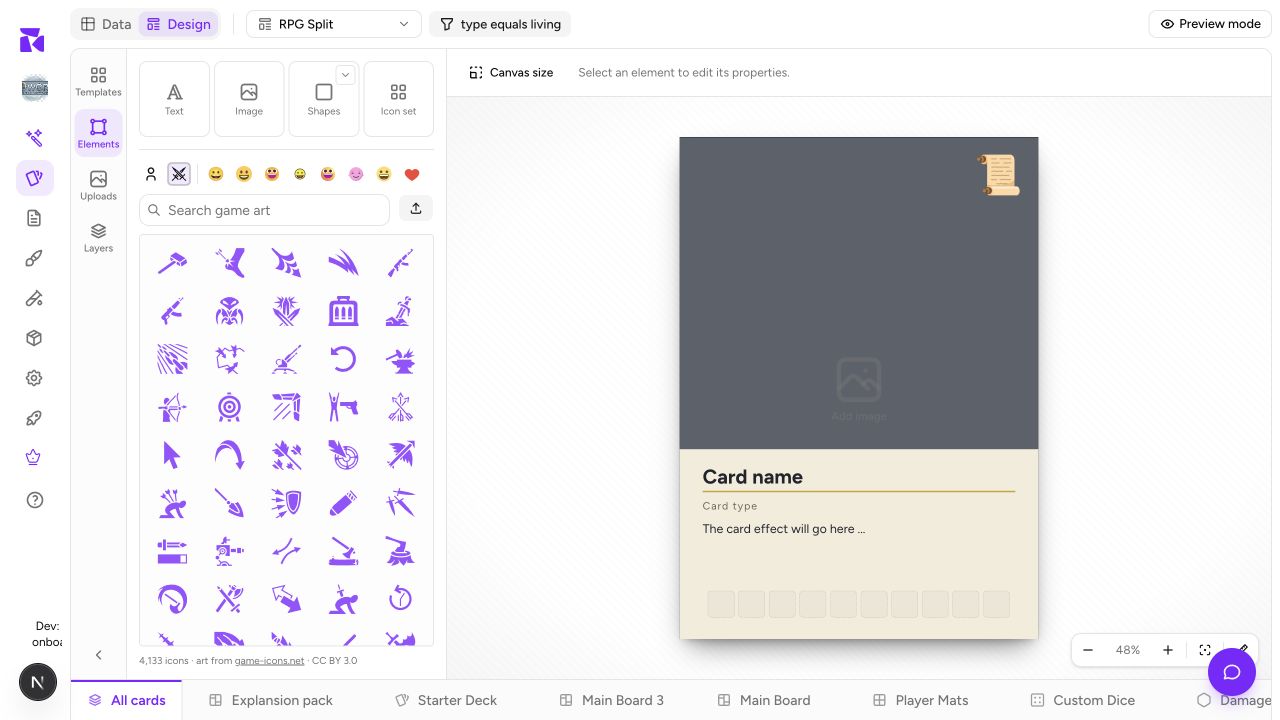
Open the created template to design it, define its slots, and check it at real size. The template editor has Elements, Uploads, Layers and Slots tabs beside the canvas, and its header shows the slug, size, Draft or Published state and whether changes are saved. Settings edits the name, slug, description, category, tags and size, and Save (or Mod S) saves the canvas. The canvas keys are the layout editor's: Mod Z and Mod Shift Z undo and redo, Mod D duplicates, Mod C, Mod X and Mod V copy, cut and paste, Delete removes the selection, Esc clears it, and holding Space pans.
On Slots, select a single element on the canvas and give it a role and the property types it accepts; the AI matcher uses these to connect the template to a project's columns. Remove slot clears the selected one, and All slots lists every slot, marking any whose element was deleted as an orphan. Slots save on their own. When the source design already exists as a Photoshop file, Import PSD on the catalog page builds a template from it. Before publishing, confirm:
- its width and height match the intended print or component preset;
- every reusable element has a sensible placeholder or slot;
- category and tags help a designer find it; and
- it works with real project data, not only a thumbnail.
Use the overflow menu to Publish, Unpublish, duplicate, or delete a template. Duplicate before a substantial redesign so an established starting point remains available. Delete is permanent, so use it only when the catalog entry itself is wrong. An older style that has fallen out of favor is better unpublished.
The starter designs onboarding offers a new project are catalog templates too: those in the Genre category, tagged with the project's genre. A project with no genre gets the other starters. Publishing or unpublishing one of them changes what new projects in that genre are offered, so treat those rows with extra care.
Maintain the icon library
Choose the Icons tab in the same catalog. This is the shared SVG library.
For each custom icon, choose New icon, drop or upload an SVG file, and set a clear name, stable slug, and comma-separated tags. The server sanitises SVG before storage, but an admin should still use trusted source artwork and inspect its preview. The Published switch in the same dialog makes the icon available to designers; leave incomplete, duplicate, or unreviewed work unpublished.
Designers reach a published icon by its slug in an inline icon token in card text, such as {{icon:fire}}. The Design editor's icon picker has a swatch for this library, but it is switched off at the moment, so designers cannot browse these icons there. Icons already placed on cards and layouts keep rendering.
Search by name, slug, or tag, then use an icon's menu to edit, publish/unpublish, or delete it. Deletion has a wider impact than hiding an icon: cards and layouts that reference it lose that icon. Prefer unpublishing when you need to remove a choice from new work while you audit existing references.
Moderate community packs
The Community tab lists every template pack creators have made, private ones included, with its visibility, install count, the start of its author's id, and its date. Open a pack's public page from its row to review it. Hide takes a pack out of the public gallery and away from everyone but its creator, without deleting it; Unhide puts it back.
Make catalog changes safely
Treat a slug as a stable identifier, not decorative copy. Inline icon tokens look icons up by slug, and tours, onboarding and AI prompts use a template's slug as its id. Test a newly published template or icon in a non-critical project, verify it in Design and Preview mode, then announce it to designers. This protects O world 2 and every other project from a catalog change that looks correct only in the Admin screen.