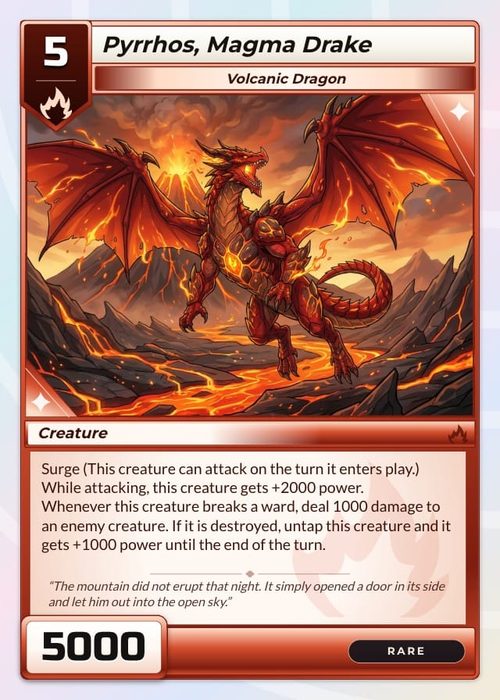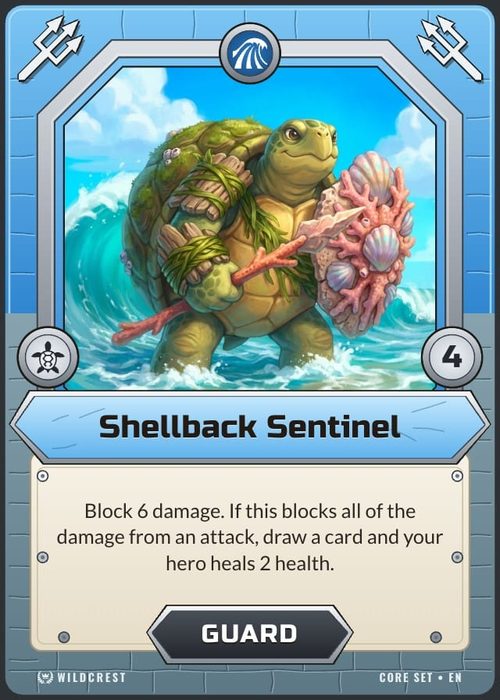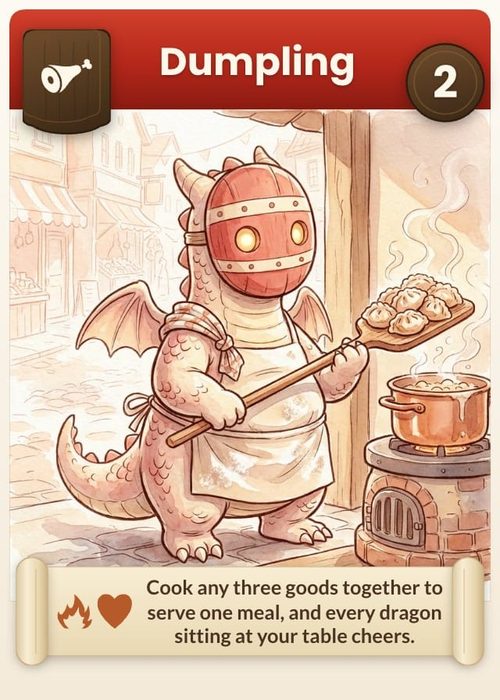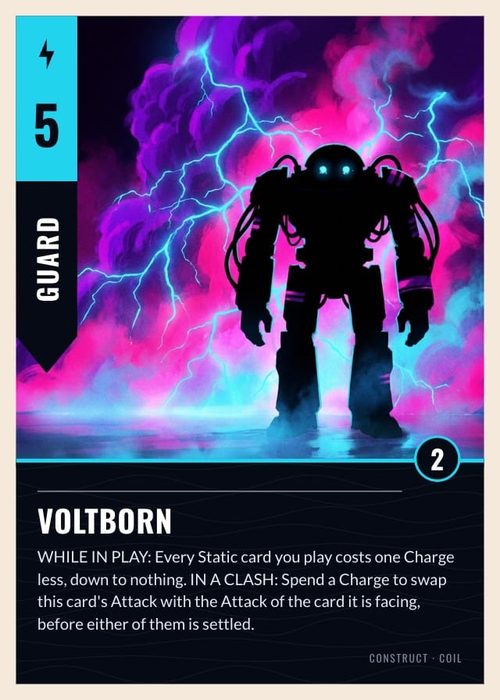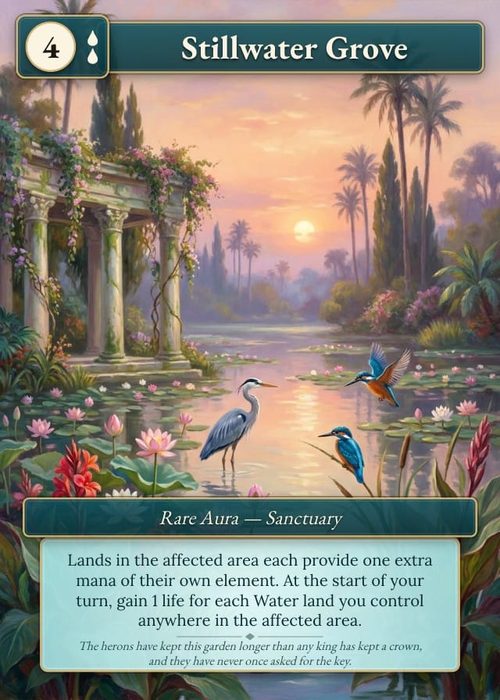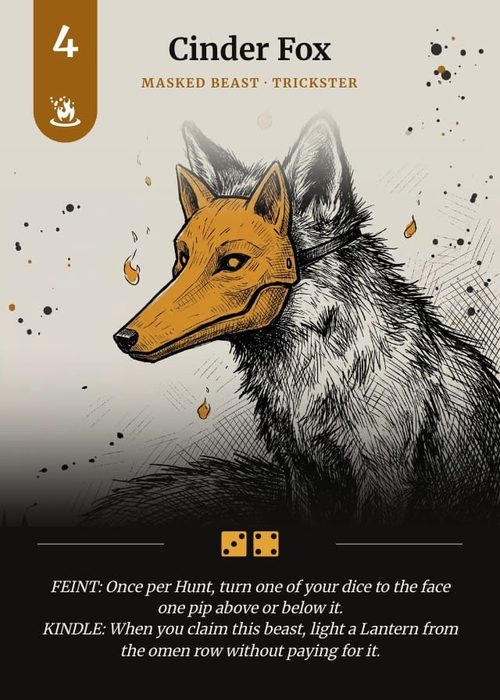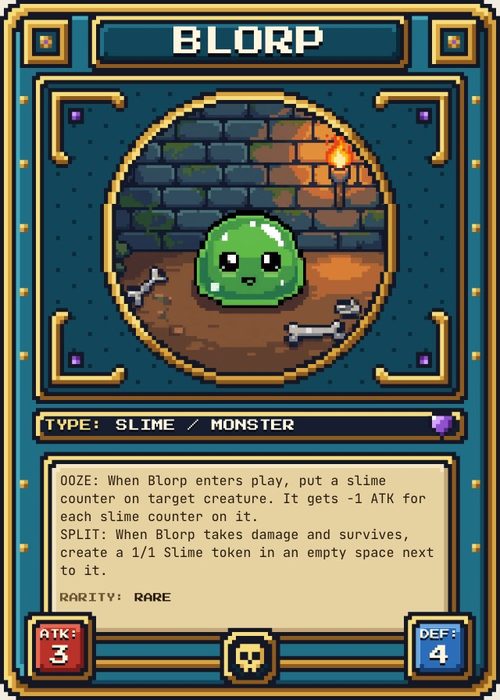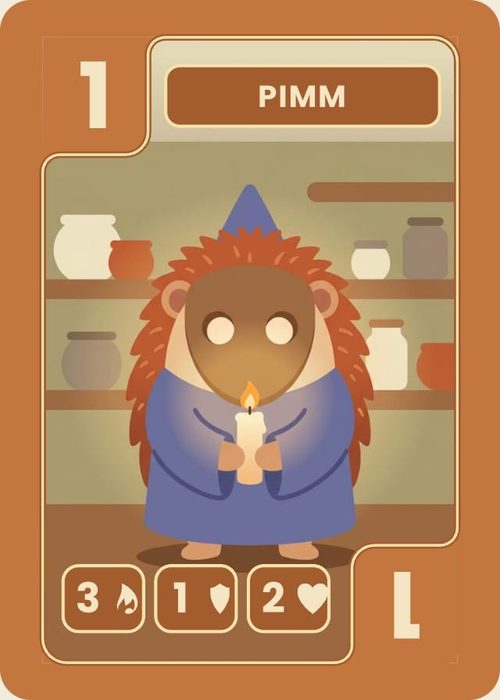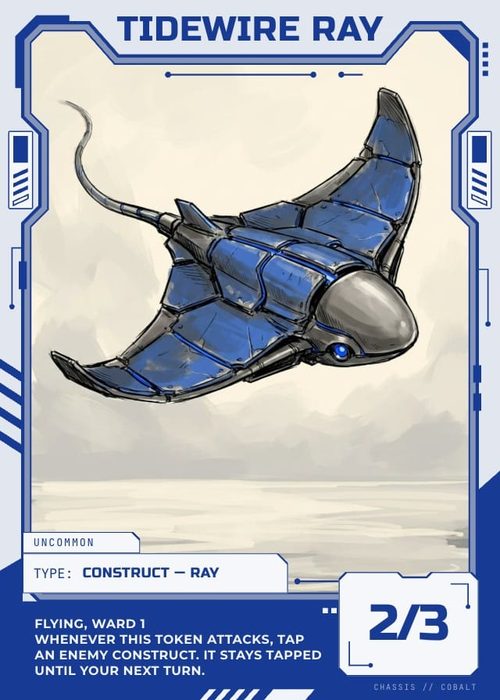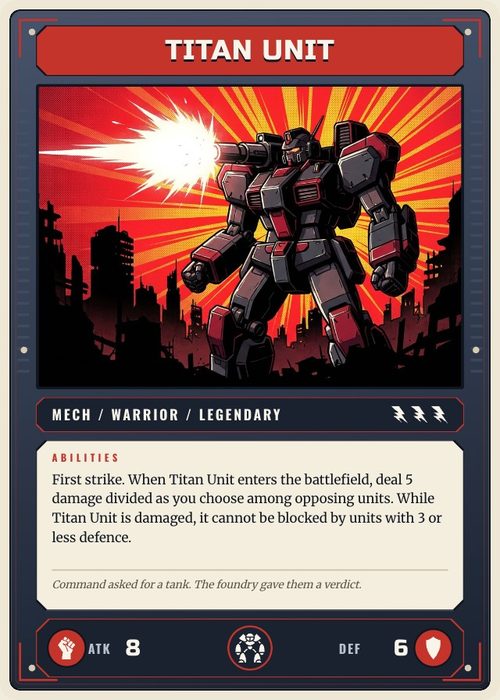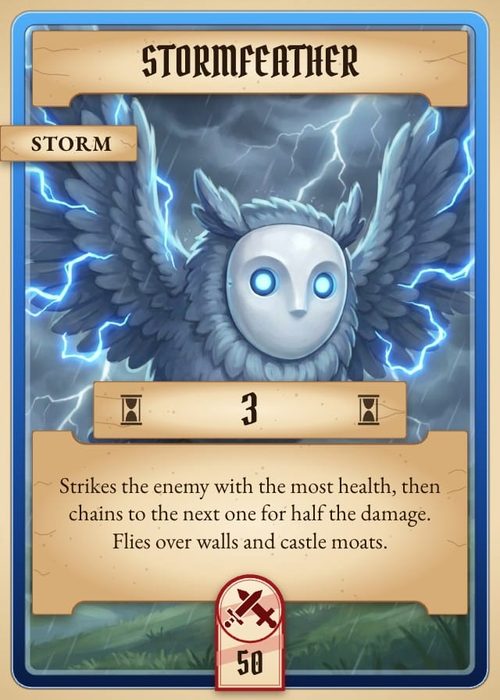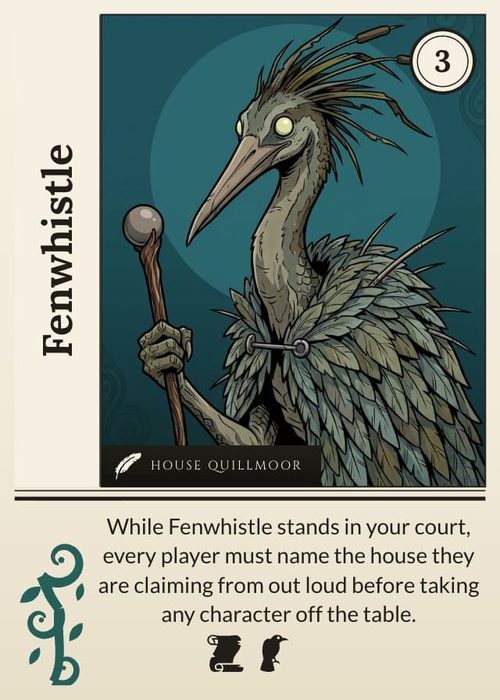
Nearly everyone making a card game starts the same way: searching for a template. A blank playing card for Canva, a trading card PSD, an Illustrator layout, something to fill in so the first card looks real. That instinct is right, and this post will point you to good templates. But there's a catch worth knowing up front: the template only solves card number one. The real question is what happens on cards two through sixty, when the name, cost, art, and rules text change on every card but the design has to stay identical. Some tools treat a template as a picture you copy. The better ones treat it as a layout your card data flows through.
So here's where to get templates, and what each option is actually good at.
What a card template actually needs
Before the tools, the spec, because a pretty template that prints wrong is worthless. A standard poker card is 2.5 by 3.5 inches. At print resolution (300 DPI) that's 750 x 1050 pixels, and printers want an extra eighth of an inch of bleed on every edge, which brings the file to 825 x 1125 pixels. Anything important, names, costs, rules text, should stay inside a safe zone roughly 30 pixels in from the cut line, because trimming machines wobble. A real template also needs a back design, and fixed zones for your name, cost, art, and text so every card in the deck reads the same. (We wrote more about why that consistency matters in our card design rules post.)
If a template you download doesn't mention bleed or DPI, it's a screen template, not a print one. Fine for prototypes and digital play, a problem the day you order 500 decks.
ShuffleKit
Best for: templates that apply to the whole deck, not one card.
ShuffleKit ships with 35 template packs, from clean minimal frames to full fantasy TCG styles with monster, spell, and trap variants, and the difference is what happens after you pick one. The template binds to your card data: import a spreadsheet, and every row becomes a card wearing that layout. Edit the template, and all sixty cards update at once. Cards two through sixty stop being a problem, because they were never separate files.
Every template is already at print spec (that 825 x 1125 poker canvas with bleed), and the same deck exports to print-ready PDF, PNG, or a Tabletop Simulator sheet. You can also ignore the library and build your own layout from scratch in the editor. It's free to start, browser-based, and the AI can help fill the artwork and data if you're staring at sixty empty rows.
The finished sets live in the card game template library, and the trading card game templates are the ones with a full frame, a matching back and a sample deck to edit.
Canva
Best for: the biggest template gallery, and quick one-off cards.
Search "playing card" in Canva and you'll drown in options. It has the largest template collection of anything here, the editor is famously easy, and the free tier gets you surprisingly far. For a single showpiece card, a box design, or a rulebook, it's hard to argue with.
Full decks are another story. Each card is a design you duplicate and edit by hand, so a sixty-card deck means sixty manual edits every time your layout changes. Pro (about $15 a month) softens this with Bulk Create, which can merge a CSV into copies of a design, but it was built for social posts, not card sheets, and you'll feel that. Print-grade export with CMYK also sits on the paid tier. One more caution: Canva's content licence doesn't let you resell its stock elements and templates as-is, so a deck you intend to sell should be built from your own art rather than assembled from Canva's library. (We broke the difference down in ShuffleKit vs Canva.)
Figma
Best for: designers who want component-based templates and total control.
Figma is where working designers build card templates, and its component system is the reason. Build the card frame once as a component with text and image properties, and every card instance inherits changes to the master. That's the closest a general design tool gets to a real template pipeline, and the community file library is full of free card and TCG templates to start from.
It's still DIY, though. Feeding a spreadsheet into instances takes a plugin (Google Sheets Sync and friends), exporting with bleed takes another, and none of it is card-aware, so you're the one keeping sixty instances honest. The free plan covers all of it for a solo designer. If you already live in Figma, it's a strong choice; if you don't, the learning curve buys you power a card designer only partly needs.
Printer templates: The Game Crafter and MakePlayingCards
Best for: guaranteed-correct specs when you know where you're printing.
The two big print-on-demand card printers both publish free blank templates for every product they make, with the bleed, cut, and safe lines already drawn. The Game Crafter's are the reference for its poker deck spec, and MakePlayingCards offers the same for its sizes and finishes. If you design in Photoshop, Illustrator, or Affinity, starting from your printer's own template is the single best way to avoid a misprinted order.
Remember what these are, though: specification files, not design tools. They're a correctly-sized empty rectangle. The layout, the data handling, and the sixty-card problem are still yours, which is why most people pair a printer template with one of the tools above rather than hand-building every card in Photoshop.
Google Slides and PowerPoint
Best for: free prototype templates everyone already knows how to edit.
Don't laugh, this is a real workflow, and even Tabletop Simulator's own blog has recommended it. Set a slide's page size to card dimensions, build your template on the first slide, then duplicate a slide per card. It's free, it's collaborative, your non-designer co-designer can edit cards without learning anything, and exporting slides as images gets you a playable prototype deck.
The ceiling arrives fast. There's no bleed, no DPI control, no data merge, and reworking the layout means touching every slide again. Treat it as the fastest free way to get a testable deck this weekend, and plan to move to a proper tool once the design settles.
Which one should you pick?
- Want the template to drive the whole deck, spreadsheet in, print files out? ShuffleKit (free to start).
- Need one gorgeous card or the box art? Canva.
- Already a Figma user? Build the card as a component and enjoy the control.
- Know your printer? Download The Game Crafter's or MakePlayingCards' blank templates before you design anything.
- Need a testable deck by the weekend, for free? Google Slides, no shame in it.
In the end, a template is a promise that every card will look like it belongs to the same game. Tools that keep that promise for you, through data binding or components, scale to a full deck. Tools that make you keep it by hand are fine right up until the first big layout change. For what belongs inside the template, our card design rules post covers the six rules that matter most, and how to make your own card game covers the rest of the process.
ShuffleKit's whole template library is free to browse, and your first deck is free to build. I'd love to see what you make with it. Start from a template.